Rank Intelligence Overview
This article focuses on the Keyword Rankings section of Rank Intelligence. Rank Intelligence allows for on-the-fly analysis of your managed keyword set for multiple ranking metrics compared to multiple domains. Historical data can be viewed for new tags without the need to reprocess and tags can be further grouped by type.
Rank Intelligence Use Cases
Identify changes in keyword rankings, spot trends, and opportunities in keyword performance
Access quality, reliable ranking data delivered daily or weekly for desktop and mobile. Learn more
Easily compare your keyword rankings with those of competitors
View, sort, filter, and analyze your ranking data dynamically to focus on specific metrics or segments for real-time insights
Create automated and custom reports, dashboards, and visualizations to communicate SEO insights effectively
Instant access to download and export data for further analysis and presentation
Background & Requirements for Rank Intelligence
Keywords need to be added to the platform for tracking to view related data in the Rank Intelligence tool. Learn More
Watch this video to get a quick overview of the capabilities of Rank Intelligence:
Rank Intelligence
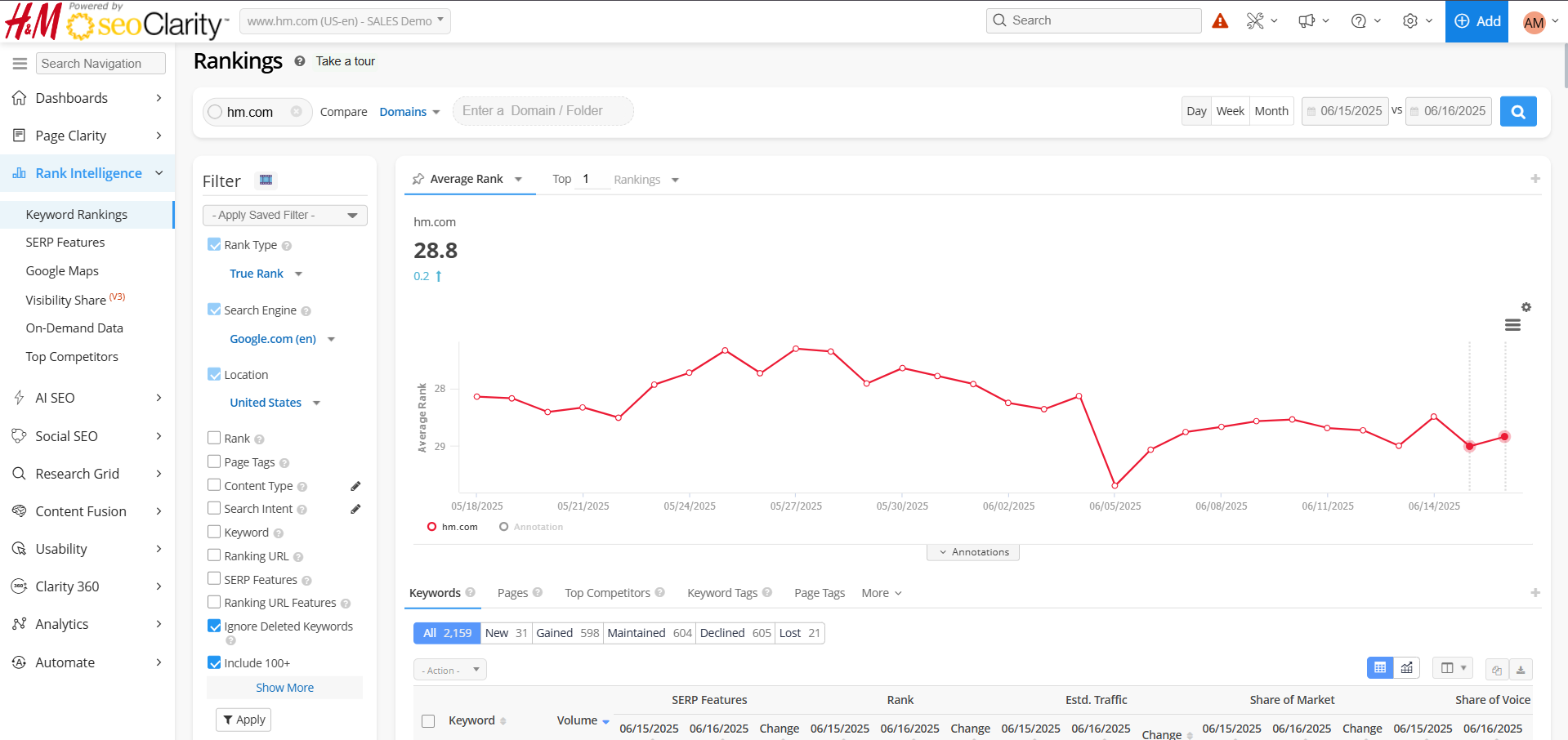
Rank Intelligence Inputs
By default the domain of the profile you are in is displayed. The color of the domain in the chart can be modified via the Universal Competitors setting.
Compare: This selector allows you to create data comparisons by Domains, Competitors, Keyword & Page Tags, and Search Engines.
Compare Domains: Select this option to input specific domains to view ranking data for based on the managed keyword set.
Compare Top competitors: Select this option to compare against the domains that have the most top-10 ranking keywords from your managed keywords set.
Compare Universal Competitors: Select this option to compare against specific universal competitor domains based on the
Universal Competitor setting.
Universal Competitors are competitors you have added for tracking.
Compare Keyword Tags: Select this option to compare ranking data for keywords that exist in the selected keyword tag groups.
Compare Page Tags: Select this option to compare ranking data for managed keyword that rank for pages that exist in the selected page tag groups.
* It is important to note that the Page Tag Comparison option is only reflected in the chart, not the table.
Compare Content Type: Select this option to compare ranking data for each content type that exist in the Content Type filter.
Compare Search Engines: Select this option to compare ranking data based on the managed keyword set between different search engines that have been enabled.
Date Selector: Select the dates for which you want to view ranking data. This defaults to the two most recently ended periods for daily & weekly domain profiles.
Day: Displays ranking data based on a daily view in the main chart & the keyword data table.
Week: Displays ranking data based on a weekly view in the main chart & the keyword data table.
Month: Displays ranking data based on a monthly view in the main chart & the keyword data table.
Rank Intelligence Weekly & Monthly Rank View Options
When looking at the rank options for the week or month, there are multiple ways to view ranking data across that date range.
Last Weekend: This displays rankings based on the Sunday of that week and the last Sunday of the month for monthly rankings.
Best Rank: This displays rankings based on the best position (lowest number) during that date range.
Avg Rank: This displays the average ranking position based all days in that date range.
Most Frequent Rank: This displays rankings based on the most frequently occurring rank position (aka mode) during that date range.
Rank Intelligence Rank Change Identifier
When specifying a date range or selecting two points within the graph, you'll either see a blue arrow pointing up or a red arrow pointing down located under the average rank. This identifies either the amount of increase or drop in rank between the two end dates selected.
Rank Intelligence chart metrics
Choose a metric from the dropdowns above the main chart to view trend data for the domain(s) selected. Select the Pin icon next to a metric to set that as the default view for Rank Intelligence. The default metric will be shown with that pin highlighted. The default selection pin is saved in a cookie on your machine and will persist until cookies are cleared.
NOTE: You can set a default view for any of these four dropdown chart view selectors by clicking one of them, selecting a view, and then clicking the pushpin icon on the menu label. This setting is stored in a browser cookie, so is specific to each individual users and will need to be reset when cookies expire or are cleared.
Metrics dropdown
- Average Rank: This is the mean rank for the keywords based on the date range selected.
- Wtd. Average Rank: This is obtained by first calculating the weight of each keyword; which is done by taking the search volume for a single keyword and dividing it by the total search volume for the keyword group. Next, each newly calculated weight is multiplied by the current rank for that keyword; this calculation gives us the weighted rank for each keyword. Finally, sum the Weighted Rank numbers from the selected keywords and this total gives you the Weighted Average Rank.
- By Position: Count of number of ranking keywords distributed in ranking groups.
- By Page: Count of number of ranking keywords distributed by search engine results pages.
- Estd. Traffic: This is calculated by multiplying the click-through rate for that particular rank position by the average search volume for the keyword.
- Share of Voice: This is the percentage of traffic you should be receiving based on your Managed Keywords out of the total traffic potential versus your competitors (for the top 1 rank positions).
- Share of Market: This is the percentage of traffic you should be receiving based on your Managed Keywords out of the total traffic potential versus your competitors (for the top 10 rank positions).
- SERP Title: Shows the average length of Titles on Google search results pages, updated weekly on Sunday.
- SERP Meta: Shows the average length of Meta Descriptions displayed on Google search results pages, updated weekly on Sunday.
- Listing Count: Shows the distribution of the number of URLs ranking per keyword.
Top X dropdown
- Top x Rankings: This is the count of managed keywords ranking in the selected 'x' position, where 'x' is a positive number less than 101.
- Top x Search Volume: This is the count of managed keywords ranking with 'x' search volume, where 'x' is a positive number.
How to Apply Data Labels to the Rank Intelligence Chart
To show a data label for each data point on a chart, click the Gear icon and then the Display Labels checkbox at upper right. (You can also see individual data labels by hovering over a data point in the default chart view.
How to Change the Chart Type in Rank Intelligence
To change which type of chart is displayed, use the hamburger menu icon at the upper right of the chart. Data labels can toggled on or off use the checkbox option seen above the chart type display menu.
Rank Intelligence data tables
Keywords: This displays the managed keywords with their average search volume and a comparison based on the selected metric for the selected domain(s). To change the dates compared, select that date in the chart (a vertical grey line highlights this). The Ranked Page column will display the previous highest ranking URL with a strikethrough below the current highest ranking URL if it is different. This is an indicator that highest ranking URL has changed but does not mean the previous highest ranking URL is no longer ranking.
Pages: This displays a pivot of the keywords table, where the ranking pages are shown along with their selected metrics.
Folders: This displays a pivot of the keywords table, where the ranking folders are shown along with their selected metrics.
Subdomains: This displays a pivot of the keywords table, where the ranking subdomains are shown along with their selected metrics.
Top Competitors: Top Competitors displays a summary of your top-performing search competitors based on your managed keyword set, with their estimated traffic, count of ranking keywords and the selected metric.
Keyword Tags: This displays the current keyword tag groups along with their selected metrics.
Content Type: Displays ranking performance by content types based on Content Types created in the Filter menu. The download of monthly rankings shows the last Sunday for consistency and to avoid potential anomalies caused by certain SERP features showing up (URL filter). *Note: The Content-type filter can display up to five content types when selecting more than 90 days of data.
Search Intent: Displays ranking performance by Search Intent based on created Search Intent in the filter menu (keyword filter).
How to use column filters (the boxes at the top of most data table columns)
Rank Intelligence data table quick filters
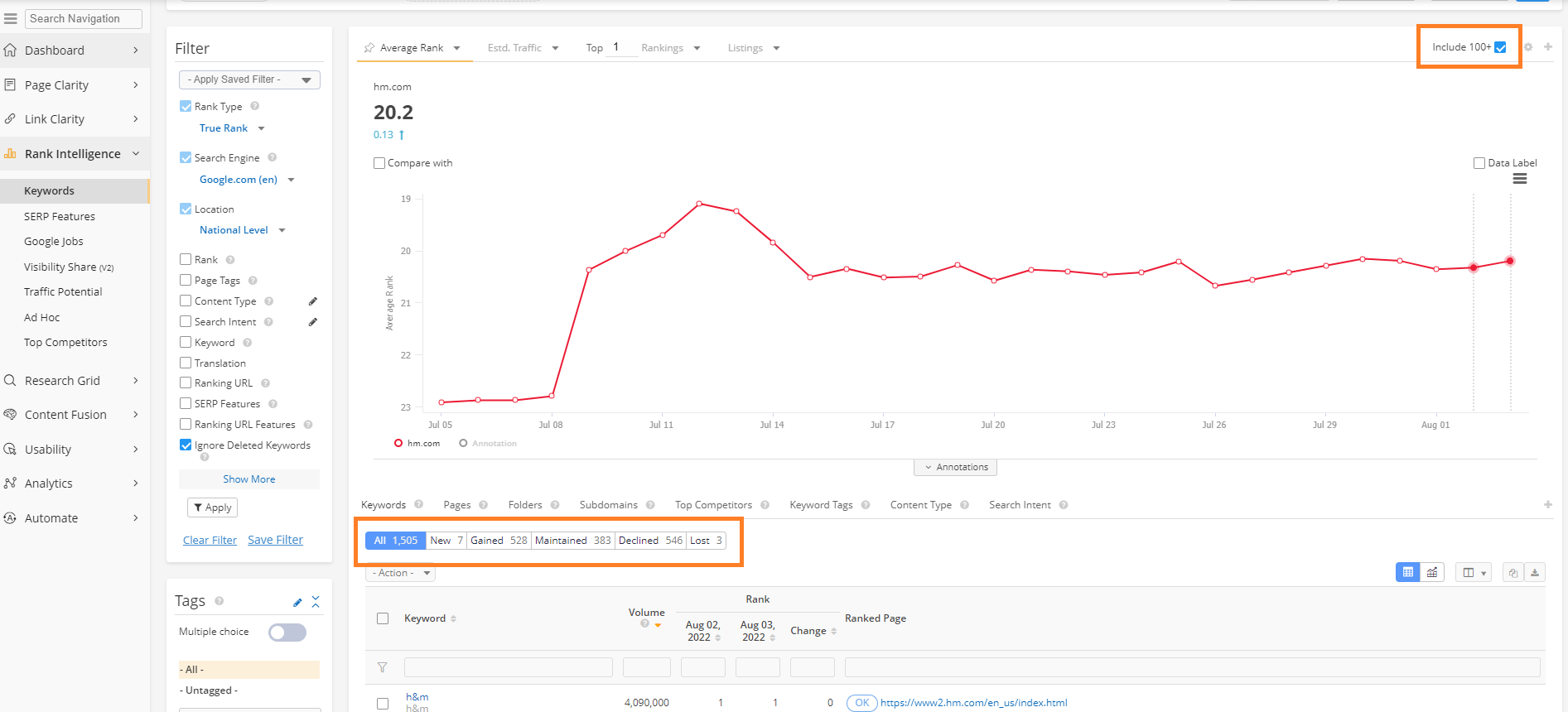
The metrics shown are based on the domain(s), metric, date range, and filtering selected. Clicking on New, Gained, Maintained, Declined or Lost will filter the keyword data table to show only keywords from that category.
All: The metric shown here depends on the condition of the "Include 100+" checkbox at upper right:
100+ checked (default): Count of all the domain's managed keywords, whether ranking or not.
100+ unchecked: Count of keywords currently ranking in the top 100.
New: Keywords that started ranking in the top 100. during the selected period.
Gained: Keywords already ranking on the first date selected that gained at least one rank position.
Maintained: Keywords that maintained the same rank position.
Lost: Keywords that are no longer ranking in the top 100.
Declined: Keywords that have declined at least 1 rank position but still rank in the top 100.
URL Status Data and HTML Elements
Hover over the "OK" URL status icon to view details for the HTML elements found on that page. This window also displays the last crawled and the last changed date and time. The URL status icon "?" indicates the URL is not tracked and would need to be added to PageClarity managed pages to allow for the URL to be crawled. Once it is crawl the status icon will change and will display the URL status data.
Ranked Pages Ranking Changes
The Ranked Pages column in the Keywords view shows when the ranking page changes. The previous ranking page is shown in light gray with a strikethrough indicating it is no longer ranking highest for the keyword. While the previous page displayed may not be ranking highest, it may still be ranking within the results. You can check the URL Rank Trend view (hover to the right of the keyword) and then click on URL Trend to quickly see the history of fluctuations in pages ranking and whether there are multiple pages ranking for the keyword.
If a ranking page is shown in light gray with a strikethrough and there isn't a new URL displaying above, this would indicate that it went from ranking to non ranking (100+).
Geo Location Data Tables (enabled feature)

Keyword Summary: This displays the managed Geo enabled keywords with their average search volume and a comparison based on the selected metric for the selected domain(s) for all enabled locations.
Keyword Detail: This displays the managed Geo enabled keywords with their location, average search volume and a comparison based on the selected metric for the selected domain(s).
By Location: This displays the enabled Geo locations with a comparison based on the selected metric for the selected domain(s).
Top Competitors: This displays a summary of your top-performing search competitors based on the managed keyword set with their estimated traffic, count of ranking keywords and the selected metric.
Rank Intelligence actions dropdown
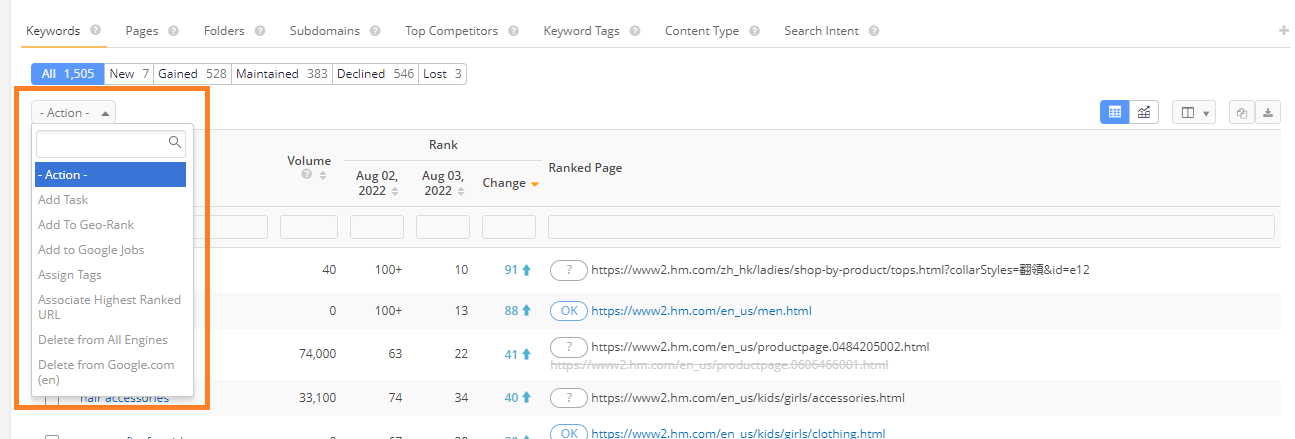
- Add Task: Allows for tasks to be assigned for the selected keywords.
- Add to Geo Rank: Allows for keywords to be tracked against a specific geo location. This can be used with the Location filter by selecting Geo-Locations once Geo Rank locations have been setup via Settings. This can incur an additional cost.
- Add to Google Jobs: Google Jobs is an example of a rank checking add-on feature. Once enabled, it will appear in the Action menu to add selected keywords to be tracked in the rank checking add on feature.
- Assign Tags: Allows for tags to be assigned to the selected keywords.
- Associate Highest Rank URL: Allows the selected keywords to be associated to their highest ranking URL.
- Delete from All Engines: Select this option to remove the keyword from all search engines it is currently tracked in.
- Delete from Google.com (en): Select specific search engines in the menu to remove selected keywords from just those search engines.
- Dissociate Keywords from All Tags: Remove any tag associations from the selected keywords, leaving them untagged.
Rank Intelligence export options
Data from charts and tables can exported via the standard options.
Learn More
Rank Intelligence Filters
Filters are used by selecting their corresponding checkbox to enable them and inputting the logic requirements. Once enabled with inputs, select the Apply button to see the filtered results.
Rank Type: Web Rank counts rankings based on standard (blue) web links and True Rank counts other organic results like images. If you would like to enable Visual rank, contact your Client Success Manager.
Search Engine: Select the search engine (and device) to view rankings based on.
Search Volume Type: This filter can be enabled by request to
support@seoclarity.net. Select Adwords to view search volume from Keyword Planner (default) or a custom search volume, such as
True Demand.
Location: Select the location to view rankings based on. By default this is set to the primary location of the domain. Geo Locations can be enabled via settings and can incur billing updates.
Limit Depth: Starting September 2025, ranking data is limited to 30 results by default or the number specified in the contracted work order. Use this filter to limit all analysis to that depth for a more normalized view of trended metrics historically.
Rank: Select the ranking range to be viewed with options for Equals, Greater Than, Less Than and Between.
Page Tags: Select the page tag group to view rankings just for the pages within that tag.
Content Type: This allows for nested filtering of pages based on multiple criteria using AND OR statements to be saved and reused. This applies to all dates selected in the data table, which means it will display all keywords where that type of URL is found ranking at least once.
Search Intent: Search Intent helps segment data by the underlying intent. This is most commonly used for Brand and Non-Brand analysis. Simply specify the patterns to match and the data is segmented on the fly immediately.
Keyword: Select the type of keyword to be viewed with options for Is, Isn't, Contains, Doesn't Contain, Starts With, Ends With, and Regular Expression.
Translation: Setting needs to be enabled to view this filter option. Allows for filtering of this column.
Ranking URL: Select the type of URL to be viewed with options for Is, Isn't, Contains, Doesn't Contain, Starts With, Ends With, and Regular Expression.
SERP Features: This filter option allows you to narrow down the keywords that a domain ranks for based on the universal rank features discovered for the keyword. This is NOT filtering for the domain's rank IN the universal rank type - instead, it simply shows keywords where the universal rank feature was present. A common use case is to filter by "Answer Box" to see all the keywords where the domain was ranking that also had an answer box present. An even more advanced used case is to combine this with the rank filters. For example, you could apply the Answer Box filter and also the Rank filter "between 2 - 10" to display all keywords where the domain ranked, the answer box was present, but the domain was not in the Answer Box (Since Answer Boxes are counted as Rank position 1, if we set the rank to be between 2 - 10, it would indicate keywords where the domain was not in the Answer Box but was still in the top 10 results.

- Answer Box: Results will be filtered for SERPs that include Answer Box SERP results
- Event: Results will be filtered for SERPs that include Event results
- FAQ: Results will be filtered for SERPs that include FAQ results
- Free Product Listings: Results will be filtered for SERPs that include Free Product Listings
- Images: Results will be filtered for SERPs that include images
- Job Pack: Results will be filtered for SERPs that include the Job Pack
- Knowledge Graph: Results will be filtered for SERPs that feature a Knowledge Graph panel
- Local Listing: Results will be filtered for SERPs that include Local Listings results
- News: Results will be filtered for SERPs that include News results
- PPC: Results will be filtered for SERPs that include PPC ad results
- People Also Ask: Results will be filtered for SERPs that include People Also Ask results
- Products: Results will be filtered for SERPs that include the organic product carousel
- Shopping (Ads): Results will be filtered for SERPs that include Shopping results
- Salary Estimate: Results will be filtered for SERPs that include Salary Estimates results.
- Videos: Results will be filtered for SERPs that include videos
- None: Select this option to remove any SERP Features from being used in ranking summaries.
Ranking URL Features: Select this option to filter data for URLs that have or do not have Event, Price Schema, FAQ, Stock Schema, Star Ratings, Video Thumbnail, Image Thumbnail, or Image Carousel features.
Ignore Deleted Keywords: Select this option to exclude keywords that have been deleted. Keywords that have been deleted will still be present in data tables for dates where data is present.
Include Unranked: When enabled, keywords where the searched domain is not found ranking will be included in metric calculations.
Show More Filters:
- Date Added: Allows you to filter for managed keywords based on when they were added. Select the criteria Date After, Date Before, or Date Equal along with the corresponding calendar date.
- Preferred Page: Select this option to view the performance of associated (or preferred) landing pages compared to the domain as a whole.
Options include: PLP Highest Ranked*, PLP Not Highest Ranked, PLP Not Set, and All. Learn More *In cases where there are multiple PLPs for one keyword, If at least one PLP is the highest ranking then it counts as PLP Highest Ranked (and thus does not count for PLP Not Highest Ranked).
PLP Rank: Enabled when the Preferred Page filter option is selected. Select the PLP ranking range to be viewed with options for Equals, Greater Than, Less Than and Between.
PLP Page Tags: Enabled when the Preferred Page filter option is selected. Select the PLP page tag group to view rankings just for the pages within that tag.
PLP Content Type: Enabled when the Preferred Page filter option is selected. This allows for nested filtering of PLP pages based on multiple criteria using AND OR statements to be saved and reused. This applies to all dates selected in the data table, which means it will display all keywords where that type of URL is found ranking at least once.
Listing Count: Allows you to filter for managed keywords that have more than one listing on a specific date.
Search Volume: Select the search volume range to be viewed with options for Equals, Greater Than, Less Than and Between.
Prior Period: Unselecting this option will only show the most recent date and the change compared to prior date. This is helpful if you'd like to simplify the view.
Exclude Keyword Tags: Select Keyword Tag groups to be excluded from the view and data calculations.
Saving Filters in Rank Intelligence
Explore the filter options needed for your particular use case, especially those you may use frequently, and save them.
You can access your saved filters at the top of the filter columns:
In case of need, you can update your filter by selecting it and then changing the filters. Go and update it like so:
Note: When you create a Saved filter in Rank Intelligence that includes Date Comparisons, Competitor Selections, or Preferred Landing Pages, the "favorite" feature isn’t available due to the dynamic nature of these filters. Since date comparisons involve different data sets, they don’t fit with the "favorite" functionality.
Instead, you can effectively manage and reference your filter settings by creating a
Dashboard widget.
Create Group Hierarchies With Tag Organizer
Tags: Filtering can be done via keyword tag(s), with the ability to select multiple tags and further filter via the multi-select setting button based on all keywords or common keywords in the selected tags. Tags can be organized further into hierarchical Groups to help bucket similar tag groups. Groups can be managed via the edit (pencil) icon.

Clicking on the edit button will open the Tag Organizer. In the Tag Organizer you can:
- Create new tags
- Create new group tags
- View the number of keywords in a tag
- Click and drag tags to apply them to different groups
- Edit the tag names
- Delete tags