Page Tags
Page Tags Overview
Page Tags are a way to group managed pages or URLs together to allow for segmented analysis specific to those pages. This walkthrough will take you through the process of adding, editing, and deleting Page Tags in the seoClarity platform.
Page Tags Use Cases
- Group segmented pages by page tag. Learn more
- Use page tags to group pages for testing. Learn more
- Grouped relevant pages together to allow for easier analysis and storytelling. Learn more
Background & Requirements for Page Tags
To start this walkthrough, you will need to be in the Page Tags section of the seoClarity platform. Click here to go to the feature or click on Page Tags located in the Page Clarity section of the navigation.
Page Tags: Tags tab
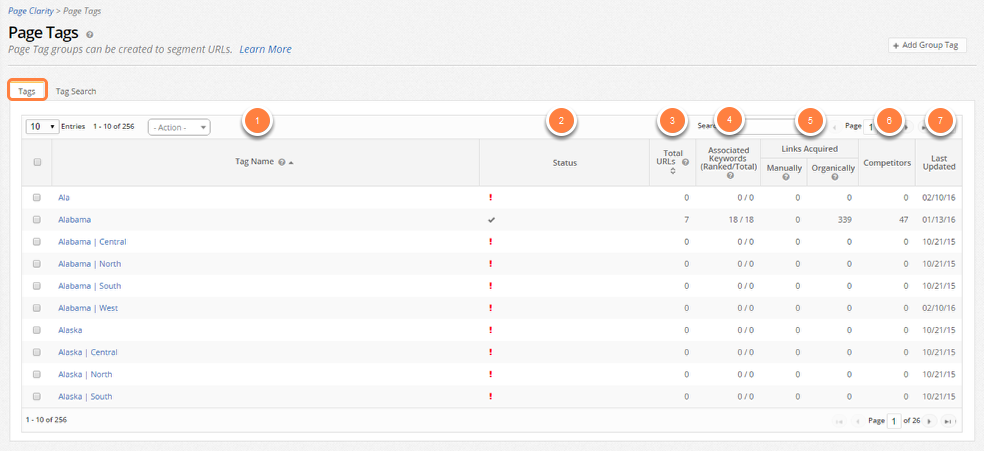
- Tag Name: Displays the name Tag Group displayed on this line. Clicking on the name will show you a Page Clarity report for the individual target URLs that are grouped within that tag
- Status: Displays the status of the ranking data for the keywords in the specific tag
- Total URLs: Displays the total number of unique URLs that are included in this Group Tag
- Associated Keywords (Ranked/Total): Displays the number of ranked keywords compared to the total count of keywords that are associated by all of the URLs in this Group Tag
- Links Acquired
- Manually: Displays the count of partner URLs/ Links that have been added to Link Clarity and point to this the target URL in this group
- Organically: Displays the count of partner URLs acquired from your most recent Google Webmaster Tools report added to seoClarity that point to this group of target URLs
- Manually: Displays the count of partner URLs/ Links that have been added to Link Clarity and point to this the target URL in this group
- Competitors: Displays the count of the competitors you have associated with the target URLs in this group
- Last Updated: This is the last date that a modification took place in this page tag
- Compare Date Selector: Allows the selection of dates for comparison of Page Tags
Page Tags: Tag Search tab

- Tag Filter: Choose a Page Tag to view in the data table
- Page: Displays each URL that is in a Group Tag
- Group Tag: Displays the name of the Group Tag that the page is in
Page Tags: Content Alerts tab
The Page Tag Content Change Alert section displays all alerts that have been successfully created. Content Change Alerts can be edited or deleted using the Actions dropdown menu.
- Page Tags: Displays the Page Tags that have Content Alerts setup.
- Metric/Additional Content: Displays the content the alert is to be based on for the corresponding page tag.
- Content Threshold: Displays the number of characters that if changed for the on-page element send an email alert. An alert will only be sent if this threshold is met, which needs to be greater than 0.
- Tag Threshold: Displays the percent of pages in the page tag group that if changed send an email alert. An alert will only be sent if this threshold is met, which needs to be greater than 0%.
- Alert Email(s): Displays the list of email addresses that are setup to receive the content change alert email.
- Created By: Displays the email of the user who created the content change alert.
How To Create A Content Change Alert
This can be used to create email alerts based off specific content changes for the selected Page Tags. Learn More
1. Click Page Clarity in the left navigation bar
2. Click on Page Tags
3. Click the check boxes for the Page Tags that you want Content Change Alerts for
4. Click on the Actions drop down menu
5. Click Create Content Change Alert
6. Click on the Metric drop down menu the Create Content Change Alert pop up that appears
7. Click on the check boxes for the metrics you would like to receive alerts about.
8. Type in the number of characters in the Content Threshold text box
9. Type in the percentage in the Tag Threshold text box
10. Type in the email addresses of the users that you would like these alerts sent to in the Alert Email(s) text box
11. Select the Ok button
Email Alerts settings for Content Change Alerts
1. To enable additional items for selection within the Content Change Alerts popup, navigate to the Settings page and select the Email Alerts tab.
2. Click the Email Alert Metrics check boxes for the on-page metrics you would like to keep track of
- Title: A title is in the code of a document or web page that is required in all HTML documents
- Meta Desc: A description in the code of a document or web page that search engines receive
- metaKeyword: A group of of keywords in the documents or web pages code that describes the document or page in the code of a document or web page
- Number of h1: A description of the most important heading in the code of a document or web page
- Content of h1: Any content located between an open <h1> and closed </h1> div tag in the code of a document or web page
- Number of h2: A description of the second most important heading, or sub-heading, in the code of a document or web page
- Content of h2: Any content located between an open <h2> and closed </h2> div tag in the code of a document or web page
- Additional content: Any additional content that has been set up for the crawl to find.
Click Submit. After clicking Submit, you will see a success message at the top of the page.
Content Change Email Alerts
Default recurring (daily, weekly, monthly) email alerts can be enabled for all users with access to a domain based via the Email Alert Setting. Additional on-page metrics for your domain or competitors can be added to Content Change Alerts. Pages need to be managed in a tag for Content Change Alerts to be setup.
Page Tag Content Change Alert Examples
This alert will notify the user by email when any of the content in Page Tags surpasses a specific threshold that is set by the user that created the alert.
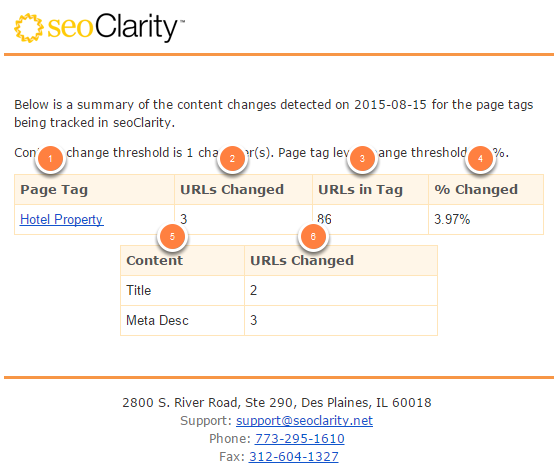
- Page Tag: Displays the title of the Page Tag that has surpassed the set threshold.
- URLs Changed: Displays the number of changes of managed URLs that have surpassed the set threshold for that Page Tag .
- URLs in Tag: Displays the number of managed pages for that Page Tag.
- % Changed: Displays the percentage of changes in managed URLs that have surpassed the set threshold for that Page Tag.
- Content: Displays the metrics that were selected to be tracked in the alert.
- URLs Changed: Displays the number of changed managed URLs that have surpassed the set threshold for that Page Tag.
Response Code Change Alert
This alert will notify the user by email when any of their pages’ status codes change. All status codes are included in this alert including 2xx, 3xx, 4xx, 5xx, etc.
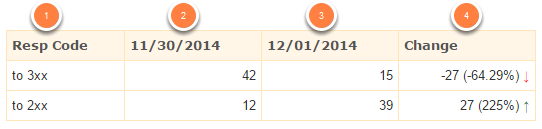
- Response Code: Displays the various response codes that pages can fall under.
- 1st Date Column: Displays the number of changes for each Response Code on that specific date. As shown in the example, there are 176 pages that changed to a 3xx response code. This number can be compared to the 2nd column (insert Toni’s example).
- 2nd Date Column: Displays the number of changes for each Response Code on that specific date for comparison to the previous date. For the second date there are 148 pages that changed to a 3xx response code which is a decrease from the previous day.
- Change Column: The third column will give the user the exact number of changes made between the 2 dates and the percentage to give the clearest picture of changes for each Response Code.
Ex 4: On 12/01 there were 148 pages that changed to a 3xx response code (301 or 302), which is a decrease (-28 pages or 15.91%) in the number of pages that changed to a 3xx response code on 11/30.
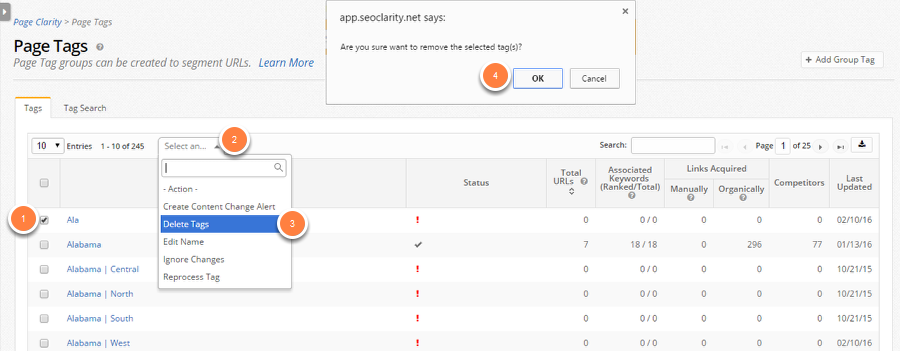
1. Click on the checkbox(es) in the left column that match up to the Page Tags that you would like to delete
2. Click on the Action dropdown
3. Click on Delete Tags
4. In the pop up that appears, click Ok
1. Click on the checkbox(es) in the left column that match up to the Page Tags that you would like to edit
2. Click on the Actions drop down menu
3. Click on Edit Name
4. In the pop up that appears, type in a custom Tag Name in the text box
5. Click Ok

How to Add Page Tags
- Click on the blue Universal Add button at the top right of the page.
- Click on Managed Pages and then click on Page Tag.
- Enter in a custom Page Tag in the text box.
How to add the same page tag to multiple URLs
- Click on the blue Universal Add button at the top right of the page.
- Click Add Target URLs + Tags.
- Enter the list of URLs.
- Click on Select tag and select a tag from the list or type in a new tag name.
How to add different tags to multiple URLs
- Data upload is limited to 10,000 rows.
- Tag names cannot contain a comma (,) or tab as a character.
- Not sure how to insert a tab character between URL and Tag? Simply copy URL and Tag from adjacent cells in Excel.
- Multiple tags for a URL? No problem. Separate tags with a comma (,).
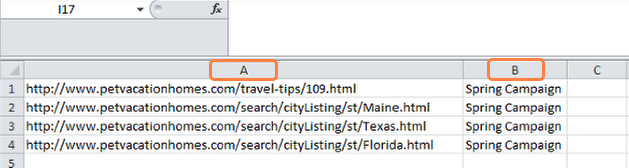
Click Next to verify.
If the preview looks correct, click Submit. If not, select Back and review the input. A popup message will appear confirming the elements have been successfully added to the queue. Click Ok to confirm.
How to Add Keyword + URL + Tag
This will create a keyword + URL assocation, a keyword + tag pair, and a URL + tag pair.
1. Click the +Add Target URLs button
2. Click Add Keyword + URL + Tag in the drop down menu that appears
3. Paste in keywords, URLs, and tags from a spreadsheet. Using a spreadsheet, put the keywords in Column A, URLs in Column B, and the tags in Column C. You will then copy the 3 columns from the spreadsheet and paste them into the pop up.
4. Click Ok

5. A popup message will appear confirming the elements have been successfully added to the queue. Click Ok to confirm
How to Add/Edit Dynamic Tags
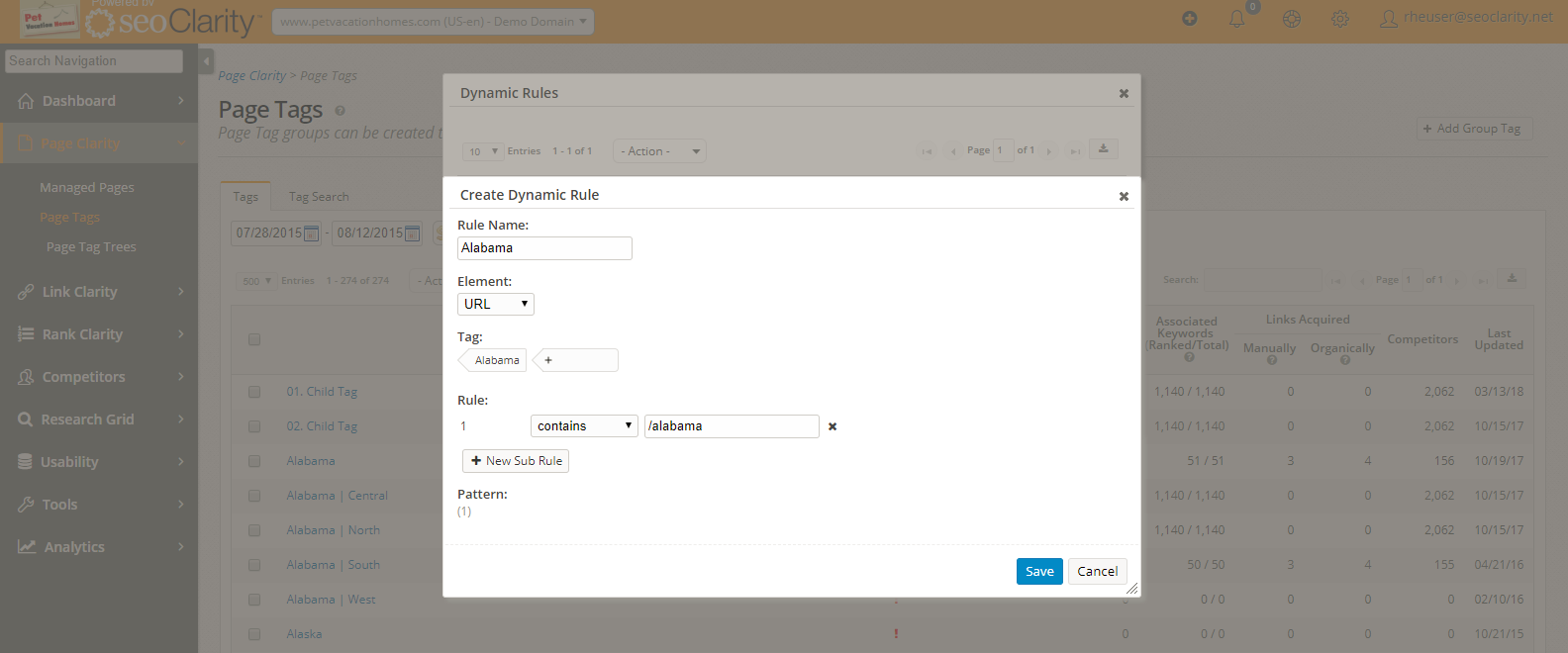
1. Select the +Add Group Tag button
2. Select Add & Edit Dynamic Rule in the dropdown menu that appears
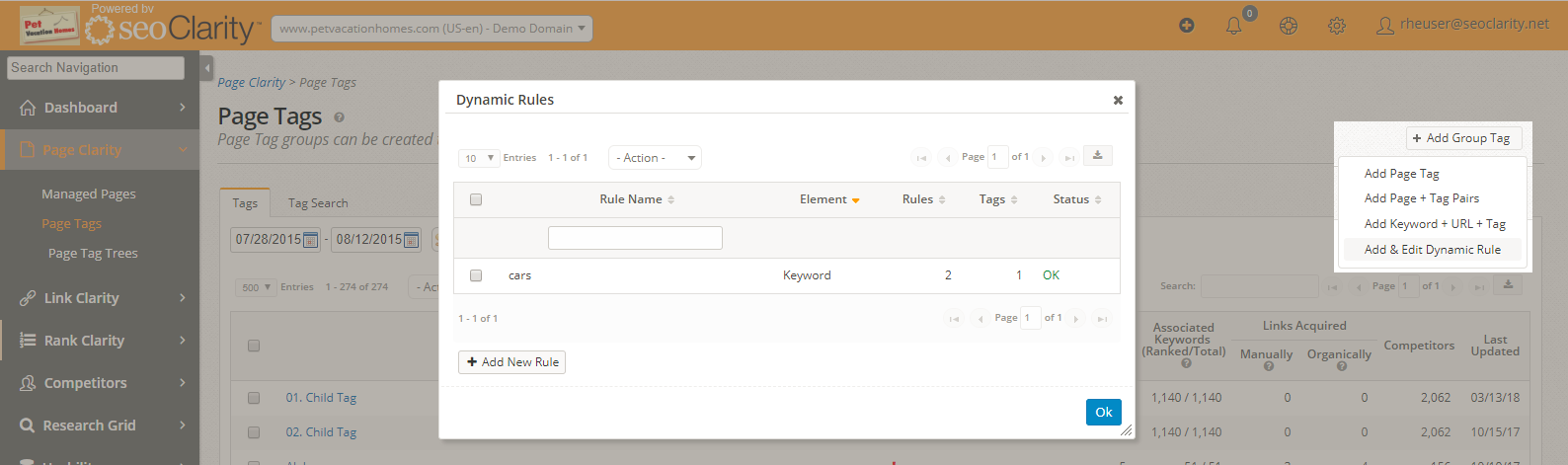
3. New rules can be added by selecting the Add New Rule button. Existing rules will be displayed in the table and can be edited via the Actions dropdown.
4. Give the rule a name.
5. Select the type of element the rule should apply to, keyword tag or page tag.
6. Select the tag(s) that this rule should apply to. These can be applied to new or existing tags. Existing tags will be seen in the dropdown selection.
7. Set the rule(s) that should be applied to new element (keyword or page) additions and select save. The rule applies to newly added elements and will not apply to elements that are already managed in the account unless they are re-added.