How To Review Page Tag Content Change Alerts
Email Alerts settings
Default recurring (daily, weekly, monthly) email alerts can be enabled for all users with access to a domain based via the Email Alert setting. Additional on-page metrics for your domain or competitors can be added to Content Change Alerts. Pages need to be managed in a tag for Content Change Alerts to be setup.
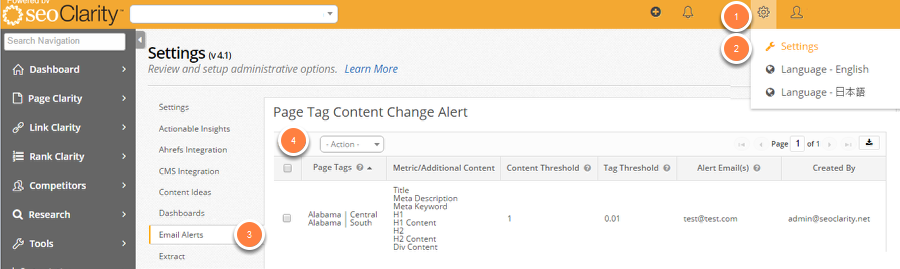
1. Select Settings
2. Select the Email Alerts tab from the Settings navigation menu
3. Navigate to the Page Tag Content Change Alert section at the bottom of the page to see if the alert has been created successfully
Note: Alerts can be cancelled by selecting Delete from the Actions Dropdown
How To Enable On Page Elements For Email Alerts
1. To enable additional items for selection within the Content Change Alerts popup, navigate to the Settings page.
2. Click Settings
3. Click the Email Alerts button in the Settings navigation menu
4. Click the Email Alert Metrics check boxes for the on-page metrics you would like to keep track of
- title: A title is in the code of a document or web page that is required in all HTML documents
- metaDescription: A description in the code of a document or web page that search engines receive
- metaKeyword: A group of of keywords in the documents or web pages code that describes the document or page in the code of a document or web page
- h1: A description of the most important heading in the code of a document or web page
- h1Content: Any content located between an open <h1> and closed </h1> div tag in the code of a document or web page
- h2: A description of the second most important heading, or sub-heading, in the code of a document or web page
- h2Content: Any content located between an open <h2> and closed </h2> div tag in the code of a document or web page
- divContent: Any content located between an open <div> and closed </div> div tag in the code of a document or web page
5. Click Submit. After clicking Submit, you will see a success message at the top of the page.
How To View On Page Elements For Managed Pages And Update The Email Alerts Setting
Page Tag Content Change Alerts
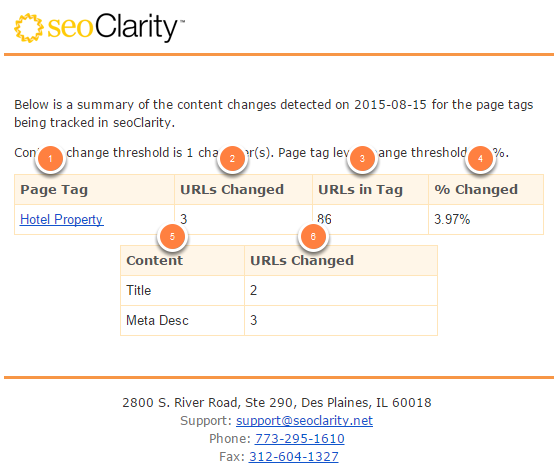
This alert will notify the user by email when any of the content in Page Tags surpasses a specific threshold that is set by the user that created the alert.
Page Tag: Displays the title of the Page Tag that has surpassed the set threshold.
URLs Changed: Displays the number of changes of managed URLs that have surpassed the set threshold for that Page Tag .
URLs in Tag: Displays the number of managed pages for that Page Tag.
% Changed: Displays the percentage of changes in managed URLs that have surpassed the set threshold for that Page Tag.
Content: Displays the metrics that were selected to be tracked in the alert.
URLs Changed: Displays the number of changed managed URLs that have surpassed the set threshold for that Page Tag.
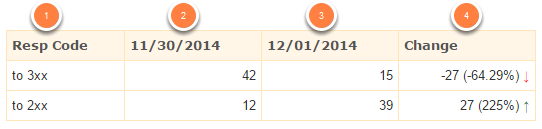
Response Code Change Alert
This alert will notify the user by email when any of their pages’ status codes change. All status codes are included in this alert including 2xx, 3xx, 4xx, 5xx, etc.
Email Alert table
Response Code: Displays the various response codes that pages can fall under.
1st Date Column: Displays the number of changes for each Response Code on that specific date. As shown in the example, there are 176 pages that changed to a 3xx response code. This number can be compared to the 2nd column (insert Toni’s example).
2nd Date Column: Displays the number of changes for each Response Code on that specific date for comparison to the previous date. For the second date there are 148 pages that changed to a 3xx response code which is a decrease from the previous day.
Change Column: The third column will give the user the exact number of changes made between the 2 dates and the percentage to give the clearest picture of changes for each Response Code.
- Example On 12/01 there were 148 pages that changed to a 3xx response code (301 or 302), which is a decrease (-28 pages or 15.91%) in the number of pages that changed to a 3xx response code on 11/30.