New Domain Provisioning: How To Request Profile Creation In seoClarity
Overview
To have a new domain profile provisioned within the seoClarity platform, the attached form needs to be filled out. Once filled out, the form will automatically create a Support Ticket and put you in touch with our Support team.
Notice: Domain provisioning and keyword additions can impact billing and are subject to subscription requirements.
Requirements
Fill in as much information as possible & we can assist in setting up your domain profile(s). The bare minimum needed to activate a domain are: Domain name (with protocol), Country and language of focus, 1 Search Engine and 1 User email. Additional items seen in the provisioning form are used for configuration. Activation and configuration are the initial pieces of the onboarding process.
Domain Profile

Requester First and Last Name*: This is the first and last name of the person requesting the domain provisioning. This can affect billing and is a required field.
Requester Email*: This is the email address of the person requesting the domain provisioning. This can affect billing and is a required field.
If additional domains are to be provisioned, you will need to fill the form for each domain.
Domain*: Input the domain you wish to create as a profile in seoClarity, including the protocol (i.e. https). If targeting is intended for a specific site section, such as a subdomain or subfolder, include that as well. This is a required field.
As long as the root domain is the same, we can combine profiles that are originally split between subdomains and subfolders.
Domains such as uk.matchingdomainnameexample.com and it.matchingdomainnameexample.com can be combined into 1 domain if they are using the same rank checking frequency (daily or weekly), and they use 1 analytics profile. But domains such as www.matchingdomainnameexample.fr and www.matchingdomainnameexample.de cannot be combined.
Domains such as matchingdomainnameexample.com/fr and matchingdomainnameexample.com/us can be combined if they are using the same rank checking frequency (daily or weekly), and they use 1 analytics profile.
Type of Location*: This is the type of location where the search engine ranking data will be retrieved for. This is a required field.
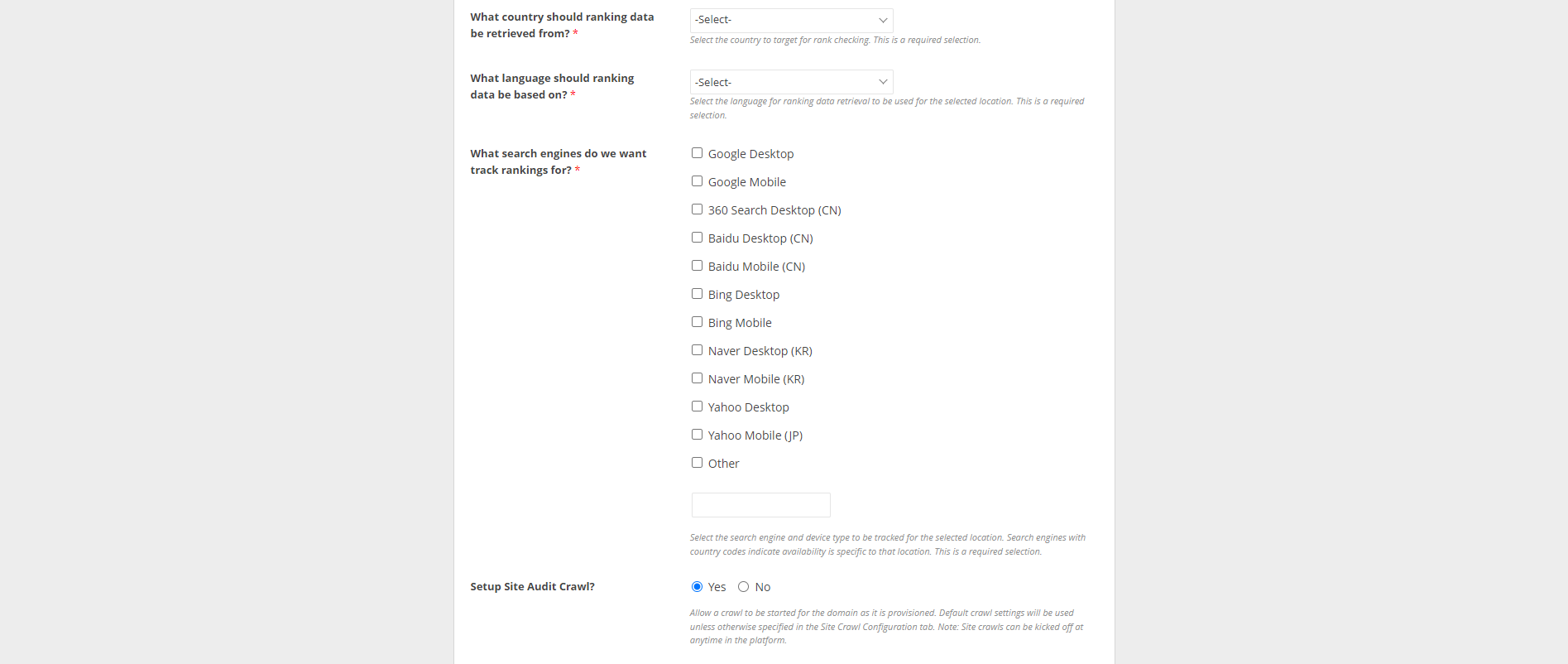
Country*: This is the country the search engine ranking data will be based on. This is a required field.
Language*: This is the language the search engine ranking data will be based on. This is a required field.
Search Engine(s)*: The selected search engines will be used to gather rankings based on the country of focus. Some search engines are only available for the country specified: 360Search (CN), Baidu (CN), Naver (KR), Yandex (RU). This is a required field. Search Engine selections are relative to contractual agreement.
Setup Site Audit Crawl*: Allow or disallow a crawl to be started for the domain as it is provisioned. Default crawl settings will be used unless otherwise specified in the Site Crawl Configuration tab. Note: Site crawls can be kicked off at anytime in the platform.
Crawl Configuration
For a more in-depth description of setting up a Site Audit Project, please refer to our Site Audit Projects Knowledge Base article.
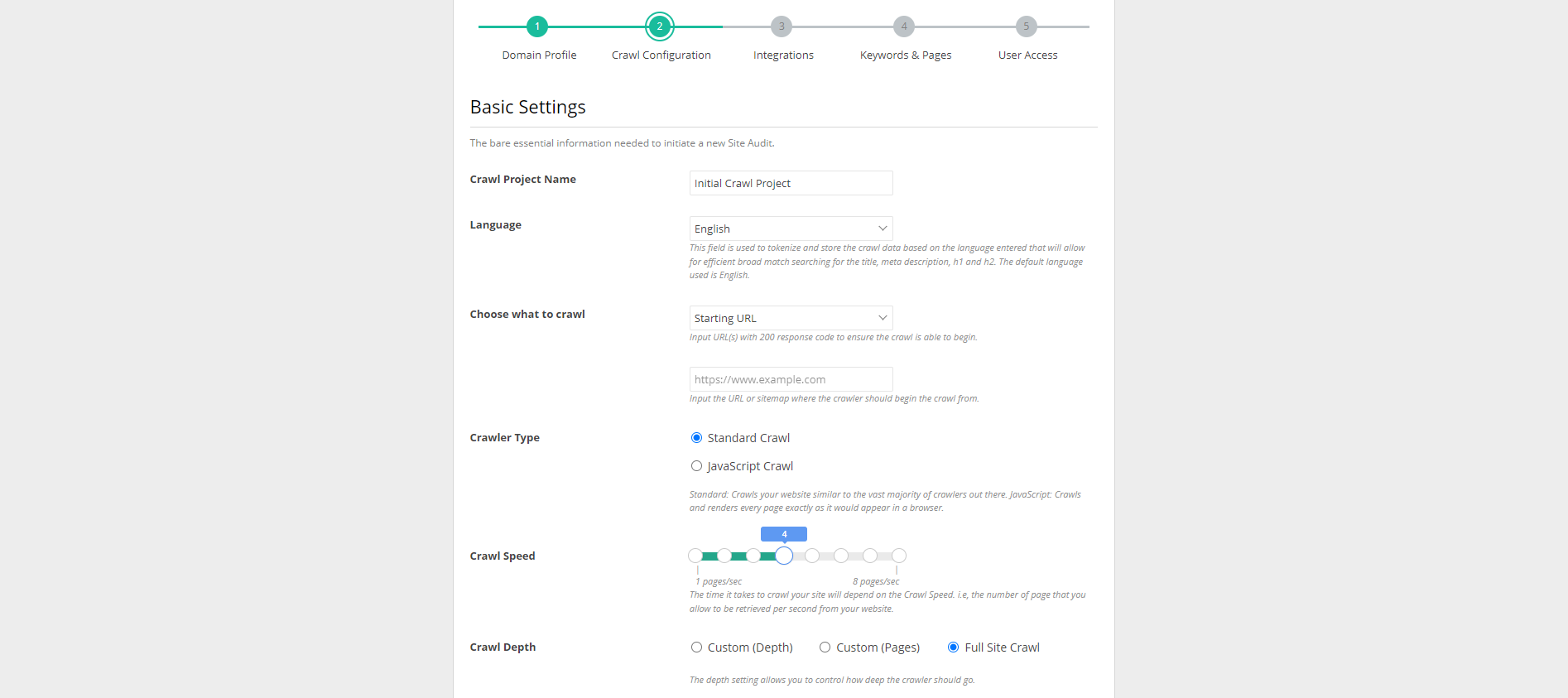
Crawl Project Name: This will be the name of the initial Site Audit. The default name is “Initial Crawl Project”, but you are able to edit this to whatever you would like.
Language: This field is used to tokenize and store the crawl data based on the language entered that will allow for efficient broad match searching for the title, meta description, h1 and h2. The default language used is English.
Choose What to Crawl: The initial Crawl Project can be based on a specific URL or a sitemap(s). This field allows you to choose which you would like to do.
Crawler Type: The Standard Crawl is the most common crawler and functions like most crawlers out there. The Javascript Enabled crawl renders JS when crawling similar to how a browser would.
Crawl Speed: The time it takes to crawl your site will depend on the Crawl Speed. i.e, the number of pages that you allow to be retrieved per second from your website.
Crawl Depth: The depth setting allows you to control how deep the crawler should go.
Advanced Settings: Configured advanced crawl options. Customize the Advanced Settings and Link Parameter Handling sections below when enabled.

User Agent: A custom user agent can be set here. By default or if left blank, 'ClarityBot' will be used. This can require the bot to be added to an allow list for some domains, so that our bot is not blocked from crawling the site.
Obey Robots.txt: By default, the crawler will not crawl any links that have been blocked via an instruction in the site's robots.txt. In order to override the default setting, set this option to No.
Obey Robots Meta: By default, the crawler will not crawl any links that have been blocked via an instruction in the site's robots Meta. In order to override the default setting, set this option to No.
Obey X-Robots Header: By default, the crawler will not crawl any links that have been blocked via an instruction in the site's x-robots header. In order to override the default setting, set this option to No.
Select Region: Choose the specific region from where to launch the crawler. By default all crawls are launched within our New York data center.
Link Parameter Handling:
Enter URL parameter(s) to remove: Enter a comma delimited list of URL parameters (such as utm_source) that you would like to be automatically removed when crawling your site. Enter a * (asterisk) to remove all URL parameters on discovered URLs before trying to crawl them.
Internal Links Analysis: Enabling this option will generate a link graph of the links found on the site. This can be analyzed in the internal links analysis feature for more detailed insights into internal link structure optimization.
HREFlang Crawl: Enable this option to capture HREFLang annotations from webpages when found and verify each one
Canonical Crawl: Enabling this option will enable collection and analysis of the canonical URLs found on each page crawled.
Crawling Rules: Customize what pages are crawled and how query parameters found in URLs are handled. Customize the Domain Crawling Rules and Link Crawling Rules sections below when enabled.
Domain Crawling Rules:
Allow Domain(s): Enter a list of the domains and sub-domains to allow. Any links discovered for the allowed domains will be crawled further.
Deny Domain(s): Enter a list of the domains and sub-domains to deny. Any links discovered for the deny domains will not be crawled further.
Link Crawling Rules:
Follow nofollow links(s): Choose whether links with rel attribute "nofollow" should be crawled.
URL patterns to allow: You can enter a regex pattern in here which when found in the URL will include it in the list of URLs to be crawled and followed further. The URL Pattern to disallow takes precedence over any patterns entered here.
Schedule Audit: Choose whether you would like the crawl project to be one time or recurring. If one time is selected, you can always re-run this crawl again in the future.
Frequency: Choose how often the crawl should occur if it is to be recurring.
Enable Alerts: Get an email notification when the crawl launches and completes.
Integrations
Integrations do not need to be setup at the time of provisioning and can be configured in the platform afterwards when in the corresponding domain profile via Settings > Integrations. Integration documentation can be found in our knowledge base.

Analytics Integration: Select the analytics provider that should be integrated. To integrate an analytics platform that is not listed, select Custom Analytics. Integrated data can be seen via the Site Analytics feature. This is a required selection.
Google Search Console Integration: Indicate whether GSC will be integrated and if so by which method. Integrated data can be seen via the Search Analytics feature. This is a required selection.

Paid Search Integration: Select the paid data platform that should be integrated. To integrate a platform that is not listed, select Custom PPC. Integrated Data can be seen in the PPC vs Organic feature. This is a required field.
Bot Log Files Integration: Select the checkbox to indicate you wish to integrate server log files into Bot Clarity. Bot Clarity is included in Pro Subscriptions and can be added on to other subscriptions where requested.
PageSpeed Insights: PageSpeed Insights are retrieved on a monthly basis from Google for all managed pages (Page Clarity) and displayed in the Page Speed feature. This data can be retrieved on a weekly basis if a PageSpeed API key is provided via Settings.
Keywords & Pages

What type of keywords do you want to track for this domain profile?: Select the types of elements to be tracked. The number of columns in the uploaded file should match your selection here. This is a required selection.
What keywords do you want to track at the national level?:
Provide the elements you wish to track along via a spreadsheet in a consecutive column format based on the selection made above. There should be no more than 3 columns. Up to 5 files can be uploaded at once
What type of pages do you want to track for this domain profile?: Select the types of elements to be tracked. The number of columns in the uploaded file should match your selection here. This is a required selection.
What pages do you want to track?: Provide the elements you wish to track along via a spreadsheet in a consecutive column format based on the selection made above. There should be no more than 3 columns. Up to 5 files can be uploaded at once.
Competitors Domains: If enabled, provide specific competitor subdomains or root domains to be added as Universal Competitor. These can be changed later via Settings.
User Access

Admin Access: List the email address(es) of those who should have Admin access. In addition to read and write access to the platform, this includes the ability to view and modify settings. At least 1 admin is required.
Read/Write Access: List the email address(es) of those who should have read & write access. Read & write access allows for elements to be added or removed from the platform. Settings are not accessible.
Ready Only Access: List the email address(es) of those who should have read only access. Read only access allows for elements to be viewed in the platform but not updated. Settings are not accessible.
Is feature specific access required for any users?: Select the checkbox to indicate more customized user permissions are required. Feature specific access allows for read, write or deny permissions to be applied to individual features, like Dashboards, Rank Intelligence, Research Grid, etc.

Who should have feature specific access?: List the email address(es) of those who should have limited feature access. Access can be limited on a feature by feature basis where required. Settings are only accessible to Admins.
What features should be accessible and what permissions should be used?: List the features that access should be provided for and the permissions (read, write, or deny) for those features. Settings are only accessible to Admins.
Is there any other information needed for creating this domain profile?: Include any additional notes for domain provisioning here.
New Domain Provisioning Summary
Data will begin to populate within 24-48 hours after their corresponding elements (keyword, page, analytics, tags, etc.) are added to the platform. With Google's update to Keyword Planner, search volume for some keywords is not available. This will display as Pending within the Search Volume column of the platform.
Related Articles
New Domain Provisioning: How To Request Profile Creation In seoClarity (Modular Apps)
Overview To have a new domain profile provisioned within the seoClarity platform, the attached form needs to be filled out. Once filled out, the form will automatically create a Support Ticket and put you in touch with our Support team. Notice: ...
Self Service Domain Provisioning: How To Create A New Domain Profile (Enabled Feature)
Overview Domain profiles can be added for management in seoClarity on demand for users with access to the Add Domain feature. This is available by request (to support@seoclarity.net) for those with multiple domains included in their subscription. ...
Domain/URL Backlinks
Domain/URL Backlinks Overview Backlinks explorer makes finding links to a domain easy and allows for unique views with numerous filtering capabilities. Backlink data for your own domain and universal competitors is retrieved from Majestic utilizing ...
Introduction to the seoClarity platform
What is seoClarity? Through robust data collection to SEO automation, seoClarity is the only scalable & customizable platform that covers every aspect of SEO management and analytics for enterprises. If you have any questions about what is possible ...
Multi-Domain Dashboard
Multi-Domain Dashboard Overview seoClarity's Multi-Domain dashboard option provides reporting for multiple domains in one single dashboard. The Multi-Domain dashboard aggregates the data for multiple domains whether they are desktop domains, mobile ...