Top Competitors
Top Competitors Overview
Top Competitors summarizes managed keyword ranking data by the top 5000 ranking domains who rank in the top 10 for your managed keywords. These are considered true ranking competitors as they are what search engines display in search results.
Background & Requirements for Top Competitors
Top Competitors is found under the Rank Intelligence menu in the left hand navigation. Managed keywords are required for top competitors to populate.
Top Competitors Use Cases
- View top ranking competitors by domain to understand performance change over time.
- Compare ranking performance metrics between top ranking or specific competing domains.
Top Competitors
Top Competitor Charts
Top x Rankings: Displays the count of ranking keywords for the position(s) selected based on the search engine and location.
Top x Search Volume: Displays the sum of search volume of the ranking keywords for the position(s) selected based on the search engine and location.
Wtd. Average Rank: Displays the weighted average rank trend for the selected domains.
By Position: Displays the rank position ranges trend for the domains displayed. Default ranges are 1-3, 4-10, 11-20, 21-50, and 51-100 and one domain can be displayed at a time. Custom ranges can be setup via the Manage custom range popup.
By Page: Displays the rankings based on the SERP page they were found ranking on. Default ranges are Page 1 contains results 1-10, Page 2 contains results 11-20, etc. Custom ranges can be setup via the Manage custom range popup.
Share of Voice: Displays the share of voice trend for the selected domains. Learn More
Share of Market: Displays the share of voice trend for the selected domains. Learn More
- X:Top 10, Y:Estd Traff, Z:Srch Vol
- X:Srch Vol, Y:Top 10, Z:Estd Traff
- X:Srch Vol, Y:Estd Traff, Z:Top 10
- X:Estd Traff, Y:Top 10, Z:Srch Vol
Rank Type: Select True Rank, which includes organic results like Images and Answer Boxes, or Web Rank, which excludes non standard organic web results.
Competitor Type: Select a competitor view from:
Search Engine: Select a search engine for rankings to be based on. A selection is required.
Location: Select a location for rankings to be based on. A selection is required.
Search Volume: Select a search volume range with options for: Equals, Greater Than, Less Than, or Between.
Keyword: Select a keyword filter with options for: Is, Isn't, Contains, Does not contain, Starts with, Ends with, Regular Expression, or Regular Expression does not match.
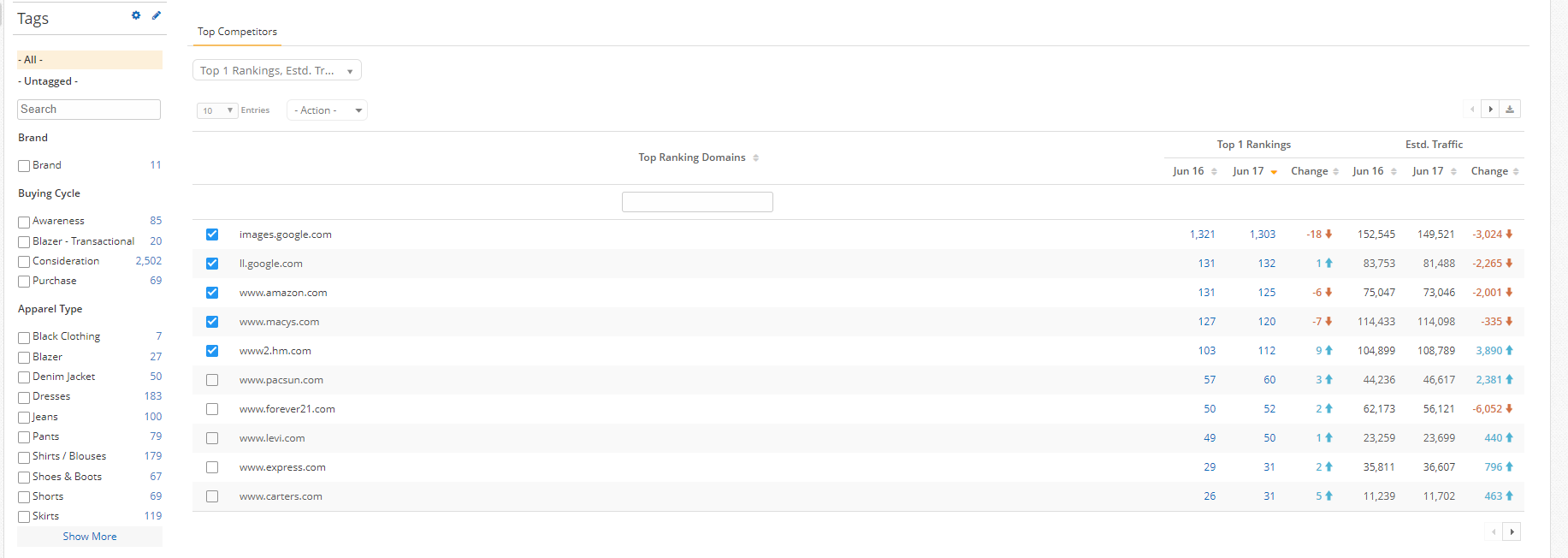
Displays the top ranking domains based on the managed keyword set with options to view by keyword count, search volume, and ranking metrics.
Table Actions
Add as Universal Competitor: The selected domain(s) will be added as Universal Competitors, which makes them available as a dropdown option in some widgets.
Add to Competitor Group: The selected domain(s) can be added to a new Competitor Group or an existing Competitor Group. Selecting the Competitor Group option will summarize the domains in those Competitor Groups when that Competitor Type filter is selected.
Remove from Competitor Group: The selected domain(s) will be removed from their existing Competitor Group.
Dashboard Reports: Top Competitors widget
Rank Intelligence: Managed Keywords