Overview
Managed Domains is where you can see all domains for which your login credentials have access to. Selecting a domain from this list will navigate to that profile within seoClarity. Domains can be added by request to support@seoclarity.net by using the domain provisioning sheet. The ability to provision a domain via the Add Domain button is available for enablement by request. Learn More
Please Note: Domain provisioning is subject to the specific work order and can impact billing.
Managed Domains
Managed Domains provides a high level view of what domain is managed in the platform, what location rankings are based in, and what keyword and page elements are being managed within that profile.
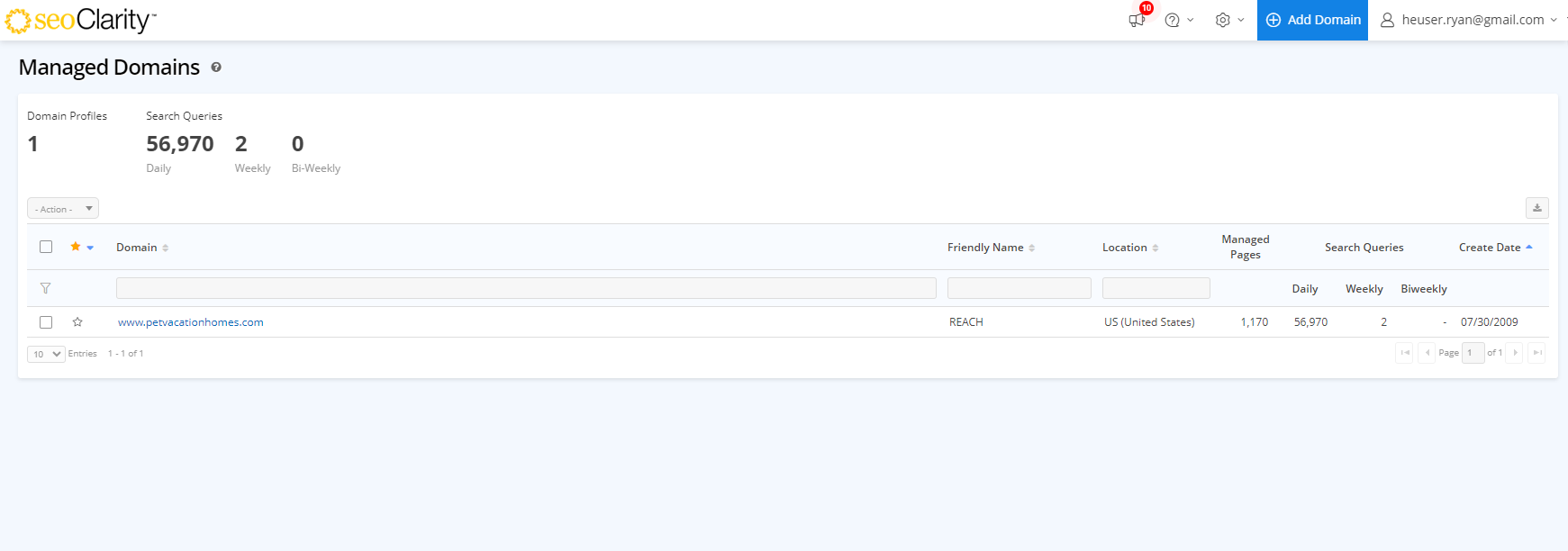
Domain: Profile that is managed within the platform. Domains can be provisioned or suspended upon requests made to support@seoclarlty.net. This is based on the contract allowance subscription.
Friendly Name: This is a custom name that can be given to a domain via that profile's settings page. NOTE: Only Admins can access the settings page.
Country: This is the primary location where ranking data for managed keywords is retrieved from.
Managed Pages: This is the count of pages currently managed in Page Clarity. Pages can be added for tracking within the domain itself.
Keyword Search Queries: This is the count of unique keywords tracked for each enabled search engine that is currently managed in Rank Intelligence. Keywords can be added for tracking within the domain itself.
Create Date: This is the date the domain was provisioned.
Managed Domain Actions
Add Annotation: Users with admin level permissions can add annotations in bulk by selecting this option.
Edit Friendly Name: Users with admin permissions have access to edit domains friendly names by using this option. Once selected, a dialog box will open listing the domains that are selected, add the Friendly name and save.
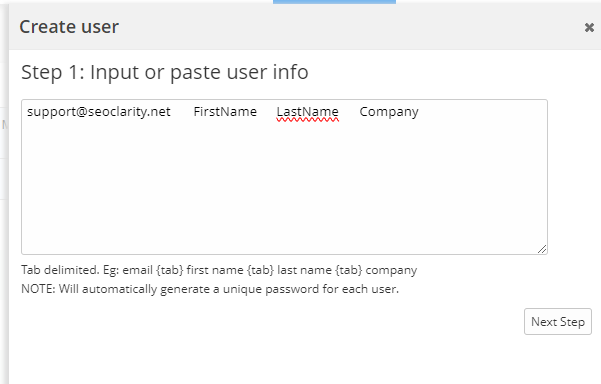
Add User: Users with admin level permissions can add or edit users access in bulk by using this option. Once selected, a dialog box will open. Enter the email address, first name, last name, and the company name with a tab in between each one. More than one user can be added a once. Click on the Next Step button to check the user information that was entered before submitting.
Review the user information that has been entered. Select the permissions to add to all the users that have been entered in the preview. This list of users and permissions will be added to all the domains that were selected in the previous step. Click on Submit to add the user(s).