Link Clarity Managed Links

Link Clarity Managed Links

Link Clarity Managed Links is where all of your Partner URLs (backlinks) are housed and tracked. Partner URLs are backlinks that have been manually added to the seoClarity platform by you or your team. Having these Partner URLs in your account will help you track, monitor, manage, and optimize your links.


Background & Requirements

Backlinks must be added to your account for Link Clarity to function. There is no automatic backlink tracking in this feature. Add links via either the "Add Links/URLs" button at the top of the Link Clarity Managed Links Page or from anywhere in the platform using the Universal Add Elements option to see data populate in the table. Backlinks can be uploaded in bulk from a spreadsheet. See the "Link File Upload Spreadsheet" section below for the format.


Managed Links can track up to 1000 backlinks. If you need more than that, contact your Client Success Manager or email support@seoclarity.net.

  1. Manage and monitor link building opportunities.
  2. Securing in-text placements for existing content.
  3. Adding your site or content to resource pages.
  4. Reclaiming PR mentions with link building.
  5. Getting product reviews with link building.


  1. Add URL/Link Button: Use this button to add new partner links into your account to track
  2. Filter Selector: Choose a filter in this drop down for the data table
  3. Partner URL Status (Checked weekly on Monday mornings): Displays the server response returned when we crawl the partner URL
    • 404 - Error: The page was not found
    • 301 - Permanent Redirect: The page was permanently redirected to another location
    • 302 - Temporary Redirect: The page was temporarily redirected to another location
    • 500 - Internal Server Error: The page is not available due to a problem with a server
  4. Assigned To: Filter tasks by any of the following: Assigned to All, Assigned, Not Assigned
  5. Relationship: Filter by the status of the partner URL.  Managed indicates it is an active link pointing to your site.  Potential means you have entered it in the platform and it is to be determined if it is found linking to you. Other status choices are Unmanaged, Not Started, Qualified/Rated, Attempting to Reach, Under Review, Committed, Rejected, Inactive, Link Accepted. Many of these can be used to manage a linkbuilding outreach program.
  6. Partner URL: Displays the partner link/page you are tracking. Use the box under the column name to filter by this column.
  7. Anchor Text (crawled): Displays the displayed anchor text found on the partner page that is selected to link to your site. Use the box under the column name to filter by this column.
  8. Target URL (crawled): Displays the landing page within your site that the partner URL is pointing to or that you're targeting it for. Use the box under the column name to filter by this column.
  9. Acquired Date: Displays the date the partner was found linking to you
  10. Outbound: Displays the count of outbound links from the partner URL
  11. Acquisition: Displays the method of acquiring the partner URL
  12. Moz Rank: Displays the Moz metric based on a logarithmic scale representing link popularity 
  13. Page Authority: Displays the Page Authority score from Moz for that URL
          Optional columns (display only if Moz integration is activated for the account)
Moz Rank: Displays the Moz metric based on a logarithmic scale representing link popularity
Moz Page Authority: Displays the Page Authority score from Moz for that URL


  1. Referring Domain: Displays the domain linking to your site
  2. Backlinks: The count of backlinks pointing to the domain listed.
  3. Alexa Rank: Displays the Alexa metric which is based on 3 months of aggregated historical traffic data and diverse traffic data sources that is a combined measure of page views and reach. The Alexa rank is based on a value derived from these two quantities averaged over time (so the rank of a site reflects both the number of users who visit that site as well as the number of pages on the site viewed by those users). The 3 month change is determined by comparing the site's current rank with its rank from 3 months ago.
  4. Flow Rank
    • Citation Flow: Displays a Majestic SEO™ metric that displays a predictive number on a scale of 1 - 100 of how influential a URL might be based on how many sites link to it. Simply put, this is the amount of link juice flowing to that domain
    • Trust Flow: Displays a Majestic SEO™ metric that displays a predictive number on a scale of 1 - 100 of how trustworthy a page is based on how authoritative sites tend to link to other authoritative sites. This looks at who is linking to you, who is linking to your partner, and so on for several levels back
  5. Count of Target URL's: The number of URLs that the domain is sending links to/partnering with
  6. Backlinks to (your domain): Number of backlinks pointing to your domain
  7. Country Code: The country the partner links are coming from
  8. IP Address: The IP Address the partner links are coming from
  9. Subnet: Displays the partner domains identifiably separate part of their network
  10. Name: Displays the name of the domain linking to your site


  1. Anchor Text: Displays the anchor or display text that is found on the partner URL used as the link
  2. Link Type:  Displays the different types of links used
    • Text: A link that has clickable text, also know as Anchor Text
    • Image: A link that is an image on the web page
    • Redirect: When one URL is directed to another URL
    • Frame: When one URL is displayed and the frame, or web page, is that of another URL
    • Mention: A link that is on social media
  3. Partner URLs
    • Total: Displays the total number of partner URLs using that anchor text
    • Deleted: Displays the number of partner URLs that are no longer found using that that anchor text
    • No Follow: Displays the number of partner URLs that have a NoFollow command in their link
  4. Target URLs: Displays the count of landing pages the partners are pointing to
  5. Referring Domains: Displays the number of domains in which the URLs are stemming from

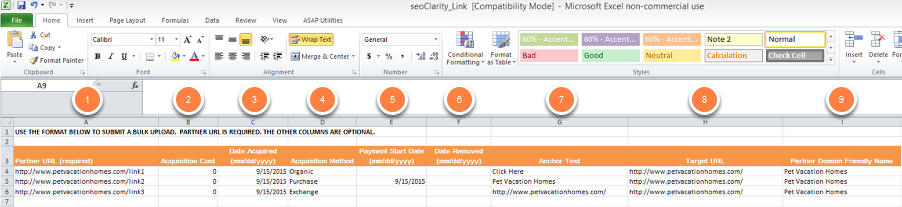
The Link File Upload Spreadsheet is the format that is accepted by seoClarity when uploading a link file into Link Clarity. This spreadsheet is available for download after click Upload Link File in Link Clarity. Visit the Link Clarity Walkthrough article to learn the process of uploading a Link File spreadsheet.

  
  1. Partner URL (required): List the URL of the page that the link is found
  2. Acquisition Cost: List the price that was paid to acquire the link from the website
  3. Date Acquired (mm/dd/yyyy): List the date that the link was put up on the partner's website
  4. Acquisition Method: List the way the link was found or created - N/A, Other, Purchase, Self Submit, Exchange, Organic
  5. Payment Start Date (mm/dd/yyyy): If link is purchased, list the date the first payment was sent
  6. Date Removed (mm/dd/yyyy): List the date the link was removed from the partner website (not required)
  7. Anchor Text: List the recommended text of the link on the partner's site. The crawler will identify the actual text in the table and the recommended text can be seen by editing the link.
  8. Target URL: List the recommended URL of the page the link is directed to. The crawler will identify the actual URL in the table and the recommended URL can be seen by editing the link.
  9. Partner Domain Friendly Name: List the easy-to-remember or Friendly name for the partner 


    • Related Articles

    • Internal Links Analysis

      Internal Links Analysis Overview Internal Links Analysis is a summary of the internal (own domain) linking data based on a Site Audit crawl. Internal Links data takes up to 24 hours to process once a crawl is completed and is based on indexable (200 ...
    • How To: Remove Links from Link Clarity

      How To: Remove Links from Link Clarity
    • Link Gaps

      Link Gaps Overview Link Gaps provides a way to compare backlink profiles, based on Majestic's link index, and find backlink opportunities across multiple domains. Background & Requirements Input a domain to view corresponding data in the charts and ...
    • Managed Domains

      Overview Managed Domains is where you can see all domains for which your login credentials have access to. Selecting a domain from this list will navigate to that profile within seoClarity. Domains can be added by request to support@seoclarity.net by ...
    • What is needed for managed link uploads in Link Clarity?

      All we need from you is the URL. It is recommended to include the anchor text and target URL. If doing a bulk upload via the Link Template, the partner URL and the target URL are required. Learn More