Webtrends Analytics Integration

Webtrends Analytics Integration

Overview

This guide provides step by step instructions on integrating your analytics data from Webtrends Analytics into seoClarity. Webtrends interface can vary between customers, but the premise of report creation is the same.

Requirements

For this integration, access to Webtrends is required.


Navigate to Custom Reports

1) Log into your Webtrends account and navigate to Custom Reports in Web Analysis > Report Configuration > Custom Reports to configure the report.


Create a Custom Report

2) From Custom Reports, select the new button to create a new report.



Custom Report Name

3) From the General tab, title the report by its domain name and include any description information you deem relevant.


Custom Report Dimensions

4) From the dimensions tab, select Search Keywords for the primary dimension. Then select Entry Page as the secondary dimension.


Custom Report Measures

5) From the measures tab, select New and then select Calculated Measure.


Custom Report Calculated Measures

6) For the calculated measures select Visits. You can also include Bounces, E-commerce data and any goals that might be applicable.

NOTE: For goals or metrics that are calculated in Webtrends Analytics, such as Bounce Rate or Average Time on Page, these should instead be created as Custom Metrics within the platform leveraging both separate data points. For example, Bounces can be integrated as a metric that allows for Bounce Rate to be created as a Custom Metric by dividing Bounces / Traffic. Similarly Total Time on Page can be integrated as a metric that would allow for Average Time on Page to be created as a Custom Metric by dividing Total Time on Page / Traffic. This ensures those metrics are correct over any period of time, whereas if we pull them in directly as they are in Webtrends Analytics they have already been calculated for that day and when looking at a date range greater than that one day, as the goals will sum themselves over the entire date range.


Custom Report Filters

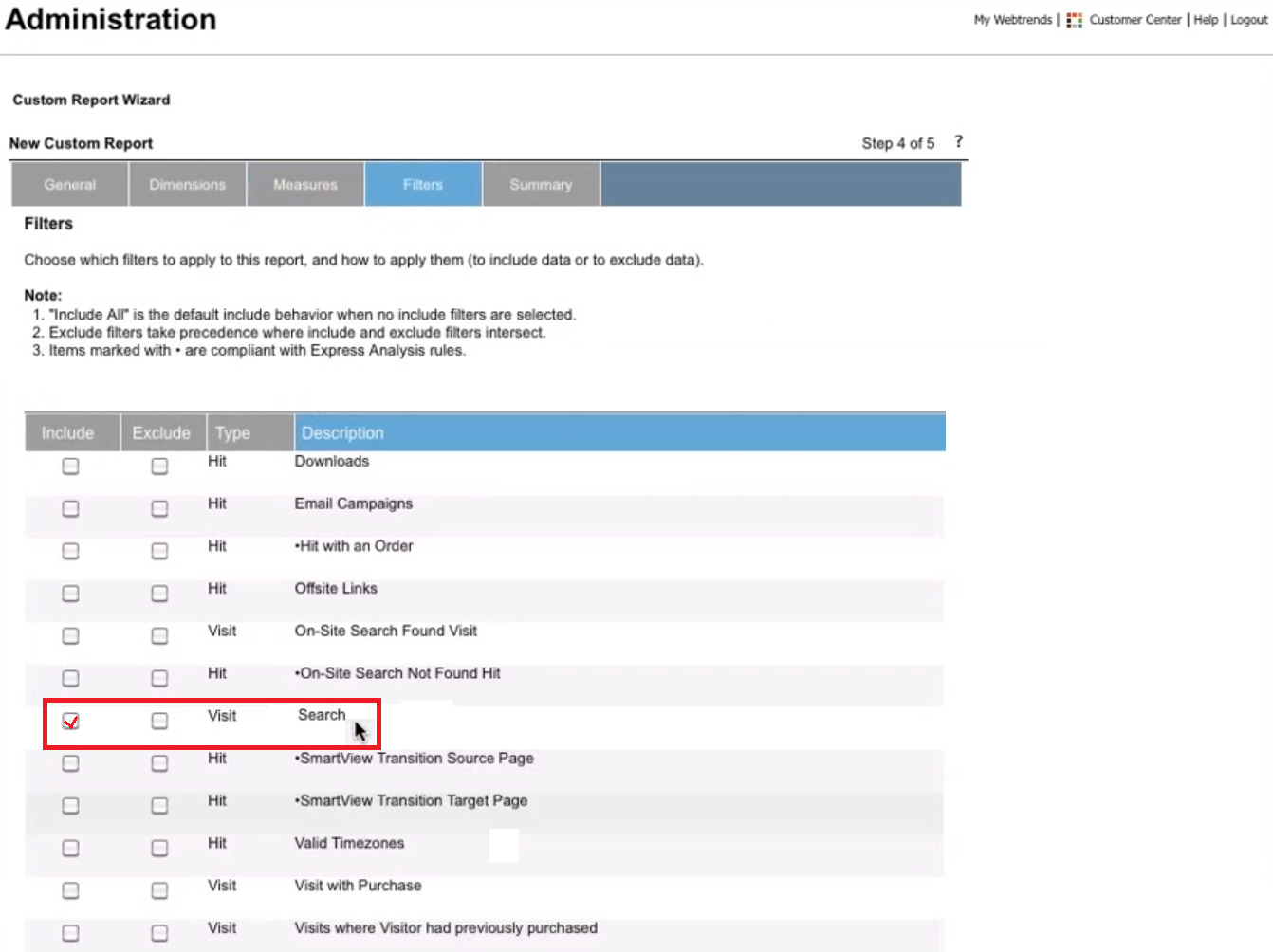
7) From the filters tab, apply a filter that excludes paid search traffic. This can be be done creating a new filter. Select filter on: entry page and select new URL Parameter. On the URL Parameter screen, enter the name of the parameter that will always be present for paid search traffic and never present for non-paid search traffic.


Custom Report Summary

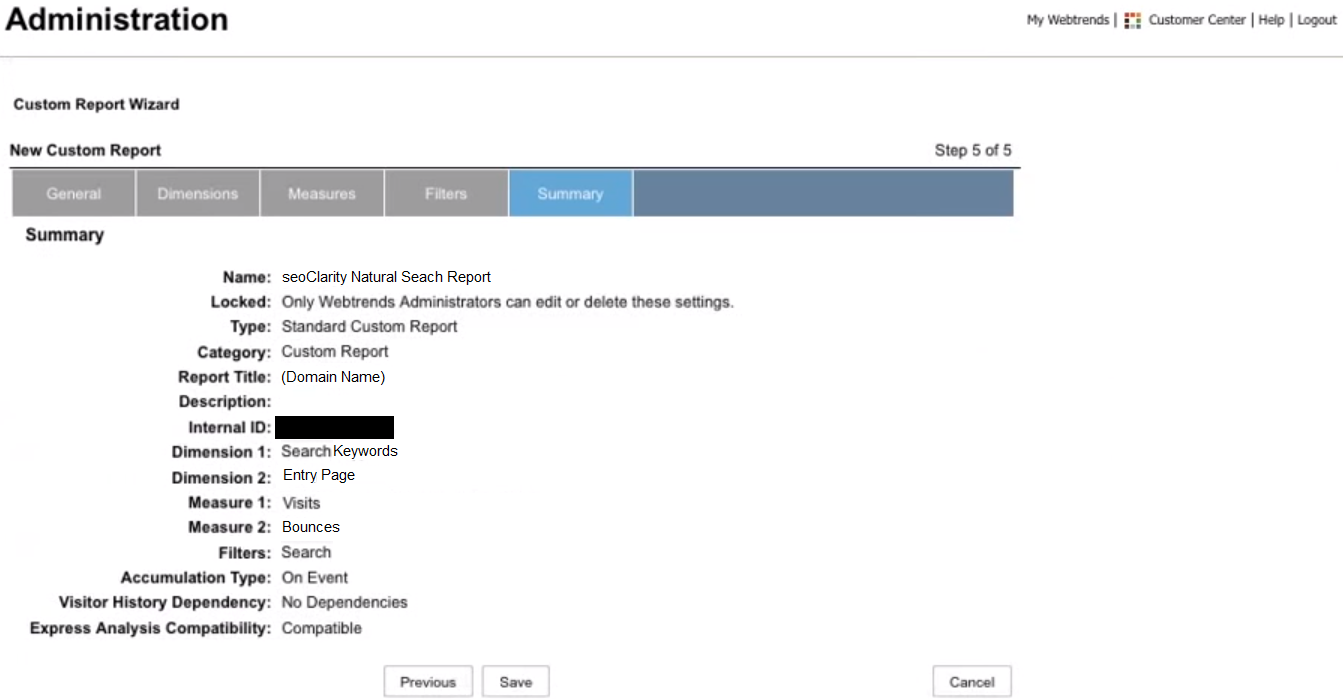
8) From the summary tab review the entered information and once verified select save.


Schedule Export

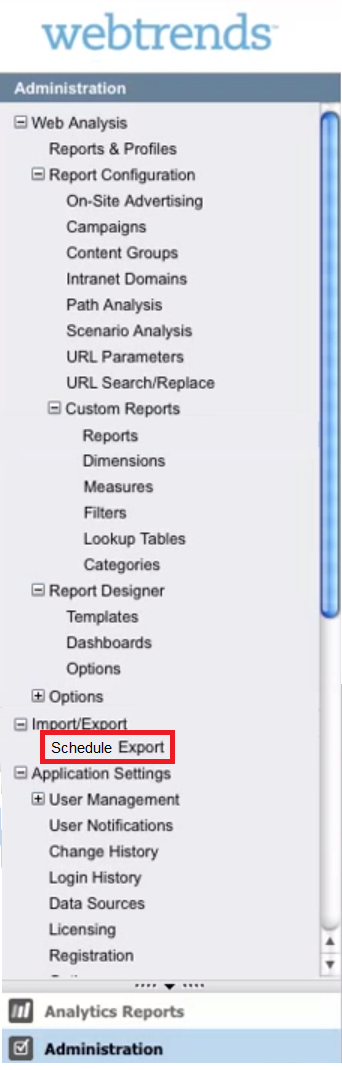
9) Now that you have created the report navigate to Schedule Export on the Export Reports menu. Import/Export > Schedule Export


Export Report

10) In the Export Report dialog, input the provided FTP information. The preferred format is a CSV and set the number of data rows to all. Click Next (If the FTP option is not available in the Delivery Method menu, contact your Webtrends administrator). Append a date parameter to the report title and set the report to recurring daily.

11) Once the report has been created and scheduled let your Account Manager know or send an email to support@seoclarity.net.

    • Related Articles

    • Google Search Console Integration

      Google Search Console Integration Overview The objective of this integration is to authenticate a Google Search Console account within seoClarity. This integration takes the place of the previous Google Webmaster Tools integration. Background & ...
    • New Domain Provisioning: How To Request Profile Creation In seoClarity

      Overview To have a new domain profile provisioned within the seoClarity platform, the attached form needs to be filled out. Once filled out, the form will automatically create a Support Ticket and put you in touch with our Support team. Notice: ...
    • Adobe Analytics Integration

      Overview For Adobe Analytics integration, this article outlines the steps needed to run through in order to grant seoClarity access to your account. Adobe eVars (Conversion Variables) are not needed for the Partner Exchange integration. In the Adobe ...
    • Search Analytics (Google)

      Search Analytics (Google) Overview Search Analytics provides data based on Search Console producing a great insight into your SEO data and efforts. Syncing your GSC profile with seoClarity keeps all of your data in one spot for ease of use and ...
    • Custom Analytics Integration

      Overview The following steps will show you how to integrate custom analytics, such as a homegrown system, package with seoClarity so your domain’s analytics data can be loaded into the platform. This can also be used for historical analytics for ...