Google Search Console Integration Overview
The objective of this integration is to authenticate a Google Search Console account within seoClarity. This integration takes the place of the previous Google Webmaster Tools integration.
Background & Requirements for Google Search Console Integration
In order to complete this integration, you will need to be logged into the seoClarity account that is being integrated and have access to the profile's Settings page (requires seoClarity Admin access). In another browser tab, you will need to be logged into the corresponding Google Search Console account with Owner or Full User permission. Following these requirements before starting the integration process, will make the process run smoothly.
There are a number of items to consider when comparing Search Analytics data in the platform with the Google Search Console interface. Learn More
Authenticate a GSC Profile
1. Navigate to the Settings page via the link on the dropdown menu of cog icon in the top right corner.
2. Once on the Settings page, click the Integrations button near the top of the page. On the Integrations page scroll to Search Analytics, Google Search Console. Then click on the Add Integration button.
3. The right side window will open. Click on Authenticate with Google Search Console. For profiles that have already been authenticated, the option to Authenticate with a different account is available if an update is needed.
- Profiles with issues are indicated with a notification in the platform.
- If a GSC account integration has expired a new integration needs to be added. Click the pink "Remove Integration" button.
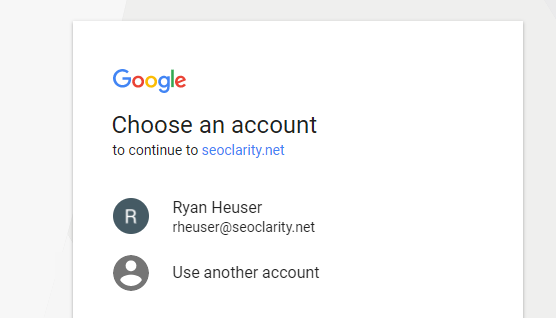
5. On the new web page, click Allow to let Google view Search Console data for your verified sites. Access level is for view only, which means no data can be written and no settings can be changed.
Adding a GSC Profile
1. Click the + Add button to add a profile.
2. Enter the Profile to be added in the popup window and click Save.
Removing a profile
After the Google Search Console account is authenticated, profiles can be removed in this same right side window. Click the trash can icon to remove the profile.
- Profiles with issues are indicated with a notification in the platform.
- If a GSC account integration has expired a new integration needs to be added. Click the pink "Remove Integration" button.
Google Search Console API Limitations
If you are an agency or a company that is growing quickly, or just have plans to grow, limitations on API calls might come into play. In order to keep their servers free and to give everyone a chance to use their product equally, they set these limits. For more information, feel free to read through the detailed Google Usage Limits post.
Summary
Once a profile is added, after authentication, 16-months of historical data will be made available from the Search Console API. The data will be backprocessed & displayed in the Search Analytics feature upon completion, which can take up to 5 days to complete. Daily data will begin to populate after 24 hours. If you notice an unexpected gap in your data, please reach out to support@seoclarity.net to begin a backprocess for you.