Custom Metrics setting
Overview
The Custom Metrics setting allows for new data points to be created based on a calculation of existing data points. Existing data points to be used can be sourced from Site Analytics. Search Analytics and Rank Intelligence will be made available as sources soon.
Requirements
Analytics must be integrated to use the corresponding data points to build custom metrics from.
Custom Metrics
Existing custom metrics will be displayed in the table.
Columns
Metric Name: This is the name for the custom metric as provided during metric creation.
Data Source: This is where the underlying data for metric is sourced from as chosen during metric creation.
Data Type: This determines how the metric is displayed as chosen during metric creation.
Percent: This displays as true if the number is a percentage and false if not. This is chosen during metric creation.
Formula: This displays how the metric is calculated as selected during metric creation.
Update Date: This displays the date when the metric was created or last updated.
Action: Selecting Edit allows for the custom metric to be changed.
How To Create A Custom Metric
1) To create a new custom metric, select the + Add Metrics button, which brings up a new window.
2) In the Metrics Name text box enter a name for the custom metric.
3) From the Data Source dropdown, select where the data for the custom metric should be based on. This is also where the custom metric will be seen. The default selection is Site Analytics.
4) From the Data Type dropdown, select whether the custom metric should be a decimal or whole number. The default selection is Whole number. Optionally, you can choose to display this as a percentage by selecting the Display as Percentage checkbox.
5) Use the available metrics list to select and include allowed operators to build a formula for the custom metric. Available metrics will be displayed in double curly brackets "{{ }}" when selected. Allowed operators are the plus symbol "+", the subtraction symbol "-", the multiplication symbol "*", the division symbol "/" and parenthesis "( )".
6) Once the formula is set, select submit. The metric will now be seen in the table and the corresponding platform section (based on the Data Source).
Custom Metric Examples
To create Bounce Rate, the formula would be Bounces/Traffic:
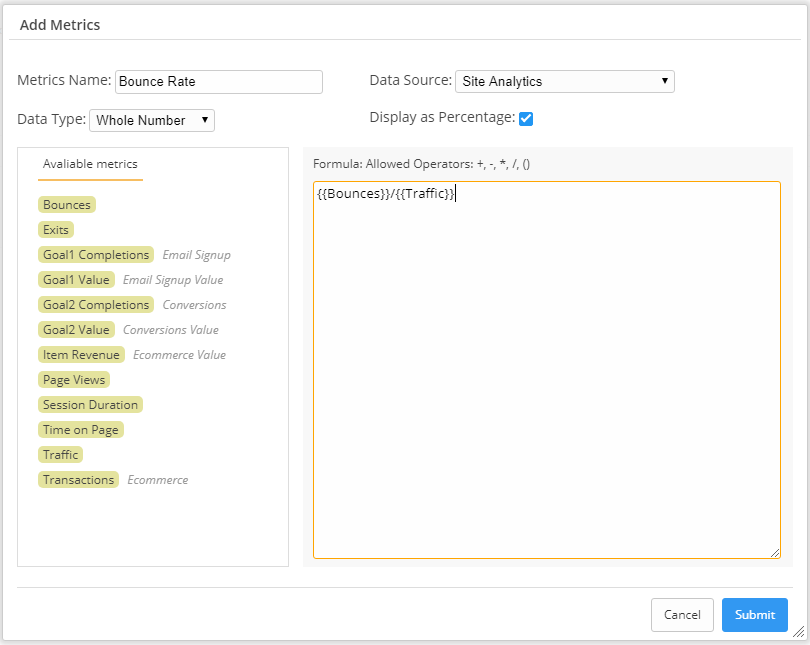
To create Bounce Rate, the formula would be Bounces/Traffic:
To trend forecasted
growth against actual growth, for a 10% increase multiply current Traffic by 1.1:
Visualizing the Custom Metric Trend in Site Analytics