Objective
This guide provides step by step instructions for building a custom report in Kenshoo Skai. This custom report can then be sent as an automated daily extract for paid data integration into seoClarity.
Requirements
To complete this walkthrough you will need a Kenshoo Skai account.
Setup A New Report
1. In the top navigation menu, hover over the Reports dropdown
2. Select Scheduled Reports
3. On the Scheduled Reports page, click on the Add button, above the data table

Report Details
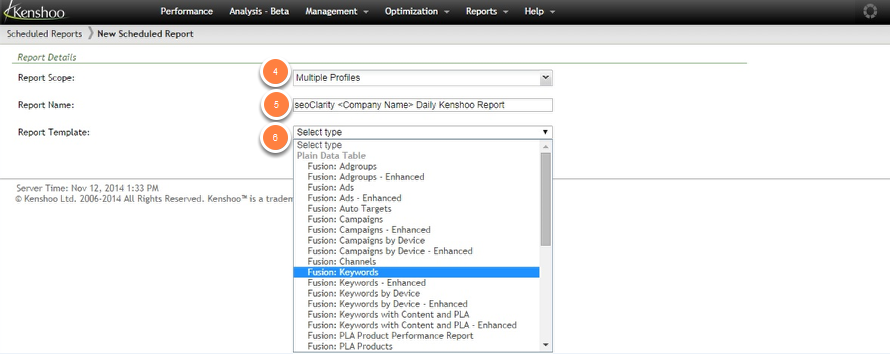
4. Report Scope: choose Multiple Profiles
5. Report Name: <Your Domain> - Kenshoo Skai report
Replace <Your Domain> with the domain being integrated. This is the email subject line and including the domain name is required for integration.
6. Report Template: Fusion: Keywords
Report Parameters
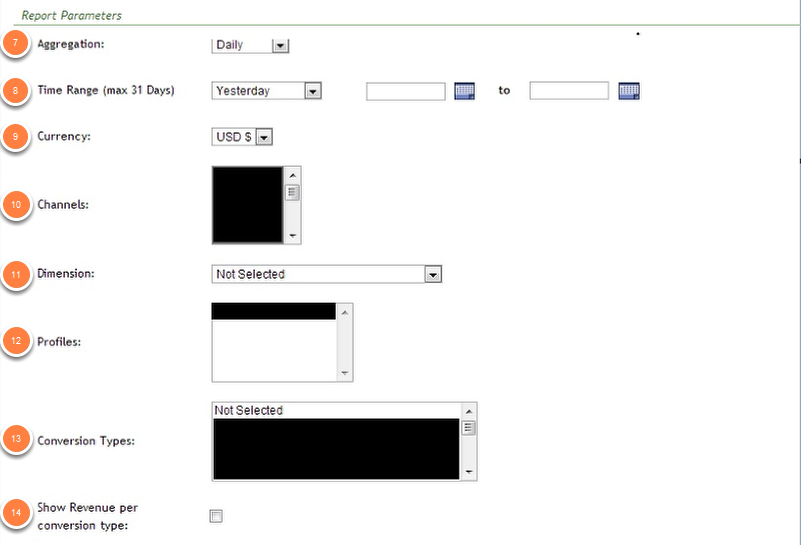
7. Aggregation: Daily
8. Time Range: Yesterday
9. Currency: USD$
10. Channels: All (pre-selected)
11. Dimension: Not Selected
12. Profiles: <Your Domain>
13. Conversion Types: Not Selected
14. Show Revenue per conversion type: Do not click the checkbox
Report Content
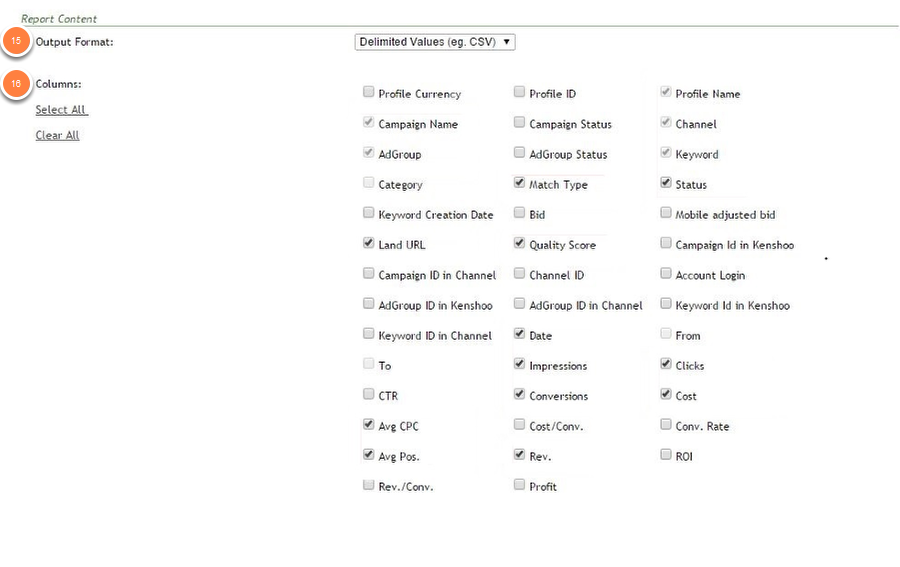
15. Output Format: Delimited Values (eg. CSV)
16. Columns:
- Profile Name (pre-selected)
- Campaign Name (pre-selected)
- Channel (pre-selected)
- Adgroup (pre-selected)
- Keyword (pre-selected)
- Search Term
- Status
- Quality Score (optional)
- Date
- Impressions
- Clicks
- Conversions
- Cost
- Avg. CPC
- Avg. Pos.
- Rev. (optional)
- Land URL (optional)
Delivery Method
16. Delivery Method: FTP or SFTP
17. Enter ftp://upload.seoclarity.net into the FTP URL text box. SFTP Username and credentials can be found via the Integration tab on the Settings page.
18. Compression Condition: Always Compress
19. Compression Format: ZIP
20. Add Report's Summary Info: Do not add
21. Add column titles to report file: Click the checkbox
22. Report Delimiter: , (comma)
23. Remove delimiters from values: Do not click the checkbox
24. Custom filename for report: "<Your Domain>{CREATE_DATE:yyyy-MM-dd}". Replace <Your Domain> with the domain being integrated.