Objective
In your IBM Explore account, you are able to create and customize your own Explore report in order for you to see the data that is necessary for you analyze, monitor, manage, and optimize your SEO efforts. Explore reports are the preferred integration method for IBM Analytics. This integration document will walk you through on how you can view your Explore report alongside all of the other SEO data in seoClarity. After completion of the integration, the report will be emailed to seoClarity on a daily basis.
Requirements
For this walk-through, please be logged into both your Coremetrics and seoClarity accounts.
Build A New Explore Report
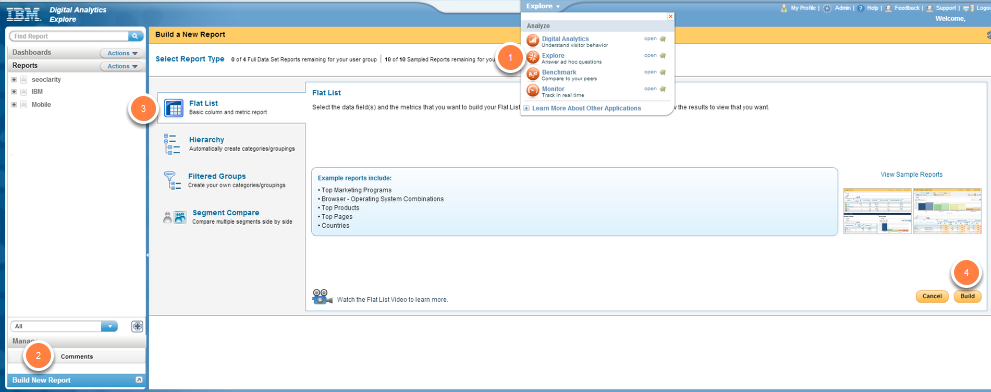
1. Using the drop down menu in the center of the page at the top, click Explore
2. On the Explore page, scroll to the bottom to click on the Build New Report button on the bottom of the left navigation menu
3. When the page is loaded, select Flat List from the report types section
4. On the bottom right, click on the Build button
Customize the Report - Columns & Metrics Tab
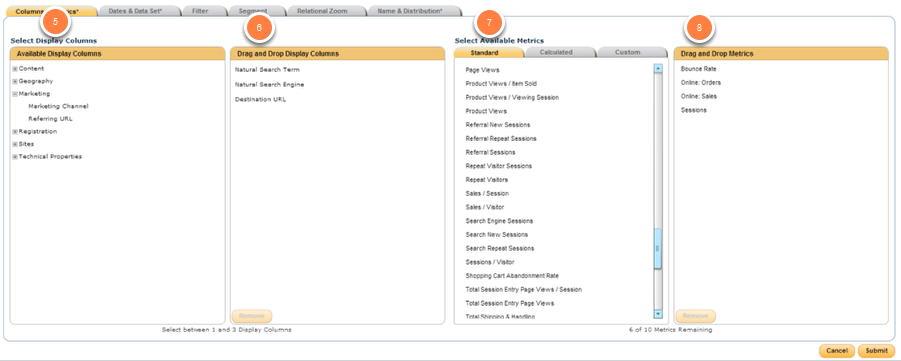
5. Start in the Select Display Columns by selecting the metrics listed under Marketing:
- Natural Search Term (Marketing)
- Natural Search Engine (Marketing)
- Destination URL (Marketing)
6. Drag and drop them into the empty column
7. In the Select Available Metrics column select these metrics:
- Sessions (required)
- Bounce Rate (required)
- Online Orders (optional)
- Online Sales (optional)
- Goals (optional)
8. Drag and drop them into the empty column
Customize the Report - Dates & Data Set Tab
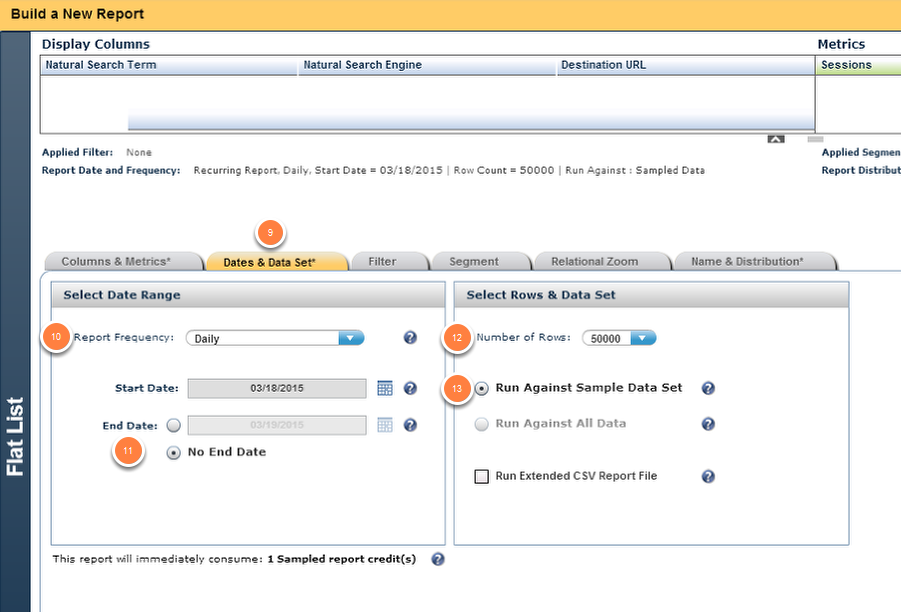
9. Click on the Dates & Data Set tab
10. In the Report Frequency drop down, choose Daily
11. Choose the No End Date option at the bottom
12. Number of Rows: Choose the largest amount available: 50,000
13. Select the Run Against All Data radio button option and select the checkbox to enable the Run Extended CSV Report File.
Customize the Report - Name & Distribution Tab
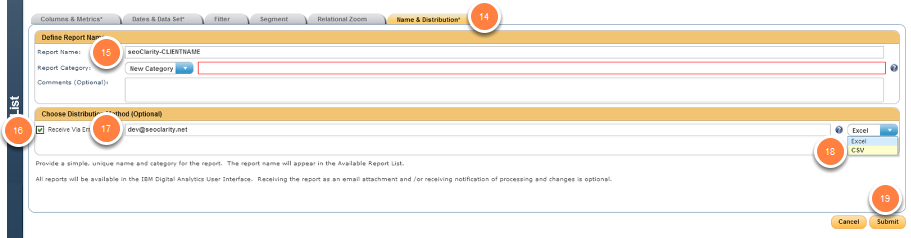
14. Click on the Name & Distribution tab
15. Report Name: type in seoClarity-<DOMAINNAME> (Replace <DOMAINNAME> with the name of your domain.)
Report Category: Select a pre-existing category if applicable, otherwise enter SEO into the texbox.
16. Choose Distribution Method: check Receive Via Email
17. Enter in dev@seoclarity.net in the textbox
18. Select .CSV in the report type dropdown menu
19. Click Submit
20. Finally, send an email to support@seoclarity.net to notify the team that the report is being sent.
The seoClarity Development Team will begin bringing this data into your domain and testing it. This process will normally take 2-3 business days to complete. Once the analytics is integrated into your domain, a member of the seoClarity Client Success team will email you letting you know that this integration is complete.
Summary
After integrating the Explore report, you will be able to analyze and monitor organic search data. seoClarity wants to provide the most accurate, up-to-date data all in one place in order to save you time and make you an efficient SEO. Integrating your IBM Coremetrics Explore report with the seoClarity platform, you will become just that.