Rank Intelligence Alerts
Overview
Rank Intelligence Alerts are automated, customizable alerts sent by email in response to certain preset, user-configurable conditions. The alerts cover these areas:
- Ranking Change: Alerts when rankings for any or your managed keywords fall outside of a given condition or range.
- Competitor Outranks: Alerts for keywords when a specific competitor starts outranking you for those keywords.
- Sub-optimal Page Ranking: Alerts for keywords that have an associated preferred page where that page is not the current ranking page.
- SERP Feature Occurrence: Alerts for changes to features found on the search results page.
Alerts are sent by email to the email address(es) specified in the alert setup. Watch the video below or take an on-platform tour for a quick tutorial on setting up Rank Intelligence Alerts, or scroll down for full specs and instructions:
Background and Requirements
- Daily Summary Alerts and Rank Clarity alerts will cease to function after 16 October 2020. Rank Intelligence Alerts replaces them. Those legacy alerts will NOT be automatically transferred to the new Rank Intelligence Alerts. You must manually set them up in Rank Intelligence Alerts
- Alerts must be setup by an authorized user to function. There are no automatic or preset alerts.
- Alerts are currently limited to ten (10) total across a domain.
- Alerts are sent by email in the morning on days when an alert has triggered. If there was no activity that matched any of your alert criteria, you will not receive an alert email that day.
- Alert comparison periods are based on the ranking update level of the domain account. So for accounts that get daily ranking updates, comparisons will be between yesterday and the day before. For accounts getting weekly ranking updates, comparisons will be between last week and the week previous to that, and so forth.
- Ranking Change and Competitor Outranks alerts are dependent on the domain having managed keywords loaded.
Use Cases
There are multiple use cases for each of the Ranking alerts. Outlined below are some examples:
Ranking Change
This alert helps you know, for example, when your important keywords drop out of the top three positions, when competitors make big gains, or when targeted keywords improve after you make changes.
- Quickly know if your top keywords lose their high rankings.
- Spot competitor moves and see when a competitor's rankings improve significantly.
- Understand if changes you made are helping your keyword rankings.
Competitor Outranks
Useful in highly competitive environments where there are a handful of dominant players (coupons, travel, etc.) This alert helps you know when a competitor starts ranking higher than you, when you rank higher than them, when a part of your site from another country ranks higher in the wrong place, or if an old version of your site ranks higher than your new one.
- Stay Ahead: Stay updated on competitive ranking changes in industries like coupons or travel.
- Strategy Adjustment: Adjust your strategy if your rankings drop.
- Migration Oversight: Ensure your new site maintains its ranking post-migration.
Sub-optimal Page
Most useful when you have already identified the optimal pages to rank for each of your keywords (Preferred Landing Pages)
- Monitor for a sub-optimal page ranking for a keyword that could cause sub-optimal engagement or conversions for that keyword
SERP Feature Occurrence
Useful in ever changing SERP landscapes where there is shift in the presence of specific results
- Get alerted when specific SERP features increase or decrease in occurrence. These can indicate a shift in intent and also cause significant swings in the visibility and traffic from SERPs.
New Page Starts Ranking
Useful for enterprises where SEO teams might not be immediately informed about new page publications by other departments.
- Early Detection: The alert helps in identifying new pages that have started ranking before the SEO team might be officially informed, allowing them to quickly assess the page’s impact.
- Preventing Keyword Cannibalization: By being promptly alerted, the SEO team can check if the new page is competing with existing pages for the same keywords, potentially reducing overall search performance.
- Avoiding Content Duplication: This alert ensures the new content is unique and not duplicating existing material.
Rank Intelligence Alerts Features and Use
Rank Intelligence Alerts are created using the Alerts menu choice in the Universal Add Elements box (click the + sign in the top navigation)
In the Alerts Dialog box choose from one of the alert types (described above) and click the "Next" button, or click "Manage existing alert" to edit or delete any previously-created alerts:
Ranking Change Alerts Setup
Step 1: Setup Alert
- Create a unique and descriptive name for the alert. This name will appear on any email notifications generated for this alert.
- In the "For:" box, specify the domain for which the alert is to apply. You can also specify a folder or sub-domain.
- Set the condition for the ranking position previous to the current ranking position (the position for "yesterday" for daily ranking update accounts, "last week" for weekly ranking update accounts, etc.). Condition can be set for Equals, Less Than, Greater Than, or Between.
- Set the condition for the most recent ranking position (the position for "yesterday" for daily ranking update accounts, "last week" for weekly ranking update accounts, etc.). Condition can be set for Equals, Less Than, Greater Than, or Between.
- In the "Engine:" box, choose the search engine this alert should monitor.
- In the "Location:" box, choose either "National Level" or specific geo locations to which this alert should apply.
- When all required settings are ready, click the "Next" button.
Step 2: Apply Advanced Filters
- Choose a Rank Type (True Rank or Web Rank) for the alert.
- Select any keyword tag(s) filters you want to apply to the alert.
- Select any content types filters you want to apply to the alert.
- Select any search intent filters you want to apply to the alert.
- Select any keyword or keyword patter filters you want to apply to the alert.
- Click the "Next" button (or "Prev" to return to Step One).
Step 3: Choose Recipients
- In the "Sent to:" box enter all the email addresses that should receive email notifications whenever this alert is triggered.
- Click the "Save" button to activate the alert (or "Prev" to return to previous steps).
Competitor Outranks Alert Setup
Step 1: Setup Alert
- Create a unique and descriptive name for the alert. This name will appear on any email notifications generated for this alert.
- In the "Domain:" box, specify the domain for which the alert is to apply. You can also specify a folder or sub-domain.
- In the "was outranked by:" box enter the competitor's domain, sub-domain. or folder, then specify whether the comparison should be made to the most recent ranking update or the previous ranking update (type of ranking update depends on the ranking update frequency of your domain's account).
- In the "Engine:" box, choose the search engine this alert should monitor.
- In the "Location:" box, choose either "National Level" or specific geo locations to which this alert should apply.
- When all required settings are ready, click the "Next" button.
Step 2: Apply Advanced Filters
- Choose a Rank Type (True Rank or Web Rank) for the alert.
- Select any keyword tag(s) filters you want to apply to the alert.
- Select any content types filters you want to apply to the alert.
- Select any search intent filters you want to apply to the alert.
- Select any keyword or keyword patter filters you want to apply to the alert.
- Click the "Next" button (or "Prev" to return to Step One).
Step 3: Choose Recipients
- In the "Sent to:" box enter all the email addresses that should receive email notifications whenever this alert is triggered.
- Click the "Save" button to activate the alert (or "Prev" to return to previous steps).
Sub-optimal Page Ranking Alerts Setup
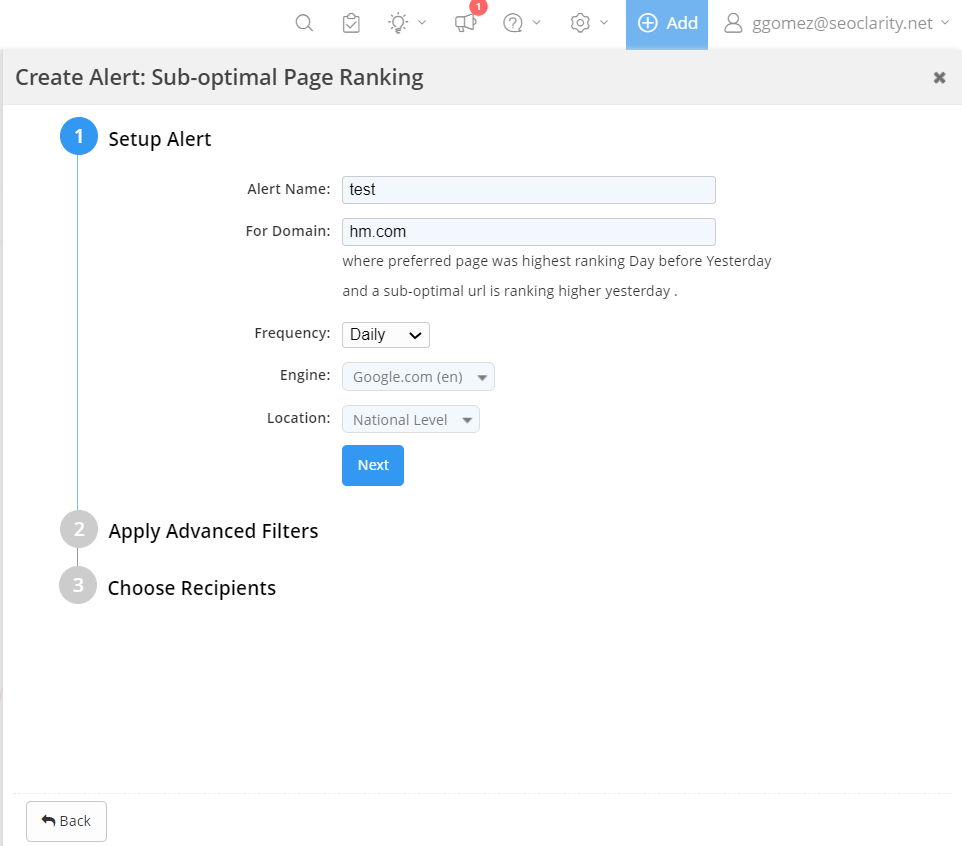
Step 1: Setup Alert
Step 1: Setup Alert
- Create a unique and descriptive name for the alert. This name will appear on any email notifications generated for this alert.
- In the "Domain:" box, specify the domain for which the alert is to apply. You can also specify a folder or sub-domain.
- In the "was outranked by:" box enter the competitor's domain, sub-domain. or folder, then specify whether the comparison should be made to the most recent ranking update or the previous ranking update (type of ranking update depends on the ranking update frequency of your domain's account).
- In the "Engine:" box, choose the search engine this alert should monitor.
- In the "Location:" box, choose either "National Level" or specific geo locations to which this alert should apply.
- When all required settings are ready, click the "Next" button.
Step 2: Apply Advanced Filters
- Choose a Rank Type (True Rank or Web Rank) for the alert.
- Select any keyword tag(s) filters you want to apply to the alert.
- Select any content types filters you want to apply to the alert.
- Select any search intent filters you want to apply to the alert.
- Select any keyword or keyword patter filters you want to apply to the alert.
- Click the "Next" button (or "Prev" to return to Step One).
Step 3: Choose Recipients
- In the "Sent to:" box enter all the email addresses that should receive email notifications whenever this alert is triggered.
- Click the "Save" button to activate the alert (or "Prev" to return to previous steps).
NEW Page Starts Ranking Alerts Setup
Step 1: Setup Alert
- Create a unique and descriptive name for the alert. This name will appear on any email notifications generated for this alert.
- In the "Domain:" box, specify the domain for which the alert is to apply. You can also specify a folder or sub-domain.
- In the "Frequency:" box, it will display Daily. *Currently we only support daily frequency ranking data for new page ranking alerts.
- In the "Date Range" box, indicate the date range of how long the page did not rank for the last “x” days.
- In the "Engine:" box, choose the search engine this alert should monitor.
Step 2: Apply Advanced Filters
- Choose a Rank Type (True Rank or Web Rank) for the alert.
- Select any keyword tag(s) filters you want to apply to the alert.
- Select any content types filters you want to apply to the alert.
- Select any search intent filters you want to apply to the alert.
- Select any keyword or keyword patter filters you want to apply to the alert.
- Click the "Next" button (or "Prev" to return to Step One).
Step 3: Choose Recipients
- In the "Sent to:" box enter all the email addresses that should receive email notifications whenever this alert is triggered.
- Click the "Save" button to activate the alert (or "Prev" to return to previous steps).
Managing Alerts
To manage previously-created alerts, click the Universal Add Elements button ( + sign in the top navigation) and select "Alerts" then "Create alerts" in the menu. Then click the "Manage existing alerts" button at the bottom of the Create Alerts menu box.
This brings up the Alerts management table:
Use the icons to the right of each alert to edit or delete that alert:
- Box with arrow: open the current report for this alert in a new tab
- Pencil: edit this alert
- Trash can: delete this alert
Rank Intelligence Alerts Email Notifications
Whenever a ranking change condition specified in one of your alerts is triggered, any specified recipients for that alert will receive an email the morning after the triggering event.
- All alerts triggered that day will be combined in one email to each recipient per day
- If no alerts were triggered on a given day, no emails are sent.
- The alert email displays each triggered alert and a list of up to ten keywords or page URLs sorted by search volume.
- If there are more than ten keywords or page URLs involved in an alert, a link is provided that opens the Rank Intelligence Keywords page in seoClarity, filtered to show the full results for the alert.
- Alerts are tied into our Quality Check process. This ensures that alerts will be triggered ONLY after all data for the specific domain has passed our quality checks. This will ensure that false alerts are minimized in cases where the data is delayed processing or when we detect a change in Google’s template that requires reprocessing.
- Alerts are sent from the email address: clarityalert@seoclarity.net. Please whitelist this email address in your email program.