Managing Users (Video)

Managing Users (Video)

Overview

You can add users to the platform and give existing users different levels of access to the platform. This is great for assigning top level management access, setting access permissions for the default dashboard, or setting up the access permissions for existing users so they can focus on the parts of the platform they need to work within.


Background & Requirements

You need to be logged into your account and have administrative access in that account as you will need to access the Settings page. Users without admin access can edit their own information via the My Profile page.     


How To Add A User       

1. From the Settings cog icon on the top right of the page, select the Settings link option.                     


3. On the Settings page, select the Users tab in the navigational menu on the left side of the page or the Users button at the top. 

4. On the Users page, select the + Add User button.               


5. Add the new user's name, email and password. 

6. In this area you can also set up alerts. What is found in these alerts is determined on what level of access each user is given. If they have full access Admin permission they will receive alerts based on everything found in the platform.  For example: If they only have access to Rank Intelligence they will receive alerts based on alerts set up around keywords such as ranking alerts.

7. Here is where you can choose to send a new user email, to select the dashboard access for that specific user, and you also have the ability to select if the selected user should have admin access (meaning they can access every part of the platform)

    •    Exclude Default Dashboard: Selecting this will remove access to the Default Dashboard

    •    Exclude Domain Level Dashboard: Selecting this will remove access to the other default dashboards (Actionable Insights, Competitor Comparison, and Ranking Dashboard).

8. If the user is NOT an admin, you will see these drop-down options which allow you to select access permissions for each part of the platform. You can select the following for each drop-down listed:

  • Read / Write:  If you assign the User “Read/Write” access in the platform they will be able to see the sections of the platform you gave them access to and use these sections to the fullest capability.
  • Read Only:  If you assign the User “Read Only” access in the platform they will see the data but will not be able to make any modifications to it.
  • No Access:   If you assign the User “No Access” to certain things found in the platform, they will only see what you allowed them access to when they login from their account. Example:  If you want them to only have access to “Dashboards” to see reports they will only see “Dashboards” when they log into their account.

9. Click Save  


How To Edit User Access

1. From the Users table on the Settings page, select the email address of the user who's access you wish to modify.   


2. The Edit User page will be displayed and permissions can be changed from here. Once changes are made, select the Save button to update the permissions.


How To Remove  a User           

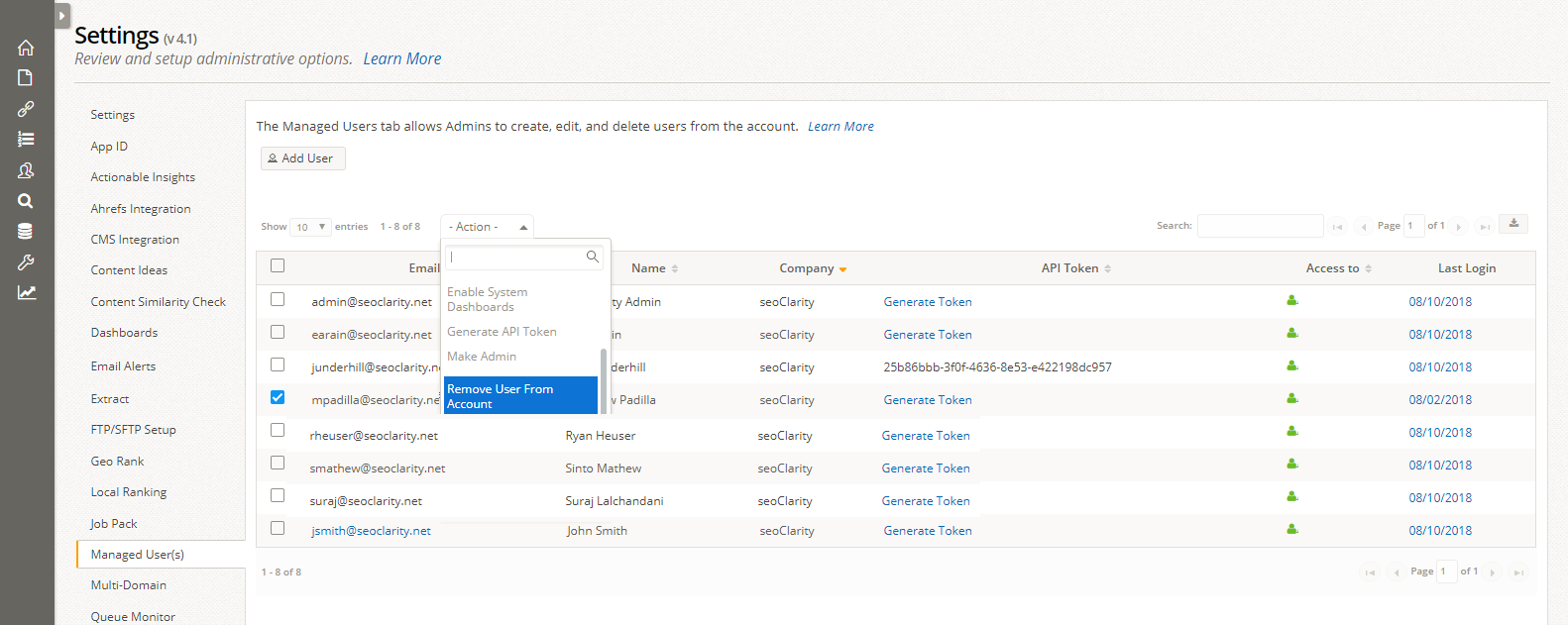
From the Users tab on the Settings page, use the checkmarks and actions dropdown to select Remove User from Account.


    • Related Articles

    • Users settings

      User Settings Overview Setting up and managing user accounts is one of the first steps to take in the seoClarity platform. It is a basic task, yet one of the most important tasks to take care of when setting up and managing an account. Managing Users ...
    • User Management (Video)

      User Management Overview You can add users to the platform and give existing users different levels of access to the platform. This is great for assigning top level management access, setting access permissions for the default dashboard, or setting ...
    • Video ranking

      Research Grid Video Overview View video search performance on Google and YouTube based on the Research Grid data set. Background & Requirements Search for a domain, URL or Youtube publisher to view Video Ranking data based on keywords from the ...
    • New Domain Provisioning: How To Request Profile Creation In seoClarity

      Overview To have a new domain profile provisioned within the seoClarity platform, the attached form needs to be filled out. Once filled out, the form will automatically create a Support Ticket and put you in touch with our Support team. Notice: ...
    • Tasks: How to Create, Assign, Manage, and Customize Tasks

      Task Management Overview Create tasks in your seoClarity account allows you to assign tasks out to yourself and other users to help create an efficient workflow and operationalize your SEO efforts. Custom task statuses and templates can be added with ...