Research Grid Domains

Research Grid Domains

Research Grid Domains Overview

Keyword Research Grid (formerly Competitor Keywords) displays the ranking keywords, the pages ranking for those keywords, which can be broken down by subdomains, and folder level URLs. The data displayed changes when a domain, URL, or keyword is searched, as will be covered below. Ranking data in Research Grid is based a monthly rank check and is separate from the managed keywords set. Previous month's data is typically available by the 3rd of the following month. 

Background & Requirements

In Research Grid > Domains, search for a domain, URL or keyword to view corresponding data. 

Research Grid Domains Use Cases

1. Identify true online competitor domains and the keywords they rank for Learn More
2. Discover industry specific keyword topic opportunities Learn More
3. Help build a keyword portfolio Learn More
4. Find content opportunities based on keyword research Learn More

Research Grid Domains Frequently Asked Questions:

  1. How are keywords added to the Research Grid database? Learn More
  2. When does the previous month become available in Research Grid? Learn More
  3. What are saved lists and how can I edit them? Learn More

VIDEO: How to do keyword research in Research Grid


Research Grid Domains

Search for a domain, URL or keyword to see results for that element. 

Search Options

Enter any domain or URL or keyword in the search box. The type of search will be auto detected.
  1. Domain: Available view(s): Keywords, Pages, Folders, Subdomains, Competitors, Country. 
  2. URL: Available view(s): Keywords, Competitors, Country.
  3. Keyword: Available view(s): Keyword Details.
  4. Country: Choose a country to see that country's data.
  5. Desktop/Mobile: Choose to view desktop results or mobile results.


Top Sites

Top Sites in a country based on estimated traffic across all keywords.
  1. All: Displays all sites with a positive or negative change in position month over month.
  2. Winners: Displays all sites with positive change in position month over month.
  3. Losers: Displays all sites with the most negative change in position month over month.

Keyword Research Grid Results

After submitting a search the next page will load with search options at the top of the page.


Country: Select the country for the results displayed.
Desktop/Mobile: Choose whether Desktop or Mobile results are shown (Desktop is default).
Date Range: Defaults to the calendar month that most recently ended. 
      Select from the options in the dropdown menu.

  1. Live: Most recently available daily ranking data gathered during the current month. 
  2. Custom: Choose any month and year within the available dataset. Most recently ended calendar month is the default.
  3. Last Month: Displays data from the most recently ended calendar month.
  4. Last 2 months: This option will display when the Compare box is enabled. 

Compare: Selecting this checkbox enables you to compare data between a previous month vs subsequent month. 


Filters


SERP Feature: This filter option allows you to narrow down the keywords that a domain ranks for based on the universal rank features discovered for the keyword. This is NOT filtering for the domain's rank IN the universal rank type - instead, it simply shows keywords where the universal rank feature was present. A common use case is to filter by "Answer Box" to see all the keywords where the domain was ranking that also had an answer box present. An even more advanced used case is to combine this with the rank filters. For example, you could apply the Answer Box filter and also the Rank filter "between 2 - 10" to display all keywords where the domain ranked, the answer box was present, but the domain was not in the Answer Box (Since Answer Boxes are counted as Rank position 1, if we set the rank to be between 2 - 10, it would indicate keywords where the domain was not in the Answer Box but was still in the top 10 results.
  • Answer Box: Results will be filtered for SERPs that include Answer Box SERP results
  • Event: Results will be filtered for SERPs that include Event results
  • Free product listings: Results will be filtered for SERPs that include Free Product Listings
  • Images: Results will be filtered for SERPs that include images
  • Job Pack: Results will be filtered for SERPs that include the Job Pack
  • Local Listing: Results will be filtered for SERPs that include Local Listings results
  • News: Results will be filtered for SERPs that include News results
  • People Also Ask: Results will be filtered for SERPs that include People Also Ask
  • Products: Results will be filtered for SERPs that include the organic product carousel
  • Shopping Ads: Results will be filtered for SERPs that include sponsored product carousel
  • Videos: Results will by filtered for SERPs that include videos
Rank Type: Select which set of rankings, either True (includes Universal Results) or Web, to view in the data table.
Rank: Select the ranking range to be viewed with options for Equals, Greater Than, Less Than and Between.
Keyword: Select the type of keyword to be viewed with options for Is, Isn't, Contains, Doesn't Contain,  Starts With, Ends With, and Regular Expression.
Keyword Patterns: Filter for keyword patterns that are based on the searched keywords.
Industries: Filter for the related keywords industry based on the criteria: is, isn't, contains, does not contain, starts with, ends with, or a Regex pattern using AND OR statements.
Search Intent: Search Intent helps segment data by the underlying intent. This is most commonly used for Brand and Non-Brand analysis. Simply specify the patterns to match and the data is segmented on the fly immediately.
URL: Select the type of URL to be viewed with options for Is, Isn't, Contains, Doesn't Contain, Starts With, Ends With, and Regular Expression.
Search Volume: Select the search volume range to be viewed with options for Equals, Greater Than, Less Than and Between.
Estimated Traffic: Select the estimated traffic range to be viewed with options for Equals, Greater Than, Less Than and Between.
User Intent (Beta): Select the intent types based on the keywords to be viewed with options for Informational, Local, Navigational, Transactional.

Month Added: Selecting a specific month will filter the keywords displayed to only those that were added on or before the month selected. This is useful in cases where you notice an increase in the number of keywords ranking for a domain and aren't sure if it is due to actual improvements in the visibility of that domain, or simply the addition of new keywords to the Research Grid . In such a case, just select the month BEFORE the month where you notice the increase. If the trend does not change upon applying the filter, then the increase in visibility is real. 

Keyword List: This is available after performing any type of search in the Research Grid. This allows for the creation of keyword lists from different sections of the Research Grid. Selecting the edit icon provides the ability to: 

  • Actions: To delete a list select the checkbox next to the corresponding list and use the actions menu dropdown option. 
  • Create New List: Type in a name to create a new list.
  • List: Displays the name of created lists, select this to review keywords in this list.
  • Count: Displays the number of keywords in the list.
 *Lists may be uploaded thru the universal add button at 10,000 rows. Up to 500,000 keywords can be uploaded per file and any keywords over this amount in a single file will be excluded from addition to the Saved List.
 Once submitted, the file will be processed and the Keyword List will become available. Processing takes up to 24 hours for new lists.


Managed Pages Only: This option is only available when researching the currently active domain and allows for filtering by managed pages and page tags. 

Tracked Status: This option is only available when researching the currently active domain and allows for filtering by managed keywords and keyword tags or keywords that are not currently managed.


Keywords tab

The Keywords tab is available when searching a domain or URL. When searching a URL, it is the only tab that is available. This displays keyword ranking data for the searched domain or URL.


Summary Boxes

Rankings: Displays the count of all URLs found ranking for keywords from Research Grid.
Search Visibility: Displays search visibility (estimated traffic/traffic potential).
Estimated Traffic: Displays the estimated traffic (keyword position CTR * Search Volume).
Traffic Value: Displays the estimated cost that would be required to purchase the estimated traffic if it were to be sourced solely from pay-per-click advertising on Google.
Potential Traffic: Displays the potential traffic if all ranking keywords were in the first position (position 1 CTR * search volume).
Keyword Intent: Displays the most likely user intent behind searches for the searched keyword.

Trend Charts

Rank Trend: Displays the count of ranking keywords by ranking bucket over time.
Estimated Traffic: Displays the estimated traffic (Search Volume x CTR for the keyword rank) over time.
Weighted Average Rank: Displays the weighted average rank (weighting is based on search volume) over time.
Average Rank: Displays the average rank over time.
Share of Voice: Displays the share of voice percentage over time.
Word Cluster: Displays the most commonly occurring words found based on the ranking keywords.


Research Grid Data Tables

Keywords: Displays all keywords found ranking for the searched domain or URL.


Columns

Keyword: Displays the keywords associated to the searched domain or URL
User Intent: A variable dimension where keywords can be categorized as Informational, Local, Navigational, or Transactional. Learn more
Volume: Displays the monthly average search volume within a specific country as reported by Google Keyword Planner. 
Global Volume: Displays the monthly average worldwide search demand for a keyword sourced from Google Keyword Planner, providing a benchmark to compare against country-specific demand.
True Demand: The differences in search volume for slight variations of keywords, keywords that Google Ads search volume estimates doesn’t distinguish. 
Keyword Difficulty: Uses a range of factors to determine how difficult it might be to rank for the given keyword. Keyword difficulty tells you which keywords to invest time and effort into first. It is based on a proprietary algorithm using everything we know about a particular keyword and the pages that rank for it.
Rank: Displays the rank of the keyword for the month selected
CPC: Displays the estimated cost per click of the keyword from Google's Keyword Planner
Estimated Monthly Traffic: Displays the monthly traffic estimated by Google based off of exact match results
Traffic Value: The estimated cost that would be required to purchase the estimated traffic if it were to be sourced solely from pay-per-click advertising on Google. Traffic value is calculated by multiplying the cost-per click for the keyword by the estimated traffic for keyword, relative to the date range selected.
URL: Displays the URL that matches with the keyword


Keyword Patterns: Displays the patterns found based on the ranking keywords for the searched domain or URL.

Columns

Keyword: Displays the keywords associated to the searched domain or URL
Average Search Volume: Displays the monthly average search volume from Google's Keyword Planner
Rank: Displays the rank of the keyword for the month selected
CPC: Displays the estimated cost per click of the keyword from Google's Keyword Planner
Estimated Monthly Traffic: Displays the monthly traffic estimated by Google based off of exact match results
URL: Displays the URL that matches with the keyword


Research Grid Actions Dropdown

Add to Lists: Lists are a way to organize keywords from the Research Grid into groups for filtering. This allows for the creation and use of keyword lists across different features of the Research Grid.
Add to Tracked Keywords: This allows for keywords to be tracked on your managed keyword set.

Assign Tag & Preferred Landing Page:  Select the keywords and preferred landing page URL and assign a tag to have a better view of their performance. Associating keywords associated with preferred landing pages is akin to mapping out the URL we want to rank for a managed keyword, whereas a managed page that does not have any keyword associations made within the platform would be unmapped.
Assign Tags: This allows for tags to be assigned to the selected keywords. Therefore, you will start managing those keywords.


Pages tab

The Pages tab is available when searching a domain. This displays page data based on the keyword rankings of the searched domain.


Research Grid Pages Trend Chart

Unique Pages Ranking: Displays the count of unique pages that rank for at least 1 keyword in the top 100 results.

Research Grid Pages Data Table

Research Grid Pages Table Columns

Page: Displays individual URLs of the searched website that have keywords ranking.
Count of Unique Keywords: Displays the total number of keywords found ranking over time.
Total Estimated Traffic: Displays the monthly estimated traffic based on the ranking keywords.
Traffic Potential: Displays the estimated traffic if all ranking keywords were in the first position.
Search Visibility: Displays the percentage of estimated traffic divided by the traffic potential.
Topical Page Strength: Displays how strong a single page is contextually for that particular topic, based on an algorithmic determination.

Folders tab

The Folders tab is available when searching for a domain. It displays a summary of rankings by subfolder for the searched domain.


Research Grid Folders Trend Charts

Count of Keywords: Displays the total number of keywords found ranking over time.
Estd Traffic: Displays the estimated traffic (Search Volume x CTR for the keyword rank) over time.
Wtd. Average Rank: Displays the weighted average rank (weighting is based on search volume) over time.
Average Rank: Displays the average rank over time.

Research Grid Folders Data Table

Above the Data Table in Folders view are options to view in Table or Tree mode. Table view allows for the selecting of options to review the performance of your or your competitor's site taxonomy/categories easily. The Tree view displays the folder hierarchies. It shows the top level folders and allows users to easily expand and drill in to view the subfolders that are performing the best. 

Folder: Displays the name of the folder found in URLs based off the searched domain.
Count of Keywords: Displays the total number of keywords found ranking over time.
      Clicking on the number in the Count of Keywords column opens the right side window to display the keywords and their metrics.
Total Estimated Traffic: Displays the monthly estimated traffic based on the ranking keywords.
Traffic Potential: Displays the estimated traffic if all ranking keywords were in the first position.
Search Visibility: Displays the percentage of estimated traffic divided by the traffic potential.
Count of Pages: Displays the number of pages in the folder.


Subdomains tab

The Subdomains tab is available when searching for a domain. This displays a summary of rankings by subdomain for the searched domain.


Research Grid Subdomains Trend Charts

Count of Keywords: Displays the total number of keywords found ranking over time.
Estd Traffic: Displays the estimated traffic (Search Volume x CTR for the keyword rank) over time.
Wtd. Average Rank: Displays the weighted average rank (weighting is based on search volume) over time.
Average Rank: Displays the average rank over time.

Research Grid Subdomains Data Table

Domain: Displays the subdomains found associated with the searched domain.
Count of Unique Keywords: Displays the number of keywords that are ranking for the URL.
Total Estimated Traffic: Displays the monthly estimated traffic based on the ranking keywords.
Traffic Potential: Displays the estimated traffic if all ranking keywords were in the first position.
Search Visibility: Displays the percentage of estimated traffic divided by the traffic potential.


Competitors tab

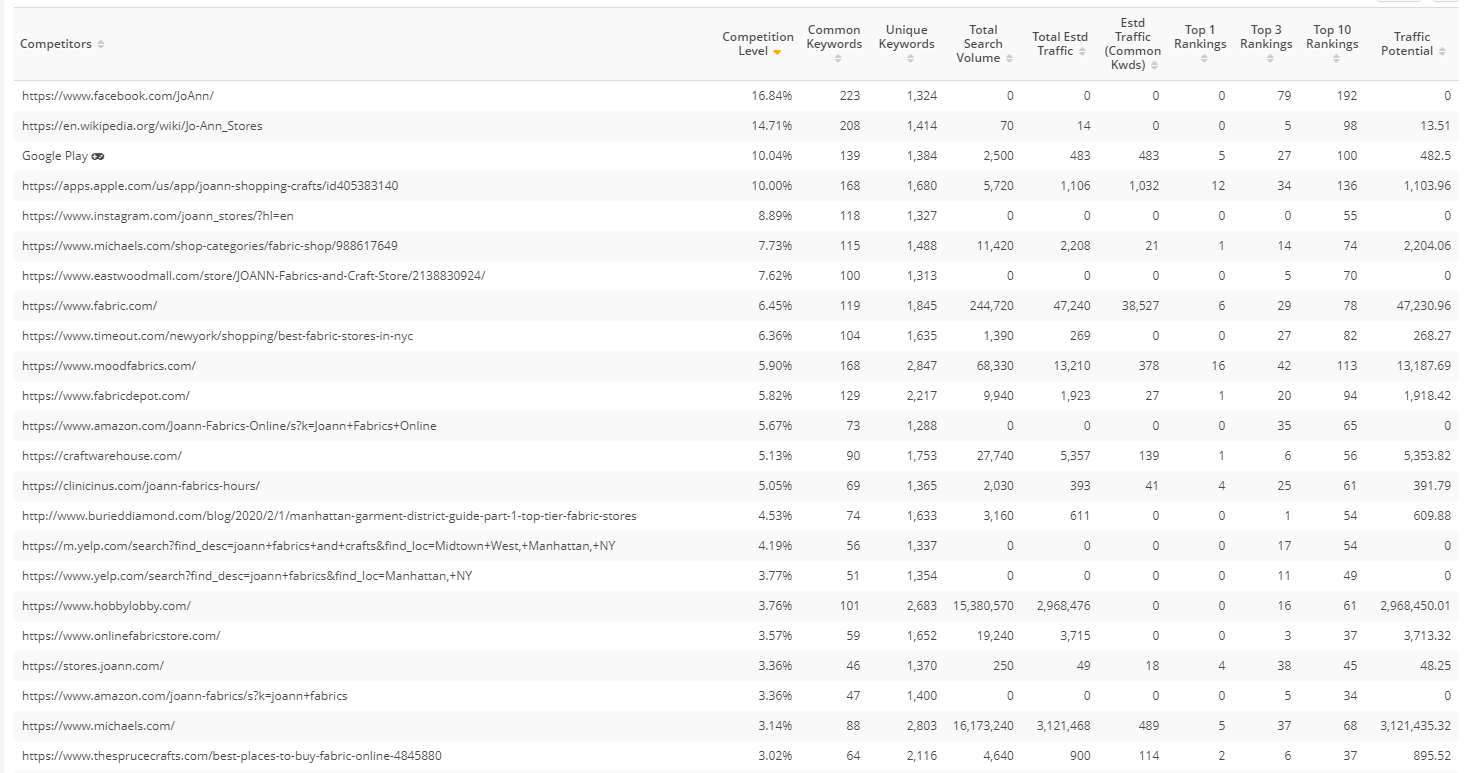
The Competitors tab is available when searching a domain or URL. This data is only available for the most recently completed month. This displays the top ranking domains based on the keywords ranking for the searched domain or URL.

Research Grid Competitors Chart

Competitors: Ranking metrics for common unique keywords where both domains are ranking in the top 20. Displays the top competitors based on the competition level


Research Grid Competitors Data Table

Domain: Displays the competitor's domain.
Competition Level: Displays a percentage relative to the unique ranking keywords compared to the common keywords found ranking for your domain and a competitors domain. This percentage is based on the number of common keywords ranking divided by the number of unique keywords ranking. 
Common Keywords: Displays the common keywords shared between you and the specific competitor.
Unique Keywords: Displays the number of keywords that are unique to both domains.
Total Search Volume: Displays the total search volume of keywords ranking for that specific competitor.
Total Estimated Traffic: Displays the estimated traffic for the ranking keywords.
Estimated Traffic (Common Keywords): Displays the estimated traffic for keywords in common.
Top 1 Rankings: Displays the total number of number one ranking keywords for the specific competitor.
Top 3 Rankings: Displays the total number of number three ranking keywords for the specific competitor.
Top 10 Rankings: Displays the total number of number ten ranking keywords for the specific competitor.
Traffic Potential: Displays the estimated traffic if all ranking keywords were in the first position. 

Country tab

The Country tab is available when searching a domain or URL. This displays the rankings per country for the searched domain or URL.


Research Grid Country Charts

Global View: Displays a heatmap by country of the rankings across the globe. 
Count of Keywords: Displays the total number of keywords found ranking over time.
Estd Traffic: Displays the estimated traffic (Search Volume x CTR for the keyword rank) over time.
Average Rank: Displays the average rank over time.


Research Grid Country Data Table

Country: Displays the country where rankings are based on. 
Count of Keywords: Displays the number of keywords that are ranking for that country.
Average Rank: Displays the average rank for the keywords ranking in that country. 


Industries tab

The Industries tab is available when searching a domain or URL. This displays the count of keywords that relate to the specific industry based on Google's defined industry category for the searched domain or URL. 


Research Grid Industry Data Table

Industry: Displays the categories that have relevant keywords for the searched domain or URL. 
Count: The count of keywords that are relevant to the specific industry.
Total Search Volume: The sum of search volume for all related keywords that are relevant in the specific industry. 

SERP Features tab

The SERP Features tab is available when searching a domain or URL. This displays the SERP features widget based on the keywords the domain or URL ranks for.


Topic Explorer Keyword Research

The Keyword details view is available in Topic Explorer when searching for a keyword. 


Topic Explorer Research Summary Boxes

Search Volume: Displays the monthly average search volume for the searched keyword based on Google's Keyword Planner.
Search Volume Trend: A month over month view of search volume based on the searched keyword.
Traffic Potential: An estimate of how much traffic the searched keyword drives per month from organic search.  
CPC: Displays the cost per-click for the searched keyword based on Google's Keyword Planner.
Keyword Intent: The most likely user intent behind searches for the searched keyword. 
SERP Features
: Search features that show on search pages where this keyword ranks. 


Topic Explorer Research Chart


Domain Rank Trend: A rank trended view of the first five domains based on the data table for the most recent month of data. 
URL Rank Trend: A rank trended view of the first five domain's URL  based on the data table for the most recent month of data.


Topic Explorer Research Data Table
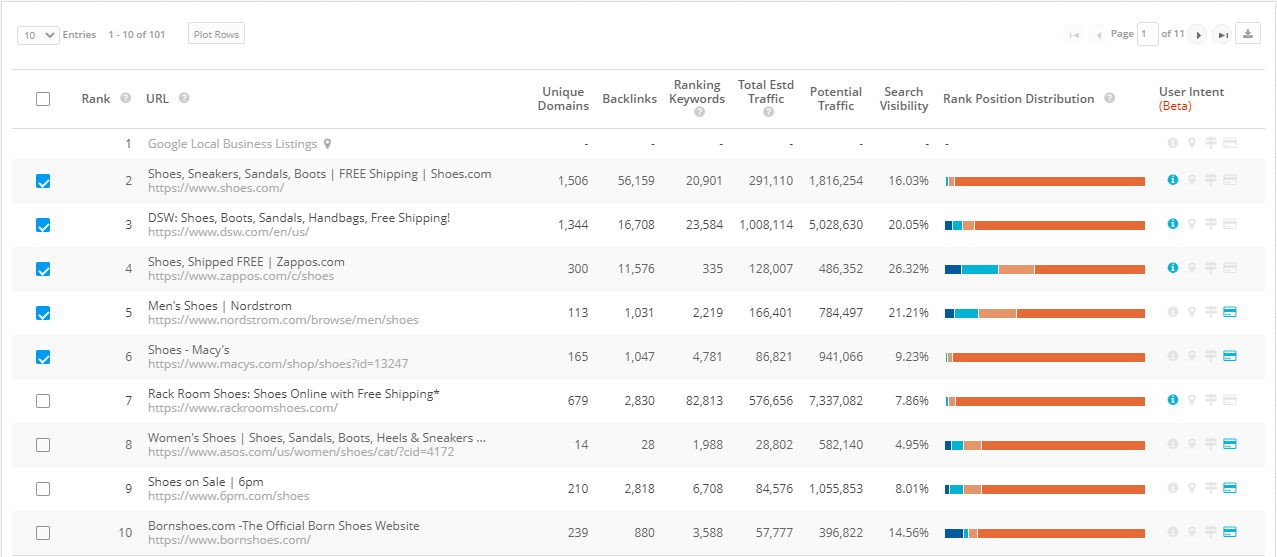
Rank: Displays the rank position of the page for the searched keyword.
URL: Displays the URLs that are ranking for the searched keyword.
Unique Domains: The count of unique backlink domains linking to the ranking URL. 
Backlinks: The count of unique backlinks linking to the ranking URL.
Ranking Keywords: The count of keywords the ranking URL is ranking (in the top 100) for.
Total Estimated Traffic: The estimated traffic the ranking URL is receiving based on all keywords it is ranking for.
Potential Traffic: An estimate of how much traffic the searched keyword can gain per month from organic search.
Search Visibility: A percentage based on the keyword's estimated traffic divided by traffic potential. Learn more
Rank Position Distribution: This is the ranking performance of the keywords the ranking URL has by rank bucket.
User Intent: A variable dimension where keywords can be categorized as Informational, Local, Navigational, or Transactional. Learn more


Research Grid Export Options

Chart Downloads


  1. Download PDF Document: Select this option to extract the chart as a .pdf file.
  2. Download PNG Image: Select this option to extract the chart as a .png file.
  3. Download JPEG Image: Select this option to extract the chart as a .jpeg file.
  4. Download Data: Select this option to extract the chart's underlying data points.

Table Downloads

  1. Copy Visible Rows: Select this option to copy the table rows that are currently visible (based on the number of entries displayed) to your clipboard. This can be used to paste into other data repositories. 
  2. Download All: Select this option to extract the table in its entirety, up to 1 million rows.
  3. Download Clustered: Select this to extract the table with primary keywords listed alongside clustered similar keywords. Example:


    • Related Articles

    • Research Grid Hub

      Research Grid Hub Overview The Research Grid Hub is the all-in-one view for all essential information on any domain or keyword. It displays the ranking keywords, the pages ranking for those keywords, which can be broken down by subdomains, and folder ...
    • Folders Tree View in Research Grid Domains (VIDEO)

      In Research Grid Domains under the Folders tab, you can easily drill down to see the performance of any folder at any level.
    • Folders Tree View in Research Grid Domains (VIDEO)

      In Research Grid Domains under the Folders tab, you can easily drill down to see the performance of any folder at any level.
    • Research Grid AI Overview Report

      Research Grid AI Overview Report Google's AI Overviews aren't a future possibility, they are the present reality, shaping user decisions at a massive scale. When a brand is absent in these answers, it silently loses authority, traffic, and revenue to ...
    • How are keywords added to the Research Grid database?

      Requests for keyword additions to the Research Grid follow our feature request process and include a rigid editorial review process prior to any keywords being added. Submitted requests are added to a queue and prioritized only after vetting and ...