Research Grid: Answer Box
Research Grid Answer Box Overview
The Research Grid Answer Box feature provides a way to quick discover keyword opportunities from Answer Boxes found in the Research Grid. Keywords shown in Answer Box are the keywords which the selected domain(s) rank for that display an answer box.
Research Grid Answer Box Use Cases
1) Consider which keywords hold the top 3 search results for your brand/domain, these are low-hanging fruit terms that you can target first.
2) Consider targeting keywords your competitors are ranking for within the Answer Box.
3) Find long tail keywords no one is targeting but trigger the Answer Box.
4) Consider keywords for which you ranked previously.
5) Target brand keywords with answer boxes.
Research Grid Answer Box: Domains tab
Find Answer Box opportunities by searching for a specific domain or URL.
Search Options
Domain : Search for up to 3 domains to discover Answer Box opportunities. You can remove the default domain and search for any domain.
It is best to utilize relative industry competitors for the best results.
Device toggle: Switch between Google desktop and Google mobile search results.
Country selector: View Answer Box opportunities based on ranking for a specific country.
Filters
Keyword: Select the type of keyword to be viewed with options for: Is, Isn't, Contains, Doesn't Contain, Starts With, Ends With, and Regular Expression.
Search volume: Select the search volume range to be viewed with options for: Equals, Greater Than, Less Than and Between.
CPC: Select the cost per-click range to be viewed with options for: Equals, Greater Than, Less Than and Between.
URL in Answer Box: Select the type of URL to viewed with options for: Is, Isn't, Contains, Doesn't Contain, Starts With, Ends With, and Regular Expression.
Rank: Select the rank range to be viewed with options for: Equals, Greater Than, Less Than and Between.
Answer Box charts
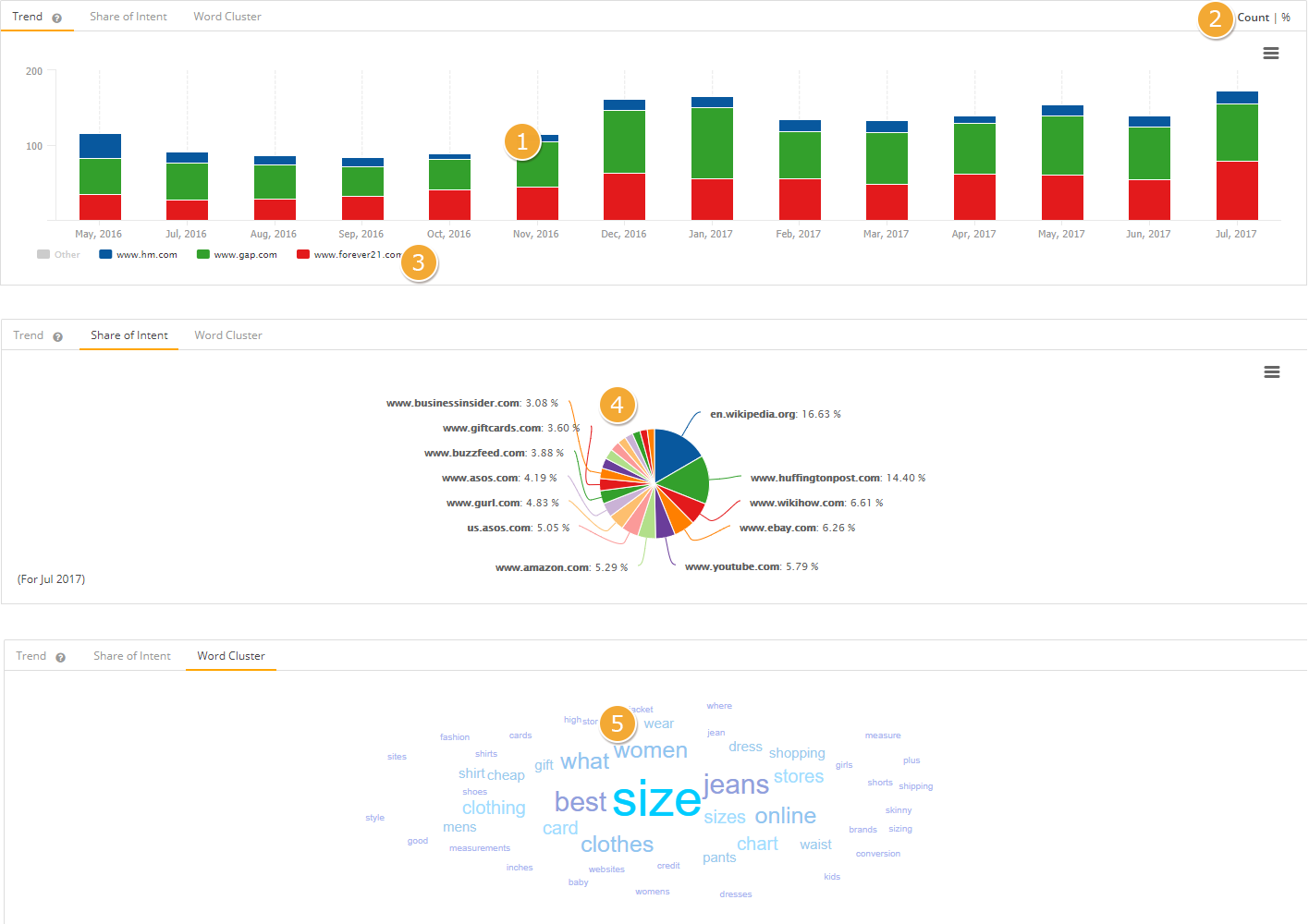
Answer Box summaries
Answer Box Opportunities: Displays the total count of keywords that trigger an Answer Box based on the searched domain(s). The total search volume is for all answer box keyword opportunities from Google's Keyword Planner.
Traffic Potential: Displays the estimated traffic of ranking in position 1 for all answer box keyword opportunities.
Performance: The number of keywords the searched domains are ranking for the Answer Box.
Answer Box charts
Share of Intent: Displays the top ranking domains found in the Answer Box for keywords found ranking based on the searched domain or URL. Selecting a piece of the pie chart will filter the table for that domains ranking keywords.
Word Cluster: Displays the most used keywords from the keywords found ranking based on the searched domain or URL. Selecting a keyword will filter the table to display keywords containing only that word.
Answer Box Domain table
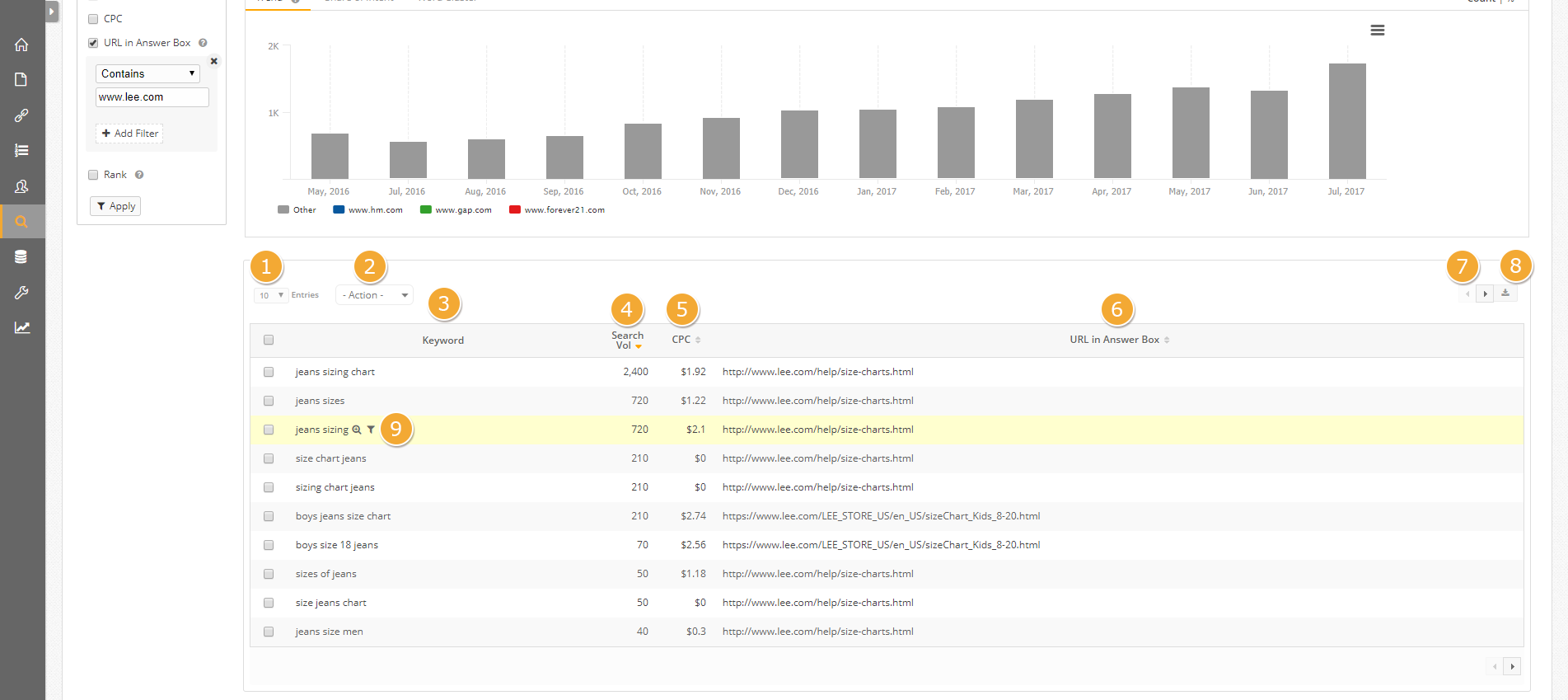
Columns
Keyword: The long-tail or keyword phrase that is displaying a Answer Box. Select the magnifying glass will direct you to Research Grid > Keywords and create a search for that keyword. The Filter Icon will display all the related keywords.
Search Volume: The average monthly search volume for the keyword from Google's Keyword Planner.
CPC: The cost per-click for the keyword from Google's Keyword Planner.
URL in Answer Box: The URL that is ranking in the answer box for the search query. If no URL is present via the SERP for a specific keyword, you may see the url https://quickanswers.google.com.
Actions
Add to Lists: Add the selected keyword(s) to a Saved List for use when filtering Research Grid features.
Add to Rank Clarity: Add the selected keyword(s) to be tracked/managed in the platform.
Assign Tag & Preferred Landing Page: Add the selected keyword(s) to be tracked/managed in the platform by selecting the keyword tag it should belong in and the preferred landing page that should be associated.
Assign Tags: Add the selected keyword(s) to be tracked/managed in the platform by selecting the keyword tag it should belong in.
Keywords tab
Find Answer Box opportunities by searching for a specific keyword topic.
Search Inputs
Keyword search: Enter any keyword, phrase, or long-tail keyword to find opportunities to rank in the Answer Box.
Device toggle: Switch between desktop and mobile keyword
Country selector: Select from a variety of country options that is constantly growing!
Filters
Keyword: Select the type of keyword to be viewed with options for: Is, Isn't, Contains, Doesn't Contain, Starts With, Ends With, and Regular Expression.
Search volume: Select the search volume range to be viewed with options for: Equals, Greater Than, Less Than and Between.
URL in Answer Box: Select the type of URL to viewed with options for: Is, Isn't, Contains, Doesn't Contain, Starts With, Ends With, and Regular Expression.
Summary Boxes
Answer Box Summary: The total number of keywords including the search volume of the search keyword.
Traffic Potential: The estimated monthly traffic of all keywords ranking for the Answer Box in the SERP.
Keywords with Answer Box Trend: Monthly trended graph of total keywords ranking for the Answer Box
Chart
Top Competitors: Displays the top ranking domains found in the Answer Box for keywords found ranking based on the searched keyword. Selecting a piece of the pie chart will filter the table for that domains ranking keywords.
Keyword: The keyword that is displaying a Answer Box based on the searched keyword.
Search Volume: The average monthly search volume for the keyword from Google's Keyword Planner.
URL in Answer Box: The URL that is found ranking in the Answer Box for the corresponding keyword.
Actions
Add to Lists: Add the selected keyword(s) to a Saved List for use when filtering Research Grid features.
Add to Rank Clarity: Add the selected keyword(s) to be tracked/managed in the platform.
Assign Tag & Preferred Landing Page: Add the selected keyword(s) to be tracked/managed in the platform by selecting the keyword tag it should belong in and the preferred landing page that should be associated.
Assign Tags: Add the selected keyword(s) to be tracked/managed in the platform by selecting the keyword tag it should belong in.