Content Distribution Tracker

Content Distribution Tracker

Content Distribution Tracker Overview

You will be able to use this tool to track and gather data relating to the content that has been published on your site. Tracking your content allows you to see if other sites reference or use your content. 

Background & Requirements for Content Distribution Tracker

In order to use our Content Distribution Tracker, you will first need to have a piece of content published on your website whether it is a press release, blog content, or an infographic. You will then need to log into the seoClarity platform and navigate to the Content Distribution Tracker feature in the Tools section. 

Content Distribution Tracker Use Cases

  1. Find the number of links for press releases or infographics within the Content Distribution Tracker table.
  2. Discover partner links.
  3. Find out if your content has been crawled.
  4. See the response code for the URL that is displaying your content.

Content Distribution Tracker


Content Distribution Tracker table     
Query Text: Displays string of text that you want crawled to see who picked the content up on their sites.
Acquisition Type: Displays the type of content. The options are - OrganicExchangeSelf SubmitPurchaseOther.
      Acquisition Other: Displays any notes that have been added to the selected piece of content.
Create Date: Displays the date the content was entered into the tracker.
Count of Result Pages: Displays the number of site results found that used the specified content.
Count of Links: Displays the number of managed backlinks picked up in that project that link to your domain profile.
Status: Displays if the content has been crawled yet or not.
Content Distribution Tracker Detail


Content Distribution Tracker Detail table
Partner URL Status:  Displays the server response code found for the URL that is displaying your content.  The icons below the status represent (from left to right):  contact information, acquisition information, link status found, link type found, and content distribution tracker identifier.
Assigned To: Displays the user that this piece of content is assigned to
Relationship:  Displays if the URL is a managed link or not.
Partner URL:  Displays the URL found to be displaying your content.
Anchor Text:  Displays the text found on the partner URL that you click on to get you to your site.
Target URL:  Displays the URL within your site that the partner URL is linking to.  Pop up button opens and displays the target URL.
Target URL Status:  Displays the server response code found for the target URL.
Acquired Date:  Displays the date the partner URL is found tracking your content and pointing to your site.
Inbound:  Displays the number of inbound links to the Partner URL.
Outbound:  Displays the number of outbound links to the Partner URL.
Acquisition:  Displays the method of acquisition chosen when adding in content to track.


The Content Distribution Tracker should begin to populate with your content data in 24 - 48 hours. You will see the number of links found for the press release or infographic within the Content Distribution Tracker table. To see the links that were found, navigate to your managed links in Link Clarity. In the Acquisition column to the far right, the name of the press release or infographic will appear for any links found. To filter through to find those specific partner links found in Link Clarity, use the Create Filter functionality, Customize Acquisition Other equal press release or infographic name.


How to Track a Press Release

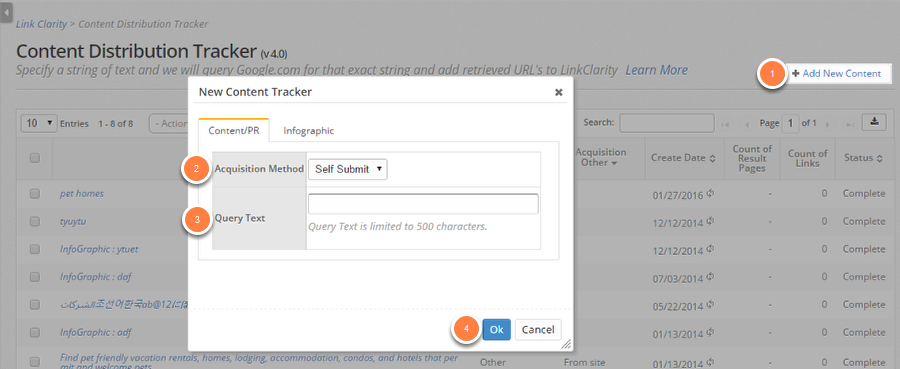
1. Select on the +Add New Content button which will open up a pop-up window

2. Select Self Submit in the drop down menu next to where it says Acquisition Method

3. Copy a piece a text string from the actual press release and paste it in Query Text. This will help seoClarity to find the press release on the sites. Do not enter the press release’s title in the Query Text box. The string needs to be from the body of the press release. TIP: Use the end of one sentence and the beginning of the next to make sure the text is very specific to the press release.

4. Click Ok to submit


How to Track an Infographic

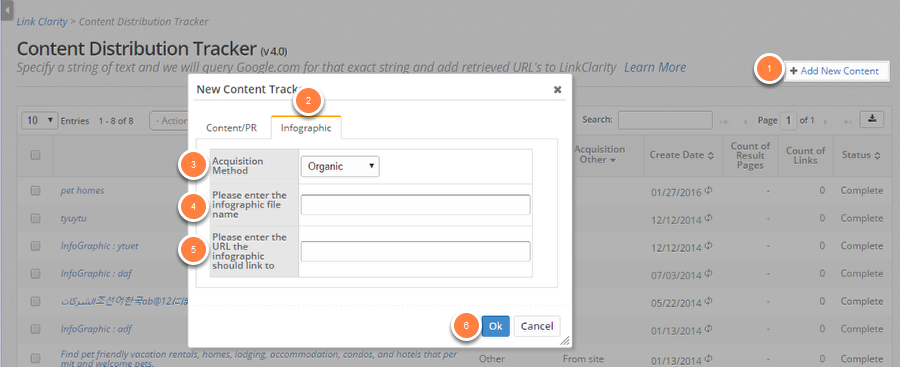
1. Select the +Add New Content button

2. Select the Infographic tab located in the pop up window

3. Select Organic in the drop down

4. Enter the file name of the infographic

5. Enter the URL of the page that the infographic resides on

6. Click Ok

    • Related Articles

    • Link Clarity Managed Links

      Link Clarity Overview Link Clarity Managed Links is where all of your Partner URLs (backlinks) are housed and tracked. Partner URLs are backlinks that have been manually added to the seoClarity platform by you or your team. Having these Partner URLs ...
    • Internal Links Analysis

      Internal Links Analysis Overview Internal Links Analysis is a summary of the internal (own domain) linking data based on a Site Audit crawl. Internal Links data takes up to 24 hours to process once a crawl is completed and is based on indexable (200 ...
    • Glossary of Terms

      200 OK: Status code that indicates the URL is normally accessible. 301 Redirect: Status code that indicates a permanent server side redirect. 302 Redirect: Status code that indicates a temporary server side redirect. 403 Error: Status code that ...
    • What are Partner URLs?

      Partner URLs are backlinks that have been manually added to the seoClarity platform by you or your team. Having these Partner URLs in your account will help you track, monitor, manage, and optimize your links. Link Clarity Managed Links is where all ...
    • Content Ideas

      Content Ideas Overview Content Ideas is the place to find out what's relevant to a particular keyword topic to provide suggestions for subjects that can be covered when building content. Background & Requirements for Content Ideas Search a keyword ...