Filters & Alerts setting
Objective
Filters can be created via the Create Filter option in Link Clarity. Users have the ability to have alerts emailed to them directly and are customizable. This walkthrough will teach you how to edit users, change the frequency of the alert, and delete alerts.
Create New Alerts
Alerts are created in Link Clarity.
1: Filter the Type Column Buttons
When you click on the ‘Type’ column buttons such as ‘Target URL’ it will take you directly to the applicable Page Clarity page and engage the filter for you.

Editing Filters & Alerts
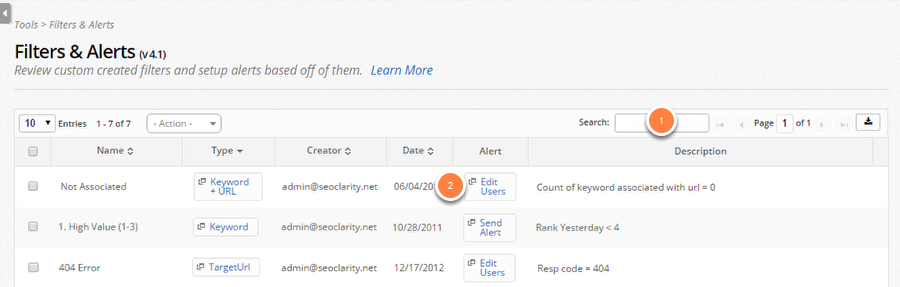
1. Search for the filter you want to update in the search box
2. Click the Edit User or Send Alert buttons
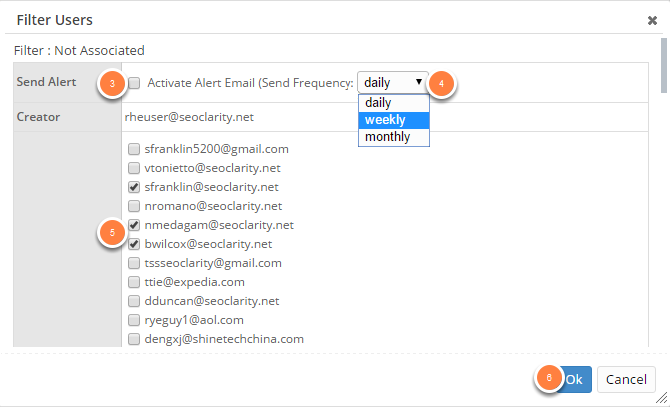
3. Click the check box to activate or deactivate the alert email
4. Click the drop down to choose the frequency of the alert email
5. Click the check boxes to selected or deselect users
6. Click Ok
Delete Filters & Alerts
1. Search for the filter you want to delete in the search box
2. Click the check box next to the filter
3. Click the actions drop down menu
4. Click Delete
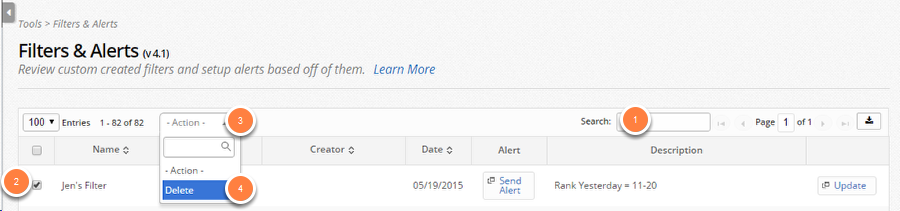
5. Click Ok to confirm
Summary
Filters & Alerts are a great way to stay on top of everything happening with your site and we mean it. Set these up properly in order to not have anything fall through the cracks. There are different types of filters for different parts of the platform keywords, pages, and keyword + URL pairs and you can set them up in those specific features. Follow along with the Setting Up Alerts to learn how to set them up in the different parts of the platform.