Google Analytics Segmentation
Overview
This article covers how to set up a segment in Google Analytics for the purposes of filtering an authenticated Google Analytics integration.
Requirements
Access to the Google Analytics account is needed for segment creation.
How To Create a Segment in Google Analytics
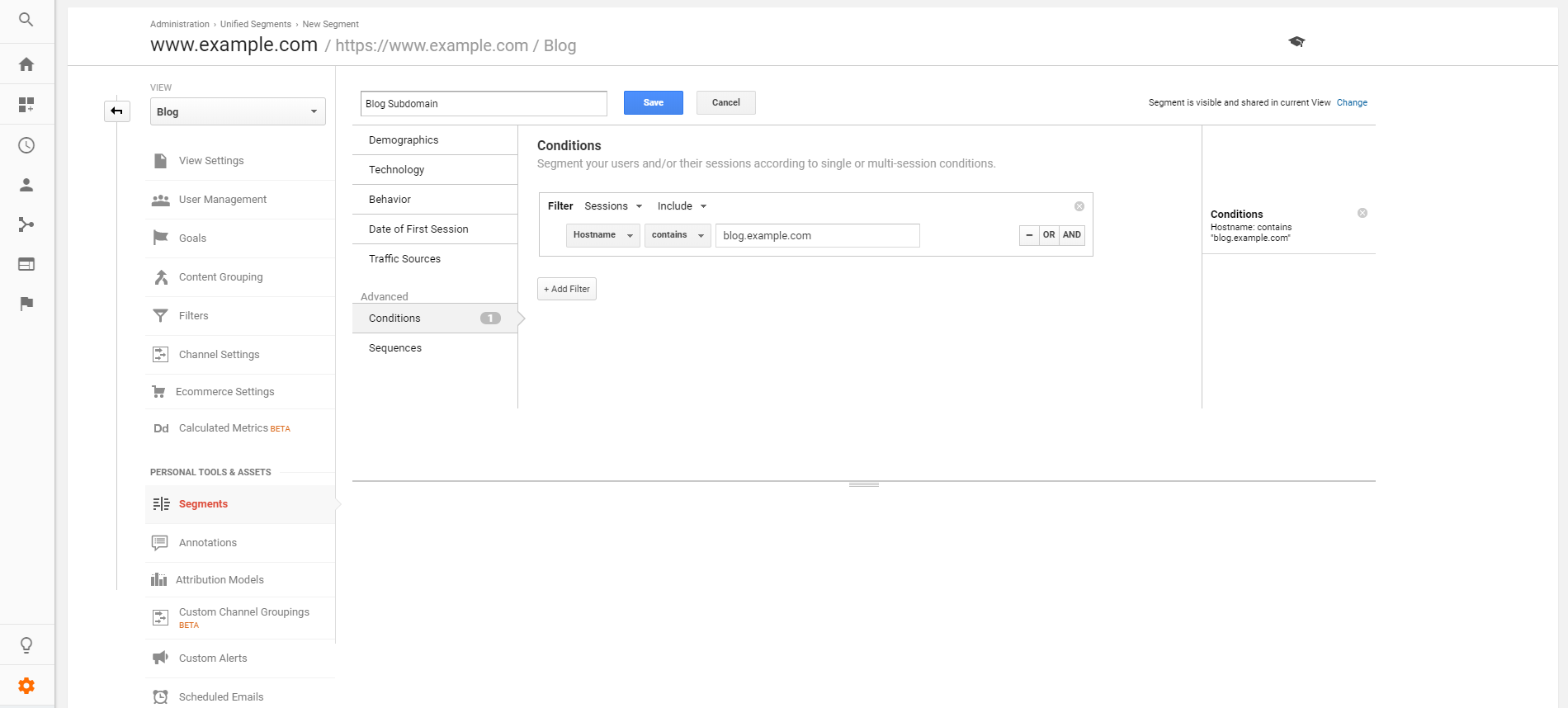
1) Navigate to Segments via the Admin button.
2) Select the New Segment button and give the segment a name.
3) Select Conditions (from the Advanced section) and the default should be filter sessions include.
4) Select Hostname (from the Behavior section) contains "example.com".
5) Make sure the segment is shared, it should say "Segment is visible and shared in current View" in the right hand corner.
6) Select Save
Retrieve the Segment ID
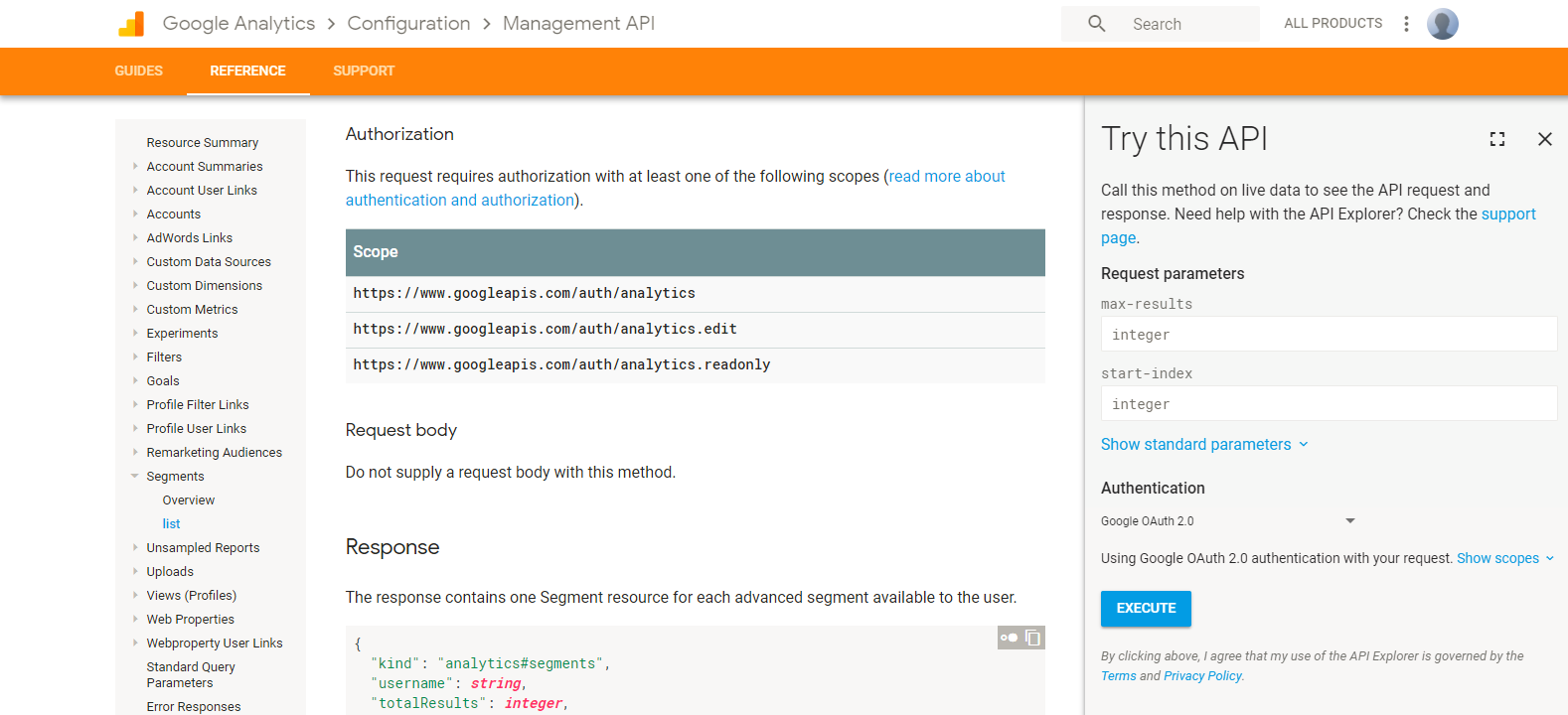
7) Next we need to retrieve the Segment ID by navigating to: https://developers.google.com/analytics/devguides/config/mgmt/v3/mgmtReference/management/segments/list#auth. Alternatively, the segment ID can be found in the URL when it is applied.
8) Select the Expand button (square cut out outline) to produce the pop out window.
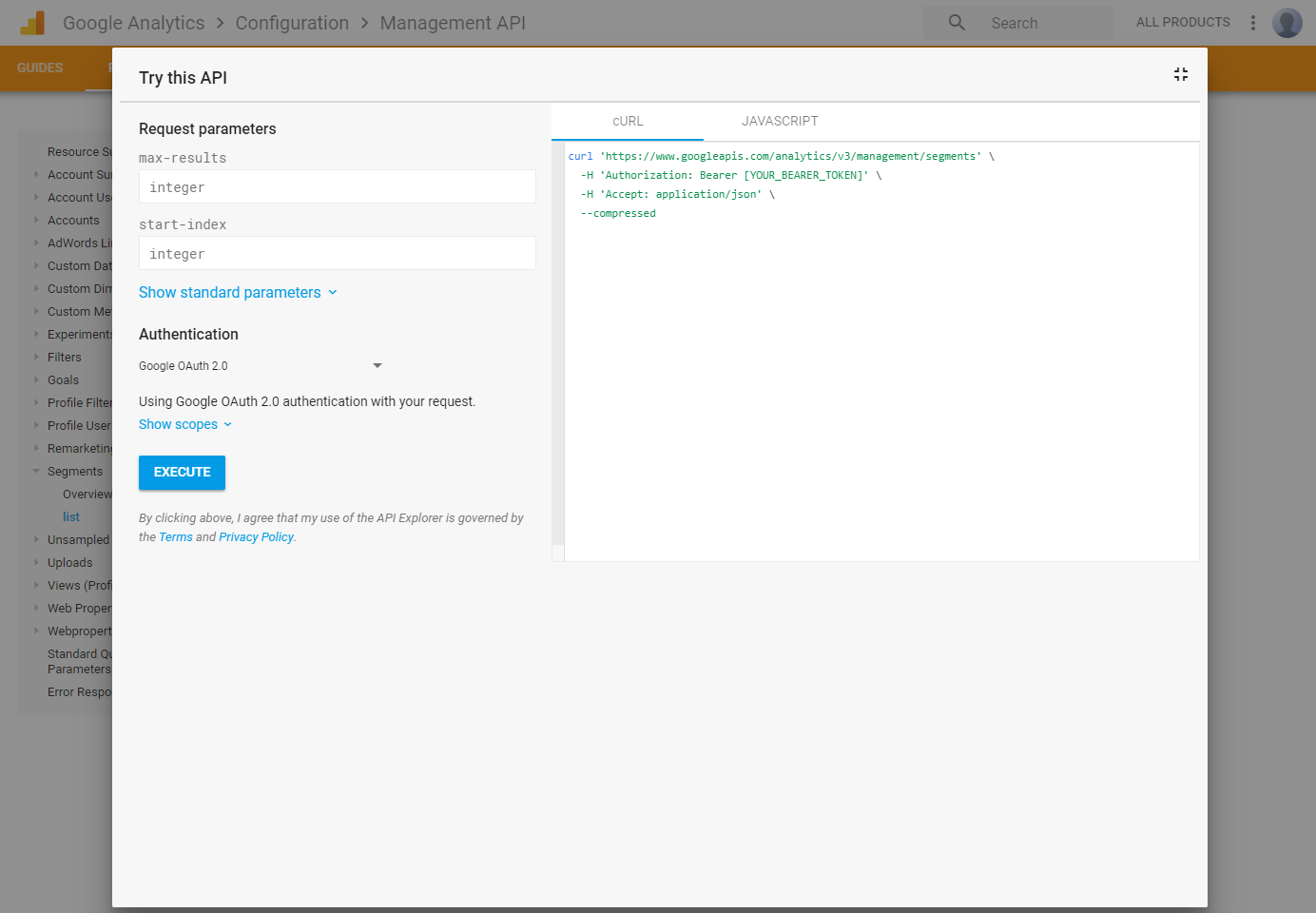
9) Select the Execute button and sign in with the email address that has access to the Google Analytics account you are retrieving the segment IDs for.
10) Once authenticated, the API call will run and if successful a second text box will appear below the first. This can be highlighted, copied and pasted into a notepad for easier viewing.
11) From this test, the segment ID can be viewed. Using a find function for the segment name can make the text easier to navigate. The segmentId will be listed just before the segment name and will begin with "gaid::" for each segment that is setup.
12) Share the segment ID(s) that were setup along with the profile they were setup for with support@seoclarity.net to have it applied to that profile within the platform. If the user who created the segment is not the same as the user integrating into seoClarity, then the segment should be shared with Collaborators.
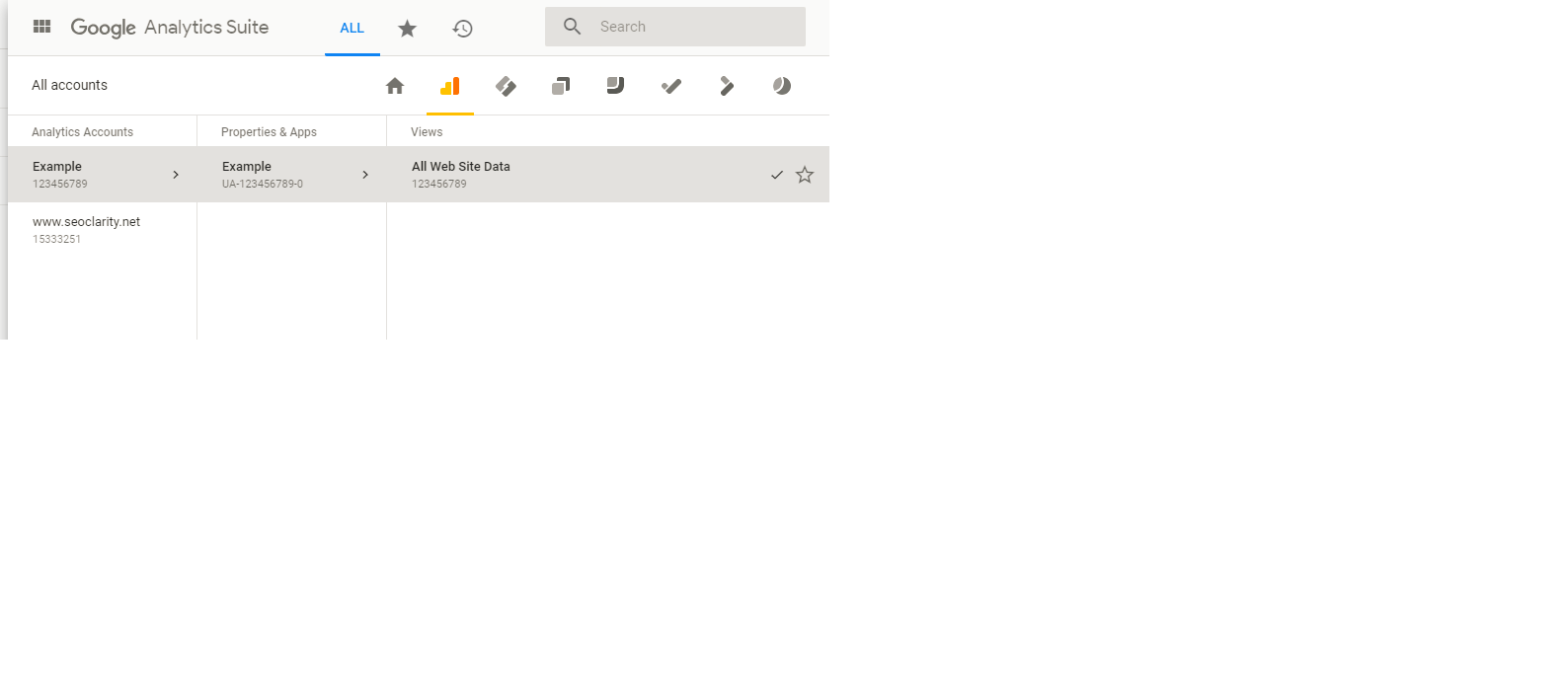
NOTE: The Segment needs to belong to the integrated Google Analytics view for that account. Verification can be done from the segments page if the availability is set as "Segment is visible and shared in current View". From the segments page, expand the All accounts pop out to confirm the the Property and View ID match what is authenticated in the Settings page.