Overview
The Events page summarizes events tracked within the platform. Events are recorded automatically, for functions like keyword additions, or can be entered manually.
Background and Resources
A companion to the Events feature is our
Annotations feature. Whereas Events automatically records events in the platform according to the rules specified, Annotations allows you to place a time-stamped notation about anything you wish to record that appears in all relevant charts throughout seoClarity.
Learn more about Annotations.
Events Features
The settings for the Events feature are found by clicking the Settings icon in the top nav (the gear icon) and selecting "Events" from the left nav bar.
Events Settings
There are no user settings for Events, but the Events Settings page does allow you to view all recorded events with certain filters, and to add Events of your own. NOTE: for events that are time-sensitive and that you'd like to see in any time-related charts throughout seoClarity, we suggest trying our
new Annotations feature.
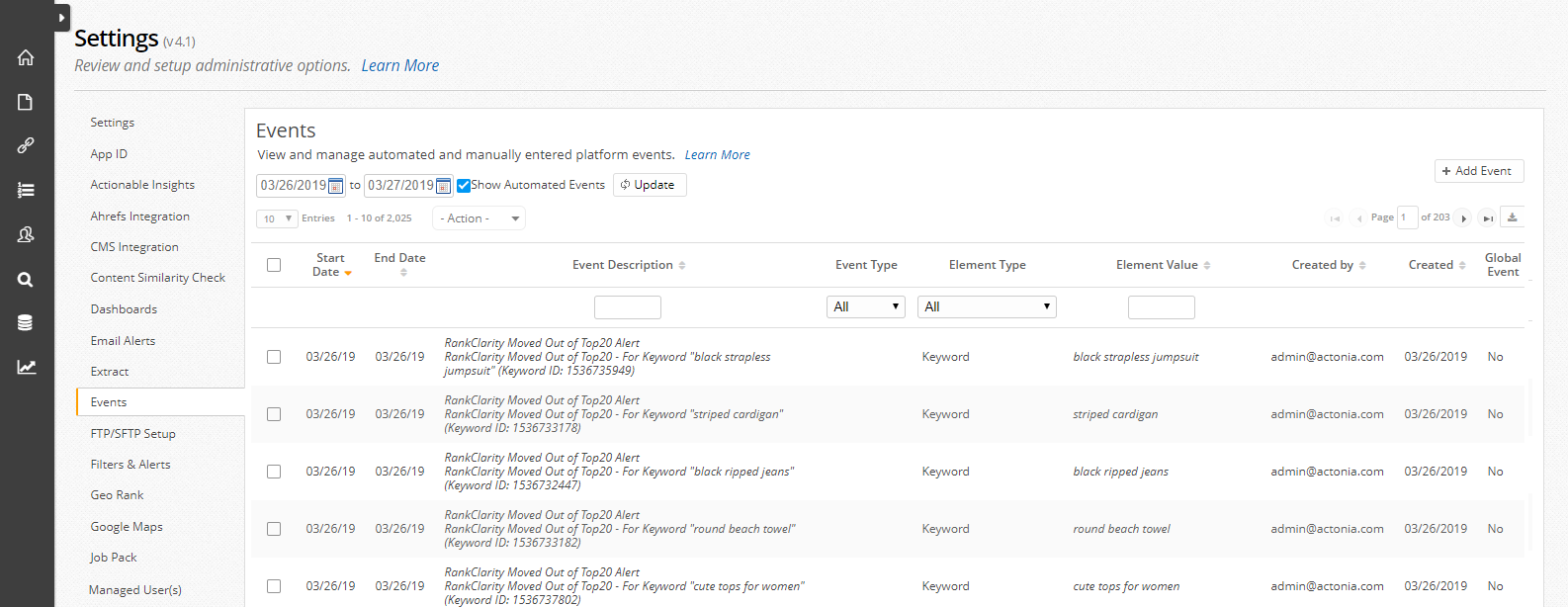
Event Table Options
Date Selector: Select the date range of Events you would like to see in the data table below.
Show Automated Events: Toggling this filter displays or hides automatically recorded events.
Actions dropdown: Select the checkbox of the events you want to utilize these options for.
Delete All Similar Events: Selecting this option will delete all events with the same event type.
Delete Selected Event: Selecting this option will delete the events where the checkbox is marked.
Add Event: Select this button to manual enter event flags using any of the three options available.
Bulk Events: Utilize the downloadable template (attached) to upload multiple events at once. The template columns are: Start Date (mm/dd/yyyy), End Date (mm/dd/yyyy), Event Description, Element Type, and Element (must be Keyword or URL).
Tag Event: This will display a marker on the specific Tag Detail page..
Global Event: This event will be displayed in multiple areas such as Dashboards widgets and Detail pages. This is also available via the Universal Add options.
Events Table
Start Date: Displays the start date of the event. This will display a marker on some of the available dashboard widgets.
End Date: Displays the end date of the event.
Event Description: Displays the details of the event.
Event Type: Select which event type (ie. – Keyword, target URL, Competitor URL, etc…) you would like to view.
Element Type: Displays the type of element the event affects.
Element Value: Displays the actual element the event affected.
Created By: Displays the email address created or triggered the event.
Created: Displays the date the event was created.
Global Event: Displays if the event was set up as a Global Event.
How to Add Events
Global Events can be added to the platform via the Add Event button on the Events setting page or via the Universal Add option located in the top navigation (pictured).
After selecting the Global Event option, a popup will appear with fields for task related information to be input.
Input Options
Start Date: The day the event started on.
Completed Date: The day the event was completed.
Event Type: Select the type of event to categorize events with options for: Rank, Industry, Page or Analytics.
Event Description: Provides details around what occurred with this specific event.
How to Add Events in Bulk
Events can be added in bulk via the Add Event button on the Events setting page.
After selecting the Add Bulk Event option, a popup will appear with fields for task related information to be input. Download the bulk event template to be filled out prior to upload. Once filled out, select the Choose File button and select the completed template. Once the file has been chosen, select the Ok button to begin the upload.
How to Add Events For Tag Groups
Events can be added for keyword or page tag groups via the Add Event button the Events setting page.
After selecting the Add Tag Event option, a popup will appear with fields for task related information to be input.
Input Options
Start Date: The day the event started on.
Completed Date: The day the event was completed.
Event Description: Provides details around what occurred with this specific event.
Tag Name: Select the radio button option for either Keyword Tag or Page Tag. Once selected, choose the tag(s) from the tag dropdown list.