AI Search Visibility
AI Search Visibility Overview
AI Search Visibility is an enabled feature that provides insights into your brand's presence within AI search results. This feature allows you to monitor how your content is performing within AI search environments by providing data on how often and where your brand appears, helping you understand your visibility in a rapidly evolving digital landscape. Assisted by these insights, you can adapt your SEO strategies to include AI search considerations, ensuring your brand remains competitive.
The AI search engines that data can be accessed in Arc AI:
- ChatGPT
- Gemini
- Perplexity
- AI Mode
- Copilot
- AI Overview
- Anthropic
- DeepSeek
- Grok
Background & Requirements for AI Search Visibility
Once the feature is enabled, follow these steps to begin your research:
- Click Add Prompts and enter your high-level Topic and Brand.
- Enter your own queries or use the "Research Questions" tool to automatically pull suggestions from Content Ideas.
- Insights typically appear within 24 hours. Your questions will be available for download as soon as the first data points are collected.
- The list of available languages matches those offered in Rank Intelligence search engines. The countries with Search Volume demand available in AI Visibility can be found here.
AI Search Visibility Use Cases
- Measure Brand Visibility: Monitor the presence of your brand in results. Analyze referral traffic from AI engines and identify the exact impact of AI-driven traffic on your site.
- Content Optimization: Leverage insights from AI Search Visibility data to research queries your audience is searching for. Create content more likely to be highlighted in AI-generated search overviews, increasing your brand's exposure in AI search results.
- Competitive Analysis: Evaluate how competitors are performing in AI-driven search environments. This can help identify opportunities to improve your content strategy or discover new keywords and topics that are gaining traction due to AI interactions.
AI Search Visibility

Check out our New UI!

Tip: To see the most recent data in the chart, simply update the date picker to the current week.
ArcAI Visibility - Details
ArcAI Visibility Details is your go-to dashboard for understanding, measuring, and improving your brand’s visibility in AI-powered search results.
ArcAI Visibility Details Filter
The ArcAI Visibility Details filters let you customize and narrow down your analysis. You can filter by brand or competitor, specific URLs, or topics to see where and how your content appears in AI search results. Compare visibility across different AI search engines, countries, and languages, or adjust the date range to track performance trends over time. 
Brand: Enter your brand name or a competitor’s brand to compare AI search visibility and insights.
Domain / URL: Enter a full or partial page URL (for example, acme.com or acme.com/blog) to analyze results for that specific webpage.
Topics: Choose a specific topic to explore AI search insights and related user questions tied to that category.
AI Search Engines: Filter and compare results across different AI models (for example, OpenAI, Gemini, Perplexity, Google’s AI Mode, etc.).
Country - Language: Select the country and language combination relevant to your prompt.
Date Range: Choose the date range for your ranking data. By default, this shows the two most recent periods.
- When the date selector is set to month, the table displays data from the last week of a specific month.
Show Advanced Filters: Click this option to reveal additional filtering tools for more detailed analysis.
Prompt: Search or filter question prompts by text or pattern.
Visibility Trend and Brands
The Visibility Trend and Brands section helps you track how your brand’s presence in AI search changes over time. You can select specific brands or brand profiles to compare performance and see trends in mentions, citations, or ranking positions. Adjust the time range to view results for the past few weeks or months, and choose which metric to focus on.
Visibility Trend: View how your selected brands are performing over time. The chart updates based on the brands you choose in the Brands Box, allowing you to compare visibility trends and spot performance changes at a glance.
Weeks Dropdown: Select the time range you want to review — last 4, 8, 13, or 26 weeks. The chart will refresh to show trends for that period.Metric Dropdown: Pick the metric you want to focus on:Mention Count: Total number of times the brand is mentioned.Mention %: Percentage of all prompt responses where the brand appears.Citation Count: Number of times the brand is cited as a source or example.Citation %: Percentage of prompts that cite the brand.Average Rank: Average position of the brand across all tracked prompts.
Brands: Select one or more brands (or brand profiles) to display their performance. Once selected, the Visibility Trend updates to show the mention, citation, or average rank for those brands.
Brand/Brand Profile Names: Displays the brands or brand profiles you’ve created.Mention %: Shows how often your brand appears in responses.Average Rank: Reflects how your brand ranks overall.
Managing Brand Profiles
If your brand appears under different variations (for example, “seo clarity” and “seoclarity”), you can group them together.
Select Edit Brand Profiles to combine similar names under one title, like “seoClarity Brand.” This ensures all mentions are tracked and displayed accurately.
AI Search Visibility Prompts table
This section shows the specific questions being tracked to measure your brand’s visibility in AI search. For each prompt, you can see its country-language setting, estimated search demand, and which AI search engines display it. It also highlights how often your brand is mentioned or cited in AI responses.
Prompts: Displays the questions that were added when the Topic was created. Each prompt represents a tracked query for visibility and performance.
Country - Language: Displays the country and language combination associated with the prompt.
Volume: Displays the estimated search demand for each tracked question. Using seoClarity’s vast clickstream data and proprietary algorithm, the system estimates how often users search for each question across all major search engines.
Presence In: Shows the AI search engines where that specific question prompt appears, helping you identify where your brand or topic is visible across different AI platforms.
Mention: Shows the percentage of AI responses that mention your brand for that specific question prompt.
Citation: Displays the websites referenced as sources in AI search results for that prompt.
Actions:
View Response: Opens the full detailed breakdown of the prompt, allowing you to review how the AI responded and where your brand or competitors were mentioned or cited.
Run ArcAI Insights Report: Opens ArcAI Insights to run a detailed report on the selected question prompt and any filters you’ve applied.
Run ArcAI Content Optimizer Report: Opens ArcAI Content Optimizer to run a report for the selected question prompt and filters. Use this to identify opportunities to improve your content and increase visibility in AI-generated results.
All Mentioned: Displays all prompts where your brand was mentioned in AI-generated responses, regardless of whether your site was also cited as a source. This gives a complete view of your brand’s visibility across AI search results.
Only Cited: Displays prompts where your site was cited as a source.
Only Mentioned & Cited: Displays prompts where your brand was both mentioned in the AI response and cited as a source.
Lost Mentions: Displays prompts where your brand was previously mentioned in AI responses but no longer appears.
Lost Citations: Displays prompts where your site was previously cited as a source in AI search results but is no longer referenced.
AI Search Visibility Citations table
This section highlights which websites AI search engines reference as sources in their responses. It shows how often each page is cited, how many unique domains appear across all prompts, and the number of prompts where each domain or URL was mentioned as a source. 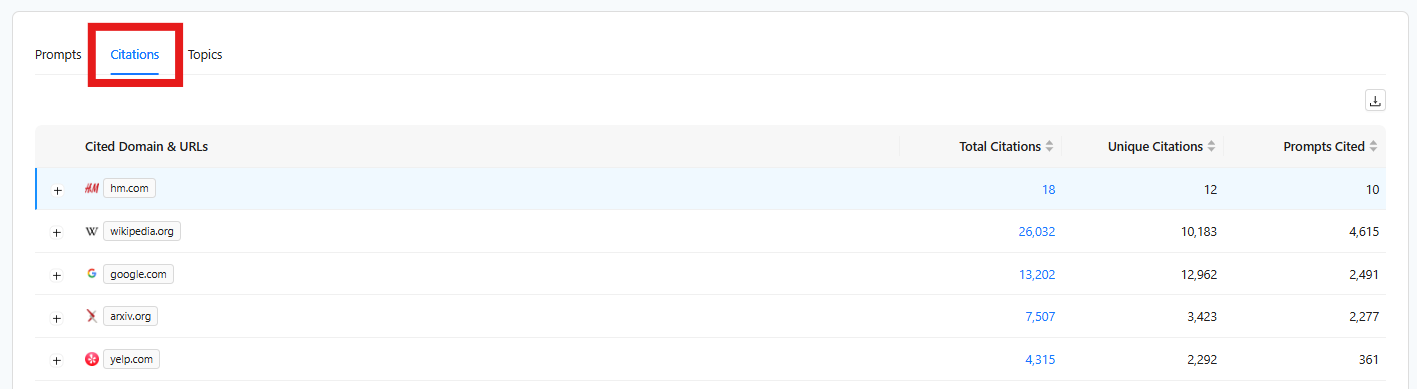
Cited Domains & URLs: Displays the websites that are referenced as sources in AI search results. Each citation typically includes a link to the original site.
Total Citations: Displays the total number of times a specific website or URL is referenced as a source across all tracked questions.
Unique Citations: Displays the number of distinct domains or URLs that have been cited at least once across all prompts.
Prompts Cited: Displays the number of question prompts where a specific domain or URL was cited as a source.
AI Search Visibility Topics
This section groups related question prompts into one category, giving you a big-picture view of how your brand performs around a specific theme or area of interest. You can see the total search volume, number of tracked prompts, and which AI search engines display results for that Topic. It also shows how often your brand is mentioned or cited within those AI responses.
Topic: Displays the question prompt category. A Topic groups together related question prompts, allowing you to track overall visibility, mentions, and citations for a specific area of interest.
Search Volume: Displays the estimated number of monthly searches for all prompts within the Topic.
Prompts: Displays the total number of question prompts included under the Topic.
Presence: Displays the AI search engines where the Topic or its prompts appear. This helps you understand where your brand or content is visible across different AI platforms.
Mention: Displays the percentage of AI responses within the Topic that mention your brand.
Citation: Displays the domains or URLs referenced as sources within AI search results for that Topic.
ArcAI Visibility - Overview
The ArcAI Visibility Overview tab is the dashboard where you get a trended view of the key performance indicators (KPIs) for your brand’s performance in AI search. This comprehensive overview helps you track your brand’s visibility in AI search by consolidating all the main metrics into one view.
ArcAI Visibility Overview Input
Brand: Choose a pre-set Brand Profile from your list or enter a Brand.
Domain: Select the specific website domain you’d like to analyze for your chosen brand.
Date Range: Choose the date range for your ranking data. By default, this shows the two most recent periods.
ArcAI Visibility Overview Charts
Presence %: This is the combined score of how often you are mentioned and cited across all AI search engines.
Mention %: How often AI search references your brand name when answering a prompt.
Citation %: How often an AI search provides a direct link or source back to your website.
Monitoring Scope: The specific collection of prompts and responses we are currently analyzing for your reports.
Mentions Over Time: Track how often your brand is recognized across all your tracked prompts. By comparing different timeframes, you can easily spot new momentum and see your brand awareness growing.
Citations Over Time: Monitor how often a domain is cited across all tracked prompts. Comparing these periods helps you visualize your rising influence and track where your authority is most recognized.
Mention vs. Citation Breakdown: Distribution of how your brands are mentioned, cited, or both across AI responses.
Average Rank Over Time: Follow your brand’s progress in AI responses. This helps you track performance trends and see how your current visibility compares to previous periods.
Mentions by AI Search Engines: Discover which AI platforms name your brand most often. This helps you see exactly where your brand awareness is strongest.
Citations by AI Search Engines: Compare citation scores across all AI Search Engines to see where your content is cited most frequently.
Most Cited Pages: Discover the top pages cited across the web to understand what content drives influence.
Your Most Cited Pages: Discover which of your own pages AI engines link to most often.
ArcAI Visibility - Query Fanout
The Query Fanout dashboard helps you understand which specific sub-topics are driving your brand’s citations and where you might be missing out because your content doesn't cover a specific "branch" of the conversation.
Filters and Key Metrics
Use these filters to refine the data displayed across all tables and charts:
Topics: A filter to categorize data by specific keyword groups or content themes defined in your account.
AI Search Engines: A selection tool to choose which specific LLMs or AI-powered search platforms (e.g., ChatGPT, Gemini, Perplexity) are being analyzed.
Country-Language: A setting to isolate results based on the geographic location and language of the search query.
Date: A time-range selector to view data from specific days, weeks, or months.
Total Prompts with Query Fanout: The total count of unique user questions that triggered the AI to perform additional background searches.
Query Fanout Rate: The percentage of total prompts that required the AI to generate sub-queries rather than answering solely from its internal training data.
AI Search Visibility Query Fanout table
The Query Fanout dashboard is split into two primary tab views, allowing you to pivot between what the user is asking and how the AI is searching to answer them.
By Prompts table
Prompts: Displays the questions that were added when the Topic was created. Each prompt represents a tracked query for visibility and performance.
Country - Language: Displays the country and language combination associated with the prompt.
Volume: Displays the estimated search demand for each tracked question. Using seoClarity’s vast clickstream data and proprietary algorithm, the system estimates how often users search for each question across all major search engines.
Topic: Displays the question prompt category. A Topic groups together related question prompts, allowing you to track overall visibility, mentions, and citations for a specific area of interest.
Fanout Count: The Agentic Depth of the prompt, specifically, how many unique sub-queries the AI generated to satisfy the user's request.
By Query Fanouts Table
Fanout Query: The specific, optimized search string generated by the LLM. These are often more technical or targeted than the original user prompt.
Prompt Count: The number of unique user prompts that triggered this specific fanout query.
ArcAI - Insights
ArcAI Insights provides actionable recommendations generated by analyzing your site's visibility and performance in AI-driven search results to improve your site's visibility in AI search results. It displays data like brand mentions, citations, and sentiment to identify content gaps compared to competitors, offering specific steps to enhance your online presence.
Get Started
Click the Run ArcAI Insights Report icon next to the question to begin. ArcAI Insights will open in another tab.
ArcAI Inputs
Question: Displays the questions being analyzed by ArcAI Insights
Brand: Add and edit your brand or competitors’ brands to track mentions and performance.
Domain: Enter your URL to check if your domain is mentioned in this question. Results will appear in the "Your Domain Cited?" box.
Target Page: Enter a page for analysis. By crawling and examining the specified page, it uncovers unique insights not available elsewhere, such as identifying content or links hidden in JavaScript (often missed by AI search engines) or detecting missing structured data. This helps enhance the visibility of your site in AI-driven search results by addressing these specific issues.
LLM (Large Language Model) dropdown: Use the LLM dropdown to filter results by AI model (OpenAI, Gemini, Perplexity, Google's AI Mode) and compare outputs.
Country - Language dropdown: Select the country-language associated with the selected question.
Date Selector: Select the dates for which you want to view ranking data. This defaults to the two most recently ended periods.
- When the date selector is set to month the table displays data from the last week of a specific month.
How To Manage Topics in AI Search Visibility
Click on the pencil (edit) icon to create and edit your topics list.
How To Add Topics in AI Search Visibility
Enter the Topics, target country, target language and sample questions. Use SIA by clicking the Research User Questions lightning bolt icon to generate top questions for the topic are based on an index of questions found within our clickstream dataset and Content Ideas. This clickstream data has helped build the largest repository of real questions asked across the web. On top of this, is our AI Research agent that mines this data and uncovers the broadest range of aspects on the topic from this massive data set. These questions are sorted by the most important aspects based on the demand we know for those aspects.
Topic: Enter the main Topic(s) you want to analyze for AI Search Visibility. You can enter a single Topic or multiple related Topics as a comma-separated list.
Add Additional Context: Provide optional context to help AI generate more relevant user questions based on the Topic(s) above. This additional context helps the AI research agent determine whether the questions should be about a company selling widgets or for a company that repairs widgets for example.
Add Additional Context: Provide optional context to help AI generate more relevant user questions based on the Topic(s) above. This additional context helps the AI research agent determine whether the questions should be about a company selling widgets or for a company that repairs widgets for example.
Country: Select the country where you'd like to analyze search visibility. This determines the geographic basis of the data used for question generation and topic relevance.
Language: Select the language associated with the selected country. The AI will generate and filter questions based on this language.
Research User Questions: Click this button to auto-generate top user questions related to your topic. These are based on an index built from our clickstream dataset and Content Ideas engine—one of the largest repositories of real questions asked across the web. Our AI Research Agent analyzes this data to uncover a broad range of relevant aspects for your topic.
Questions: This is where you can manually enter or review questions for your topic. You may either:
- Use the Research User Questions feature to populate this field automatically, or
- Enter your own questions manually (up to 10,000 rows).
- Use the Research User Questions feature to populate this field automatically, or
- Enter your own questions manually (up to 10,000 rows).
How to Create Topic Hierarchies in AI Search Visibility
Organize your topics into hierarchies to view questions and insights collectively across related topics.
- Click the pencil icon to enter edit mode.
- Hover over a Topic until the four-directional arrow cursor appears.
- Click and drag the topic onto the desired parent topic.
- To remove a topic from a hierarchy, click the dissociate hierarchy icon next to the nested topic.
Note: The parent Topic can be used as a filter to view the generated questions for all Topics within the hierarchy.
How to Create Topic Groups in AI Search Visibility
Create and manage groups of related Topics more efficiently by using the Topic Groups feature.
- Navigate to the Topic tab within ArcAI Search Visibility.
- Click the pencil icon
to edit the topic group or modify the hierarchy. The Manage Topics bar on the right side of your screen will popup.
- Click on Add Topic Group to create a new group. Enter a name for your topic group, such as "Shoes (Topic Group)."
- Drag and drop the topics you want to include into your new topic group. For example, you can drag and drop various shoe-related topics into the "Shoes" topic group.
To unlink a topic, click the unlink icon  next to it.
If you decide to delete  a topic group, it will only remove the group name, not the individual topics, so you don't have to worry about losing any data.
How to create Brand Groups
Manage your Brand Groups and keep your brand list up-to-date to monitor your brand’s presence across AI search engines effectively.
- Click the pencil icon
to edit/add Brand Groups. The Brand Groups tab will popup on the right hand side.
- Click Add or edit an existing Brand Group by selecting the pencil
icon.
- Enter a Title and the associated Brand List. You can add or remove brands by selecting the "+" or "-" icon.
- Select Create. This will save the Brand Group.
- Click the trashcan
icon to delete existing Brand Groups.