What Are Automatic Tag Rules and How Are They Created?
Auto-Tagging Rules and Execution
Automatic tag rules let you set up criteria to automatically add keywords or pages to specific tag groups. When a keyword or page matches the criteria, it’s added to the corresponding tag group for tracking. These tag groups are then available in the platform for monitoring and analysis.
When You Create a New Auto-Tagging Rule: Auto-tagging runs immediately after you create a new rule. It applies to all existing keywords in the platform within 2-3 hours. Note: It does not override keywords that already have a tag assigned.
When You Upload New Keywords: Auto-tagging runs and applies to all existing keywords within 2-3 hours.
For Existing Keywords: If you upload keywords that already exist in Rank Intelligence (RI), the auto-tagging script does not run immediately. Instead, the rules will apply during the next scheduled weekly execution (on Sunday).

Auto-tagging runs weekly (Sundays) to ensure that any newly added rules are applied to all keywords and URLs.
Automatic tag rules can be created via the Universal Add options located in the top navigation. Learn More
Multiple tags (of the same element type) and multiple criteria can be setup per rule. Criteria includes options for: Equals, Contains, Starts With, Ends With, Regex, Does Not Contain, Does Not Start With, and Does Not End With. Patterns can set for any order with AND/OR options.
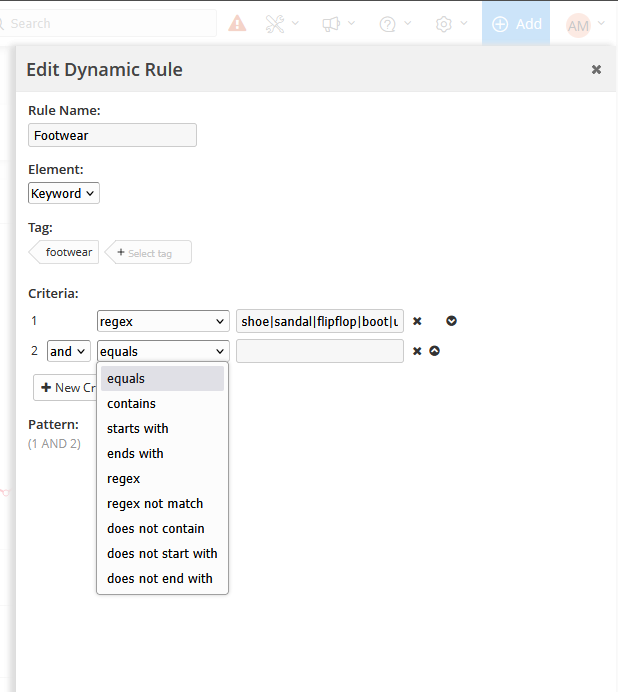
Auto-Tagging Rule Conditions
Equals: Matches keywords or pages that are exactly the same as the specified value.
Contains: Matches keywords or pages that include the specified value anywhere in the text.
Starts With: Matches keywords or pages that begin with the specified value.
Ends With: Matches keywords or pages that end with the specified value.
Regex: Matches keywords or pages that fit a custom pattern defined by a regular expression (RegEx).
Regex Not Match: Excludes keywords or pages that fit a custom pattern defined by a regular expression (RegEx).
To use the "Regex Not Match" rule, ensure these conditions are met:
- Can only be used once per tagging rule.
- Must be combined with another condition.
- At least one AND condition must be included.
- Can only be used once per tagging rule.
- Must be combined with another condition.
- At least one AND condition must be included.
Does Not Contain Excludes keywords or pages that include the specified value anywhere in the text.
Does Not Start With Excludes keywords or pages that begin with the specified value.
Does Not Start With Excludes keywords or pages that begin with the specified value.
Does Not End With: Excludes keywords or pages that end with the specified value.
Dynamic Tagging Rule Status
New: Indicates the rule has been created but the processing rules have not yet been run.Ok: Indicates the processing rules have been successfully added to the auto-tagging rules.