Spark Plugin: Installation and Setup

Spark Plugin: Installation and Setup

Overview

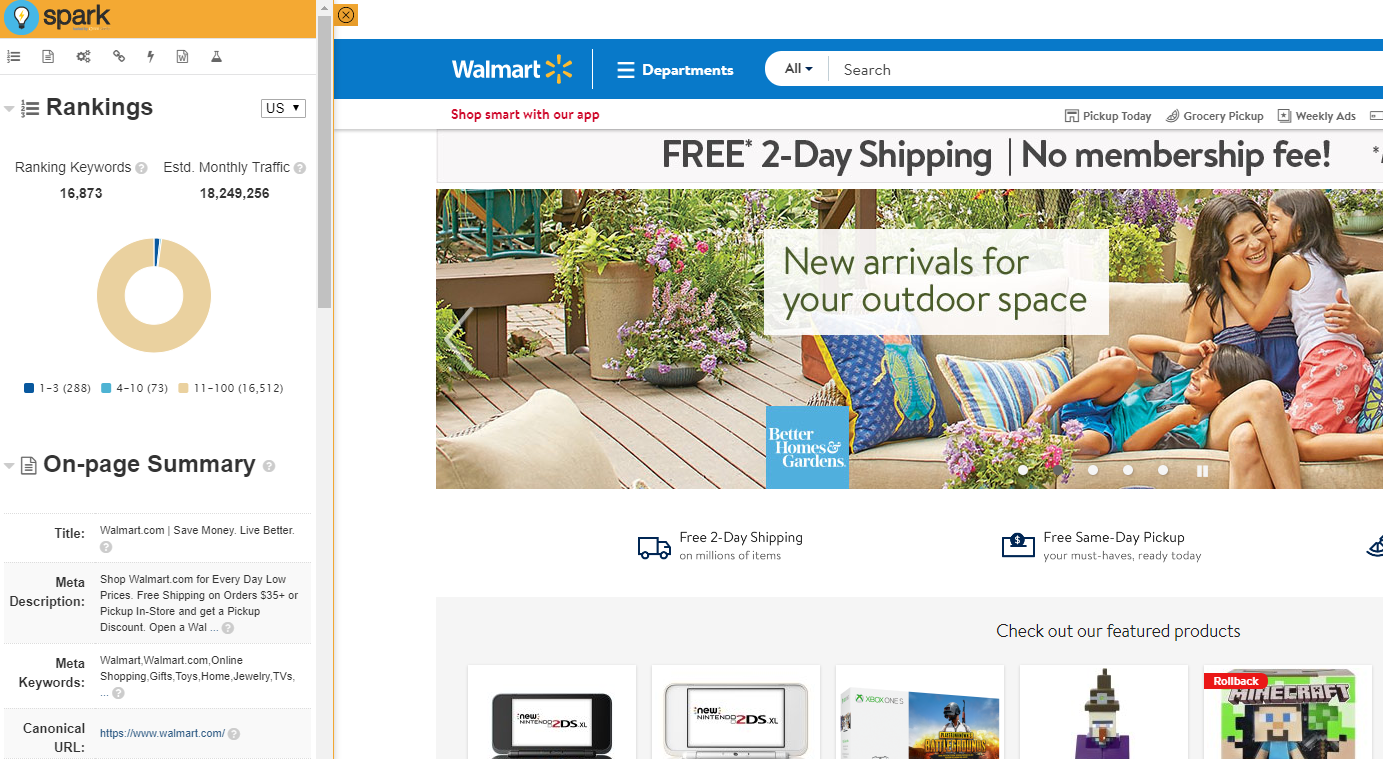
Below is a step by step guide to installing and activating the Spark Content Optimizer Plugin for Chrome. For more information on the plugin analysis rules click here.


Requirements

This plug-in is a Google Chrome Extension and requires the Google Chrome browser. Please have Chrome installed and opened in order to install the Plugin. 


Download the Plugin


Visit our Spark Content Optimizer page to instantly install the extension. The plugin is also available in the Chrome Web Store.


1) On the Chrome Store page, click on the blue Free button                    


Install the Plug-in
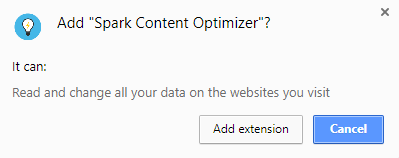


2) In the pop-up that appears, select Add Extension. This will add the plugin to your browser.


Activate the Plug-in


3) After adding the plugin to Chrome, the Spark logo will appear in the top right of the browser next to the Settings icon and any other icons for plugins that you may have. 
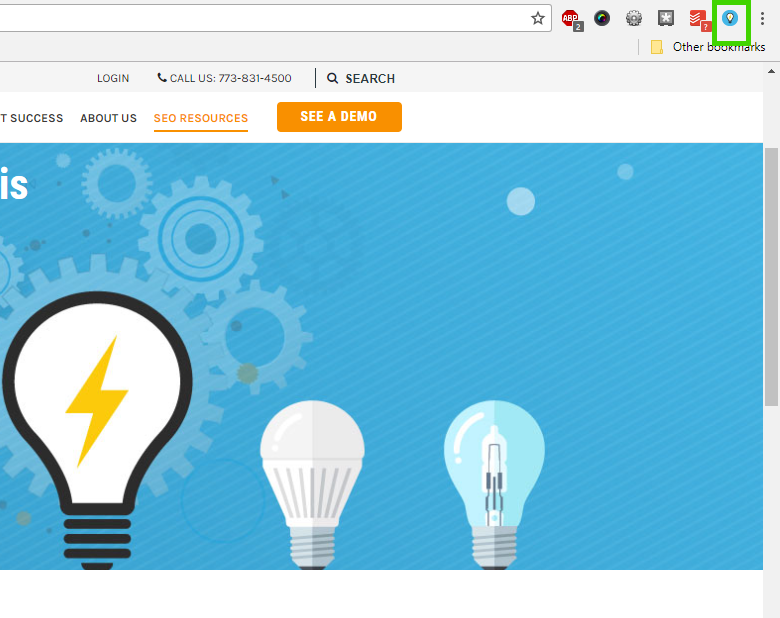

4) Click the Spark Logo with any live web page loaded.


5) You have the option of activating with Google (any Email address that is associated with a Gmail account will work), or use a unique Email by entering your name and email address.
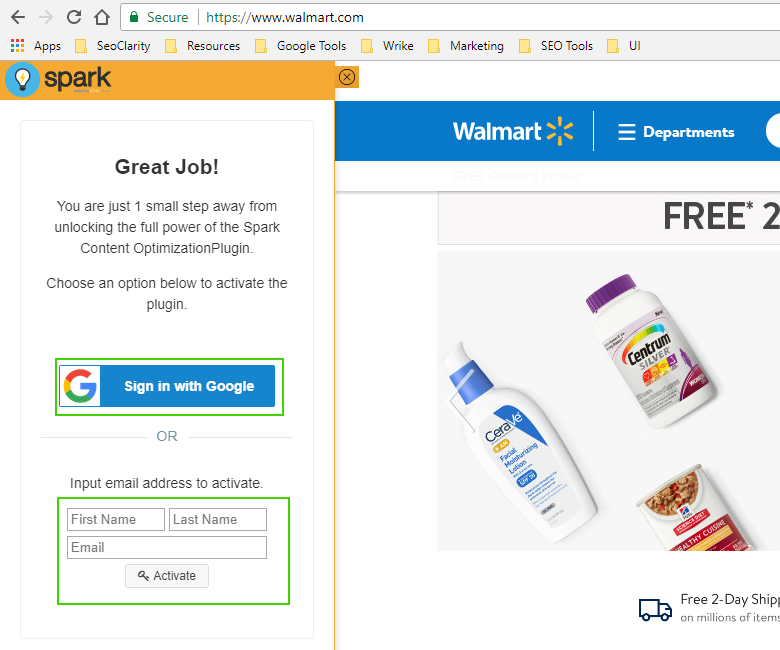

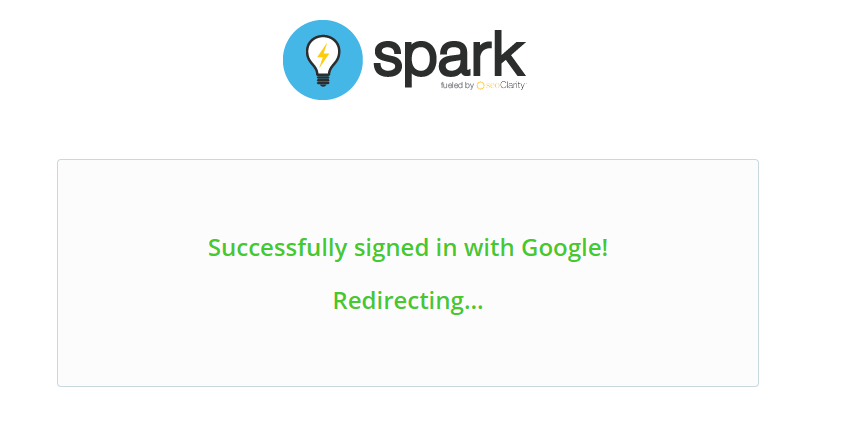
6) Once you've activated the plugin using your preferred method you will see a success message and then be redirected to the activated plugin.


Summary

Congratulations! You have successfully installed the Spark Content Optimizer and you will now be able to do on-the-fly analysis of any website that you are currently viewing. This plugin gives you some primary components of the seoClarity app with even more ease. 


NOTE: Some security settings, such as firewalls, other extensions or the like, can restrict the ability for Spark to retrieve some data points. This can be validated by viewing the Console tab when inspecting a page in Chrome. If spark.seoclarity.net resources are shown as blocked, this is likely do to a security setting on the machine or network being utilized. 

    • Related Articles

    • Spark Plugin: Page Optimization

      Spark Page Optimization Plugin Overview The seoClarity Spark Page Optimization Plugin for Google Chrome is the quickest and easiest way to understand SEO Performance, identify SEO issues and realize SEO opportunities. It does on any single page with ...
    • SFTP Server Connection Setup

      SFTP Server Connection Setup Overview SFTP servers allows users to transfer (large) files between two endpoints. All seoClarity domain profiles are setup with their own SFTP location that is unique for each domain. This allows for flat file ...
    • Microsoft Excel seoClarity Add-in (Plugin)

      Overview The seoClarity Excel Add-in allows you to import seoClarity data from three of the most popular sources in our platform directly into an Excel workbook. Background & Requirements Download the seoClarity Excel plugin from the Microsoft Office ...
    • Google Sheets seoClarity Add-On: Installation and Setup

      Overview The seoClarity Google Sheets add-on is available in the Workspace Marketplace and allows for existing platform users to get access to seoClarity data directly within Google Sheets. This add-on provides direct access to Keyword Rankings, Tag ...
    • Google Docs Content Fusion Plugin

      Overview The Content Fusion Google Docs plugin allows you to create new or optimize existing content with all the AI-driven power of Content Fusion without leaving the Google Docs environment. The Content Fusion extension allows writers seamless ...