Customization Settings
Settings are administrative-only options for customizations and integrations within the account. Below are descriptions of those found on the main settings tab.
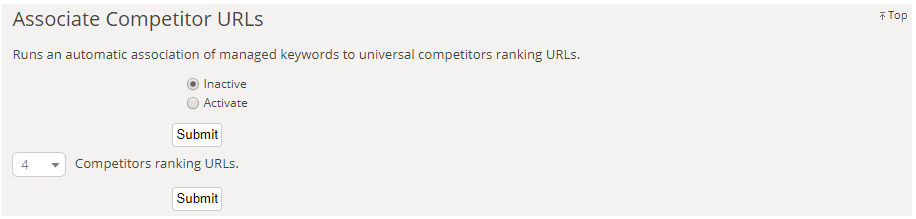
Associate Competitor URLs
Can activate an automatic association of managed keywords to universal competitors rankings URLs or a number of top ranking competitor URLs.
Currency
A specific currency symbol may be selected when displaying revenue or cost data uploaded from your Analytics or PPC integrations. The following currency options are available for display in seoClarity:
- US Dollar: $
- Euro: €
- Pound: £
- Yen: ¥
- Baht: ฿
- AU Dollar: AU$
- CA Dollar: CA$
- Peso: ₱
- Rupee: ₹
- Sheqel: ₪
- Shilling: KSh
- Won: ₩
- Franc: F.CFA
- Rand: R
Display Logo
Uploading a brand or domain logo will allow for the logo to be displayed on all pages in the top header and on your dashboard reports. Choose an image file of your company's logo and click Submit. Learn More

Friendly Domain Name

Organic Links Upload
Upload your organic links by adding a CSV file download from a source such as Google Search Console to add unique backlinks to your Link Profile. Learn More

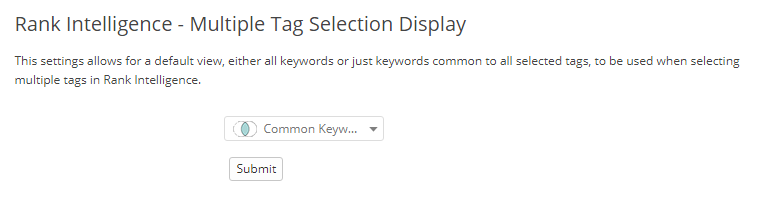
Rank Intelligence - Multiple Tag Selection Display
This settings allows for a default view, either all keywords or just keywords common to all selected tags, to be used when selecting multiple tags in Rank Intelligence.
Translation Column
This settings allows for translations to be uploaded for each of your managed keywords that are displayed in the platform. Learn More.

Weekly Summary Start Day
Changing the weekly summary start day sets which day your weekly reports begin. This affects how data is grouped and displayed in your Site Analytics and Search Analytics summaries. For example, if you choose Monday, each weekly report will cover Monday to Sunday.
- Click on Customizations found in the left side navigation menu in the domain's Settings.
Date Format
Choose the preferred date format to be displayed throughout the platform.
Automatically delete non-2xx URLS
If a page in Managed Pages has been non-2xx for X days delete the page.