Page Clarity Detail Overview
Page Clarity Detail allows you to view any of your managed pages at a more granular level and gives you the ability to select a specific date range to view the total amount of traffic for the specific URL. This also allows you to view the keywords associated with the page, the weighted average rank of the associated keywords, the count of links, the historical data around the page, and any integrated analytics data (such as transactions and revenue or goals). Page Clarity Detail also shows various on-site and off-site data points along with keywords with traffic for that page, page speed, competitor details, actionable insights and URL metrics.
Page Clarity Detail Use Cases
- Get an inside look at your competitor’s on-page elements to see what strategies they implement that you should as well. Learn more
- Access your Page Speed Score and the actions to take to improve it. Learn more
- Build site authority with strong backlink management. Learn more
Watch this video for an overview of the kinds of insights Page Clarity Details can provide:
Background & Requirements for Page Clarity Detail
To completely understand the data provided in the Page Clarity Detail feature in the seoClarity platform, adding managed pages into the platform will be necessary. This can be done by Adding Target URLs in Page Clarity. Additionally, integrating Site Analytics is required to view data in the Overview table; otherwise, it will display empty results.
Page Clarity Detail: Overview tab
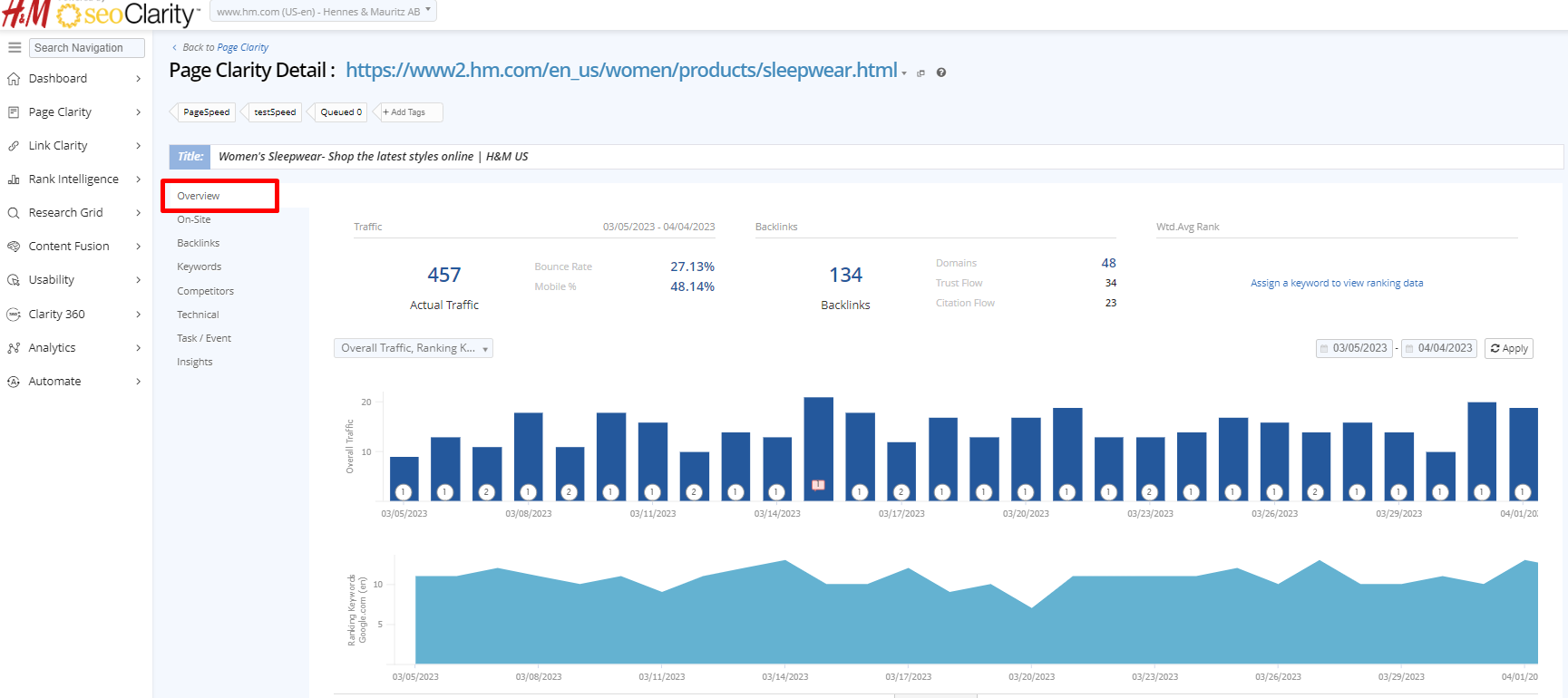
Input
Page Selector: Choose to navigate to another keyword detail page in this drop down
Related Elements
Page Tag: View assigned page tags and choose to assign or remove keyword tags
On-Page Title: Displays the page title and includes a link to View On-Page Content
Summary Boxes
Traffic: Displays the actual traffic to the page along with the bounce rate and percentage of traffic that is mobile
Backlinks: Displays the number of backlinks directed to the page along with the number of linking domains, the average trust flow, and the average citation flow of the backlinks
Wtd. Avg Rank: Displays the weighted average rank of the page on Google and other search engines
Charts & Table
Metric Selector: Select this option to add or remove chart and table metrics. Options include Overall Traffic, Traffic by Device, Traffic by Engine, Ranking Keywords, Associated Keywords Ranking, Wtd. Avg Rank, Backlinks, and any integrated Analytics goals.
Date Selector: Choose the time range of your choice to view in the summary boxes, charts, and data table
Page Clarity Detail: On-Site tab
The On-Site tab displays the latest content for the page being viewed. Additional on-page content elements can be tracked via settings. Learn More
On-Page Table
Elements
Title: Displays the title that is found in the HTML
Meta Description: Displays the description of the page that is found in the HTML
H1: Displays the primary title of the post that is found in the HTML
H2: Displays the secondary title of the post that is found in the HTML
Canonical: Displays web pages that have more than one URL
Robots: Displays if the robots.txt file is indexed or not and if it contains a follow or nofollow tag
Content: Displays the managed pages content for the corresponding element.
Recommended: Displays the recommended content added via manual input through the actions dropdown or from seoClarity's AI Sia via the lightning bolt icon. For Sia to generate a recommendation, it must be enabled via Settings and the page must meet one of the following criteria: have an associated target keyword, rank for a keyword as seen in Rank Intelligence or Research Grid, or have a keyword that drove traffic to the page as reported by Search Console.
On-Page Table Actions
Add/Edit: Update the content change recommendation for the selected element.
Assign as task: Create a task related to the current URL.
View History: Click to view historical content changes for this page over time.
On-Site Comparison tab
This displays a comparison of on-page content for competitor URL associated to keywords that are associated to the managed page being viewed.
Comparison Table Columns
URL: Displays the URL of the associated competitor
Keyword Count: Displays the number of managed keywords the competitor is ranking for
Title: Displays the title found on the competitor's URL
Meta Keywords: Displays the meta keywords found on the competitor's URL
Meta Description: Displays the meta description found on the competitor's URL
H1: Displays the primary header found on the competitor's URL
H2: Displays the secondary header found on the competitor's URL
Last Changed: Displays the date of the last known change on the competitor's URL
Page Clarity Detail: Backlinks tab
Input
Select Competitor URLs: Click to select or deselect associated competitor URLs to compare in the chart and data table
Trend Chart
Backlink Growth History: Displays the growth of the domain's backlink profile over time
Metric Selection: Choose to view the number of referring domains or the backlink count in the chart and data table
Chart View: Choose to view data in the chart in a cumulative view or in a normal view
Backlinks view
Table Columns
Backlink URL: Displays the URL found linking to the managed page from Majestic.
Backlink Topic: Displays the Topic from Majestic for the backlink URL
Target Topic: Displays the Topic from Majestic
URL Trust Flow: Displays the Trust Flow scoring metric from Majestic for the backlink URL
URL Citation Flow: Displays the Citation Flow scoring metric from Majestic for the backlink URL
Acquired Date: Displays the date of the link was found
Lost Date: Displays the date of link was lost or not found