Settings: Branded Report Logo
Branded Reporting Overview
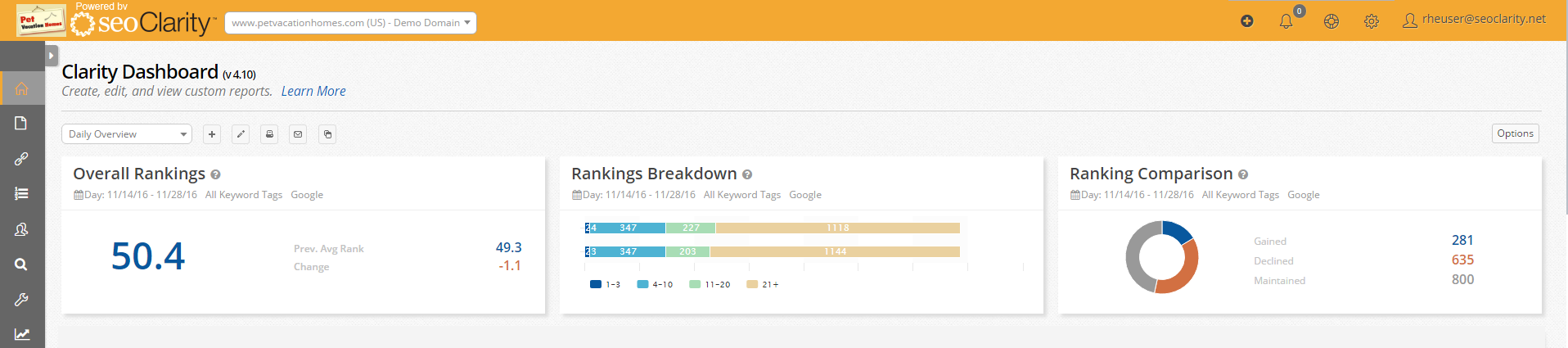
Dashboards can have branded logos added to them to be included in reporting and seen at the top of platform above the navigation menu.
Display Logo Settings
1. Navigate to the Settings page and find the Display Logo setting from the main settings page.
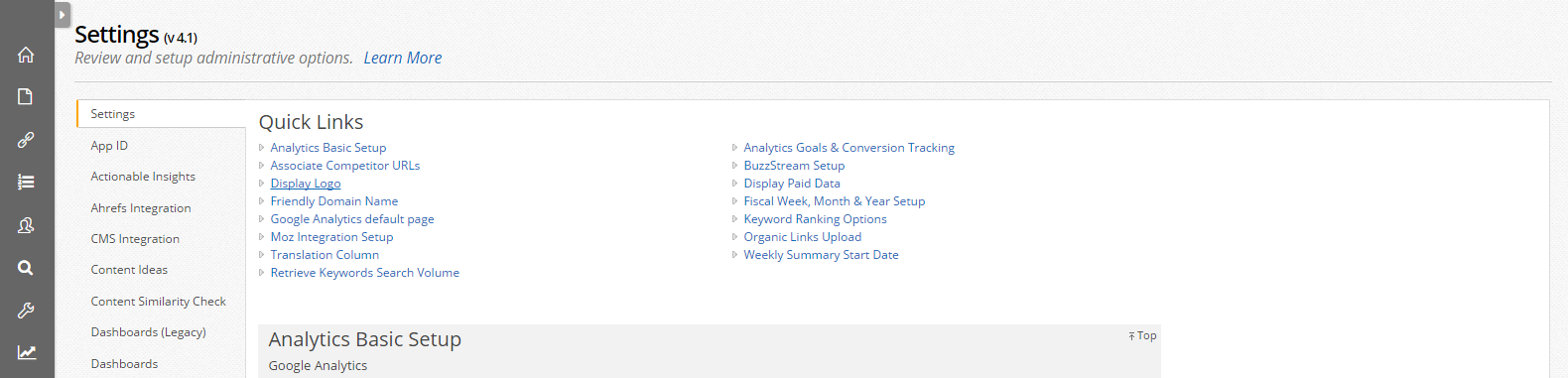
2. Select Choose File to find the logo from your PC. Optimal height is 50 pixels and larger images will be reduced to fit.

3. Once file is chosen and submitted, it will immediately be visible in the top navigation and added to all dashboard reports.
Related Articles
Users settings
User Settings Overview Setting up and managing user accounts is one of the first steps to take in the seoClarity platform. It is a basic task, yet one of the most important tasks to take care of when setting up and managing an account. Managing Users ...
URL Parameter settings
OverviewCustomize how ClarityBot crawls your site. The URL Parameters SettingĀ gives users the ability to instruct the seoClarity crawler bot with customizable crawl settings for your website, as well as setup pattern matching rules for managed pages ...
Dashboard settings
Dashboard Settings Overview Custom Dashboards can be created, edited, deleted, and assigned in this settings section. Insight to all SEO data is available through Dashboards, which can be used to tell a story in the form of a report. Default ...
Customization Settings
Customization Settings Settings are administrative-only options for customizations and integrations within the account. Below are descriptions of those found on the main settings tab. Associate Competitor URLs Can activate an automatic association of ...
How can a Dashboard report be exported as a PDF?
All dashboards setup to be emailed come with the report attached as a PDF. This means you can email the dashboard to retrieve a PDF version or download without using the Email dashboard option, by selecting the Print Preview option above the report. ...